
QR Code Printing Guide For Clear, Scannable Codes
QR code printing is where a digital shortcut becomes a real business touchpoint. This guide shows how to print QR codes with the right size, distance, contrast, margin, file format and testing process so customers can scan menus, flyers, packaging, posters and business cards without friction.
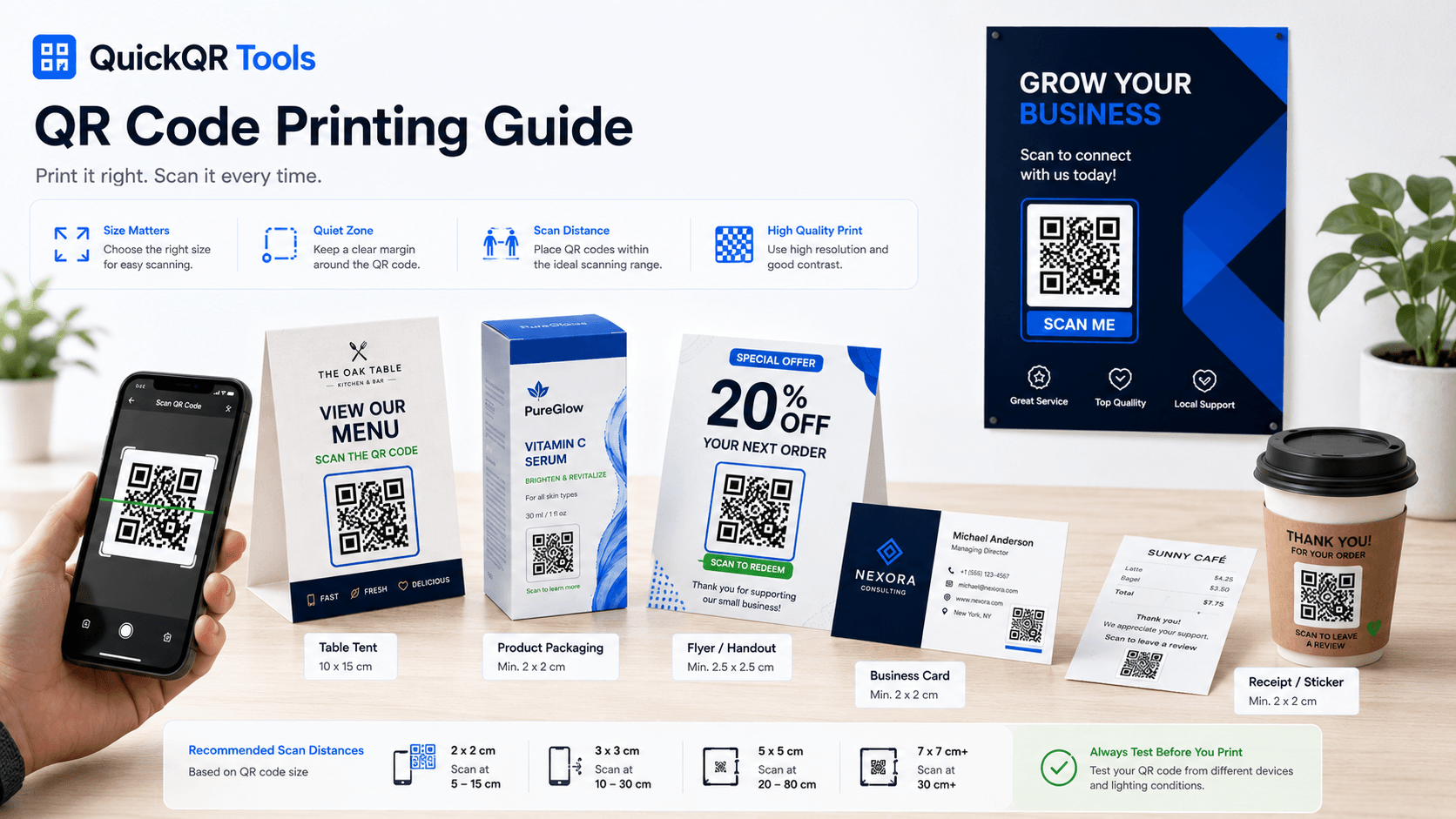
What This QR Code Printing Guide Covers
QR code printing looks simple until the code is too small, too low contrast, too close to an edge or placed where people cannot scan it comfortably. A QR code that works perfectly on a screen can fail on paper if the print material, layout or scan distance is not planned correctly.
This QR code printing guide covers the practical rules businesses need before printing QR codes on menus, flyers, posters, table cards, packaging, receipts, labels, signs and business cards. It focuses on clear decisions, not technical complexity.
Use this guide before sending artwork to print, publishing a campaign or ordering large quantities of printed materials. A few minutes of testing can prevent wasted paper, missed scans and a poor customer experience.
Choose a QR size that matches the real distance between the customer and the printed material.
Keep the QR code easy to see, with strong contrast and enough quiet space around it.
Scan the final design on real phones before printing large batches.
What Is QR Code Printing?
QR code printing is the process of placing a scannable QR code on a physical material so people can use their phone to open a digital destination. That destination might be a website, menu, Google review page, PDF, coupon, event page, social profile, vCard or payment page.
The printed code is only one part of the experience. The user sees the material, understands the call to action, scans the QR code and reaches a useful mobile page. If any part of that chain is weak, the scan rate drops.
Businesses use QR code printing because it connects offline moments to online actions. A restaurant table card can open a menu. A product package can open instructions. A flyer can open a landing page. A business card can save contact details. A poster can open an event registration page.
Why QR Code Printing Quality Matters
QR code printing quality matters because the cost of failure is higher than it looks. If a printed QR code does not scan, the business may lose traffic, orders, reviews, registrations, coupon claims or customer trust. The printed material may also need to be redesigned and reprinted.
A poor QR experience feels frustrating to the customer. They point the phone, wait, try again, move closer, change angle and eventually give up. That moment can make the business look less professional even if the destination page is good.
Good QR code printing removes friction. The code is large enough, contrast is clear, the quiet zone is respected, the destination works on mobile and the CTA explains why scanning is worth it. That combination makes the print material feel useful instead of confusing.
Printing quality affects
- Scan success and speed.
- Customer confidence.
- Campaign conversion rates.
- Cost of reprints and wasted materials.
- Brand perception on menus, packaging, cards and signs.
QR Code Printing Size Rules
QR code printing size should be based on how far people will stand from the printed material. A QR code on a business card can be smaller than a QR code on a poster because the user holds the card close. A QR code on a wall sign must be larger because users scan from farther away.
As a practical rule, start with at least 2 x 2 cm for close-range materials, then increase size as scan distance increases. For flyers and menus, bigger is usually safer. For posters, window signs and event signage, think about the real viewing distance, not only the design mockup on a screen.
For deeper sizing examples, read best QR code size for print materials. That article supports this QR code printing guide with more specific print scenarios. You can also use the QR Code Size Calculator to estimate a practical printed size before designing the final material.
| Print Material | Typical Scan Distance | Practical QR Size |
|---|---|---|
| Business card | Very close | Small but clearly separated, usually at least 2 x 2 cm. |
| Restaurant table card | Close table distance | Large enough to scan without leaning or zooming. |
| Flyer or handout | Handheld | Clear, centered or strongly visible near the CTA. |
| Poster | Several feet away | Large enough for people to scan while standing back. |
| Packaging | Handheld or shelf distance | Balanced with product design and protected from folds. |
| Window sign | Street or entrance distance | Large, high contrast and positioned at comfortable height. |
Scan Distance And QR Code Placement
Scan distance is one of the most important QR code printing decisions. A code that looks large in a design file may be too small when printed and viewed from across a counter, table, window or event space. Always judge size in the real environment.
Placement also matters. A QR code near the bottom of a poster may be hard to scan if people have to bend down. A QR code placed on a curved package may distort. A QR code on a glossy surface may reflect light. A QR code on a folded brochure may break across a crease.
When possible, place the code on a flat, stable, visible area. Keep it near the message that explains the action. If the CTA says “Scan to view menu,” the code should be next to that message, not hidden in a corner.
When the code will be scanned from a poster, window sign, event banner or table display, use the QR Code Distance Calculator to check whether the planned size matches the real scan distance.
Placement rules
- Put the QR code where the user naturally looks.
- Keep the code away from folds, edges, staples and curves.
- Avoid placing codes too low or too high for comfortable scanning.
- Match the QR size to the actual distance.
- Use a short CTA beside the code.
Contrast And Color For QR Code Printing
QR code printing works best when the code has strong contrast. The safest choice is a dark QR code on a light background. Black on white is the most reliable, but dark navy, deep blue or similar high-contrast colors can also work when tested carefully.
Avoid low contrast combinations, pale colors, busy photo backgrounds, transparent overlays and decorative patterns behind the code. If the background competes with the QR modules, phones may struggle to detect the code.
Brand colors are welcome, but scanability comes first. QuickQR uses blue, navy, green, white and light backgrounds because they support a professional business look while keeping enough contrast for practical use.
Dark QR code on a clean light background with strong contrast.
Brand-colored QR codes, only after testing the final printed version.
Low contrast, transparent backgrounds, gradients, busy photos and tiny decorative codes.
Quiet Zone And Margins Around Printed QR Codes
The quiet zone is the clear space around a QR code. It helps phones understand where the QR code starts and ends. If text, borders, images or other design elements are too close, scanning may become less reliable.
Do not crop the QR code tightly. Do not place it directly against the edge of a card, menu or label. Do not overlap it with icons, stickers, logos or decorative lines. A printed QR code needs breathing room.
In practical design terms, leave a clean margin around the code. The margin should be visibly empty and should contrast with the QR modules. This is especially important on small materials such as business cards, labels and receipts.
Resolution And File Formats For QR Code Printing
QR code printing needs a clean source file. Do not use a blurry screenshot, compressed preview image or code copied from a small screen. A low-quality source can create soft edges, pixel artifacts or unreadable modules after printing.
For simple use, PNG can work well when exported at a large enough size. For professional design and scaling, SVG is often better because it can remain sharp at different sizes. PDF is useful when placing the QR code into documents or sending print-ready material.
QuickQR Tools is built around practical downloads for business use. When creating a QR code, choose the format that matches the print workflow and test the final exported design before printing.
If you are printing a downloadable document, create the destination with the PDF QR Code Generator. For broader planning, connect this guide with the Ultimate QR Code Guide and the QR Code Marketing Guide.
| Format | Best Use | Printing Note |
|---|---|---|
| PNG | Simple flyers, menus, documents and web-to-print workflows. | Export large enough and avoid resizing from a tiny image. |
| SVG | Professional layouts, logos, packaging and designs that need scaling. | Best for sharp edges when supported by the design tool. |
| Documents, menus, print handoffs and business materials. | Useful when the entire document needs to stay print-ready. |
The QR code symbol is standardized internationally. For technical reference, see the QR code standard.
QR Code Printing For Flyers And Posters
Flyers and posters are common QR code printing materials because they promote an action. The user might scan to open an event page, coupon, product page, booking form, restaurant menu, real estate listing or social profile.
The biggest mistake is adding a QR code without explaining why someone should scan. A poster that says only “Scan me” is weaker than one that says “Scan to book your table,” “Scan for event tickets” or “Scan for 20% off your next order.”
Place the QR code near the call to action and make it large enough for the real viewing distance. A QR code on a poster should often be much larger than a QR code on a handheld flyer. Test from the same distance that customers will use.
Flyer and poster checklist
- Use one main QR action per printed piece.
- Make the CTA specific and benefit-driven.
- Keep the QR code away from the trim edge.
- Test the printed sample from real distance.
- Send people to a mobile-friendly landing page.
QR Code Printing For Restaurant Menus And Table Cards
Restaurants use QR code printing for menus, WiFi access, Google reviews, reservations, promotions and loyalty offers. A table card can carry a menu QR code, while a receipt or thank-you card can carry a review QR code. Each QR code should have a clear purpose.
For menus, place the code at a comfortable scan distance and keep the card clean. Guests should not need to zoom, rotate the card or guess what the QR code opens. “Scan to view menu” is enough. For review cards, use polite wording after the meal.
Use the Menu QR Code Generator for digital menus. For a broader workflow, read the Restaurant QR Code Guide.
Place the code where guests can scan while seated, with a direct mobile menu link.
Add a Google review QR code after service, with a polite message.
Use QR codes for reorder links, coupons, social profiles or care instructions.
QR Code Printing For Packaging And Retail
Packaging QR codes can connect products to instructions, videos, ingredients, warranty pages, care guides, coupons, product registration, reviews or reorder pages. This is powerful because the customer already has the product in hand.
Packaging introduces extra printing challenges. The QR code may appear on curved surfaces, textured materials, small labels, glossy finishes or flexible bags. Test the code on the actual material when possible. A code that scans on a flat PDF preview may not scan as well on a curved bottle or crinkled bag.
Retail QR codes should also match the customer moment. On shelf tags, the code may open product details. On packaging, it may open instructions or a reorder page. On promotional inserts, it may open a coupon. Use the Coupon QR Code Generator when the scan goal is an offer.
Packaging tips
- Keep the QR code on a flat area whenever possible.
- Avoid placing codes over folds, seams or highly reflective zones.
- Use strong contrast against the packaging color.
- Test after printing on the actual material.
- Send users to a page that loads quickly on mobile.
QR Code Printing For Business Cards
Business cards have limited space, so QR code printing needs extra care. The code should be large enough to scan, separated from the edge and paired with a clear purpose. A vCard QR code can let someone save contact details quickly, while a website QR code can open a portfolio, booking page or company profile.
Do not reduce the QR code until it becomes a tiny design detail. A business card is held close, but the code still needs enough size and quiet zone. Avoid placing it too close to dense text, logos or decorative patterns.
Use the vCard QR Code Generator to share contact information from a printed card. For general website links, use the free QR code generator.
Static Vs Dynamic QR Codes For Printed Materials
Static QR codes are simple and reliable when the destination will not change. They are a good fit for many business cards, menus, PDFs, contact pages and evergreen landing pages. QuickQR Tools focuses on generous static QR code creation for practical business use.
Dynamic QR codes are useful when a printed destination may need to change later, such as a campaign landing page, seasonal offer, event page or large print run. If the printed material is expensive or distributed widely, destination flexibility can be valuable.
Before printing thousands of pieces, decide whether the destination might change. If it might, consider the long-term workflow. For a deeper comparison, read Static vs Dynamic QR Codes.
How To Test A QR Code Before Printing
Testing is the simplest way to protect a QR code printing project. Do not approve the design only because the code works on your computer screen. Export the final file, print a sample and scan it in real conditions.
Use multiple phones when possible. Test iPhone and Android. Test in normal lighting and lower lighting. Test from the expected distance. Test after the QR code has been placed inside the final design, not only as a standalone code.
Create the QR code with the correct destination using the relevant QuickQR generator.
Add the code with enough size, contrast and quiet zone.
Use the same format you plan to send to print or publish.
Print at actual size, not only a scaled preview.
Use several phones, distances and lighting situations before approving the job.
Common QR Code Printing Mistakes
Most QR code printing problems are preventable. They happen because the code is treated as a small design element instead of a functional part of the customer journey. The code must be designed, placed and tested like any other conversion element.
- The QR code is too small for the scan distance.
- The contrast is too weak.
- The quiet zone is removed or covered.
- The code is placed on a fold, curve or glossy reflection point.
- The source file is blurry or copied from a screenshot.
- The CTA does not explain what happens after scanning.
- The destination page is slow or not mobile-friendly.
- The link is not tested after export.
- The wrong QR code is printed for the wrong location or campaign.
- The printed material is approved without a real scan test.
These mistakes can affect menus, event posters, coupons, packaging, business cards and printed PDFs. A simple checklist prevents most of them.
QR Code Printing Checklist
Use this checklist before printing any business QR code. It works for restaurants, retail stores, local businesses, events, packaging, business cards and marketing campaigns.
Confirm the QR destination, goal, CTA and print material.
Protect size, contrast, quiet zone, placement and mobile readability. Use the size and distance calculators if the code will be printed.
Export, print a sample, scan on real phones and approve only after testing.
Final pre-print checks
- The QR code opens the correct page.
- The destination works on mobile.
- The QR code is large enough for the scan distance.
- The design has enough contrast.
- The quiet zone is visible.
- The CTA is clear.
- The printed sample scans quickly.
- The file name and campaign destination are documented.
FAQ About QR Code Printing
What size should a printed QR code be?
A printed QR code should be large enough for the scan distance. For close-range materials, start with at least 2 x 2 cm, then increase the size for flyers, posters, table cards, packaging and signs viewed from farther away.
Can QR codes be printed on business cards?
Yes. QR codes can be printed on business cards when they are large enough, have enough quiet space and are not crowded by text or design elements. A vCard QR code is useful for saving contact details.
What is the best file format for QR code printing?
SVG is often best for professional scaling, PNG can work for simple layouts when exported large enough and PDF is useful for print-ready documents. Avoid screenshots or low-resolution previews.
Can I print a QR code from a PNG?
Yes, you can print a QR code from a PNG if the image is exported at a sufficient size and remains sharp in the final design. Always test the printed sample before printing a large batch.
Do QR codes need a white border?
QR codes need a clear quiet zone around them. It does not always have to be pure white, but it should be clean, uncluttered and high contrast so phones can detect the code correctly.
Can I print QR codes in color?
Yes, but use strong contrast. Dark QR modules on a light background are safest. Avoid pale colors, busy backgrounds, gradients and low contrast combinations unless the printed version has been tested carefully.
How far away can people scan a QR code?
Scan distance depends on QR size, phone camera quality, lighting, contrast and placement. The farther away users stand, the larger the printed QR code should be.
Should I use static or dynamic QR codes for print?
Static QR codes are fine when the destination will not change. Dynamic QR codes are useful when the destination may need to be edited after printing, especially for large campaigns or expensive print runs.
Can QR codes be printed on packaging?
Yes. Packaging QR codes work well for product instructions, videos, coupons, registration, reviews and reorder pages. Place the code on a flat, visible area and test it on the actual material.
Why is my printed QR code not scanning?
Common reasons include small size, low contrast, missing quiet zone, poor resolution, glossy reflections, curved placement, damaged print quality or an incorrect final export. Test the code in the final printed context.
Should I test a QR code before printing?
Yes. Always test the final exported design, then print a sample and scan it with multiple phones at the real scan distance before approving the print run.
Can I use QuickQR Tools for commercial printed materials?
Yes. QuickQR Tools can be used to create static QR codes for business materials such as menus, flyers, cards, signs, packaging, coupons and printed PDFs.
Ready To Create A Print-Ready QR Code?
Use QuickQR Tools to generate a clear QR code for menus, flyers, packaging, business cards, coupons, PDFs and business campaigns. Choose the right tool, test the final design and print with confidence.