Events and meetings
Let people save your profile immediately after a conversation.
Business Contact QR Tool
Use this vCard QR code generator to create a professional contact QR code that helps people save your name, company, phone, email and website after one scan. Build a cleaner networking workflow for business cards, badges, sales materials and client follow-up.
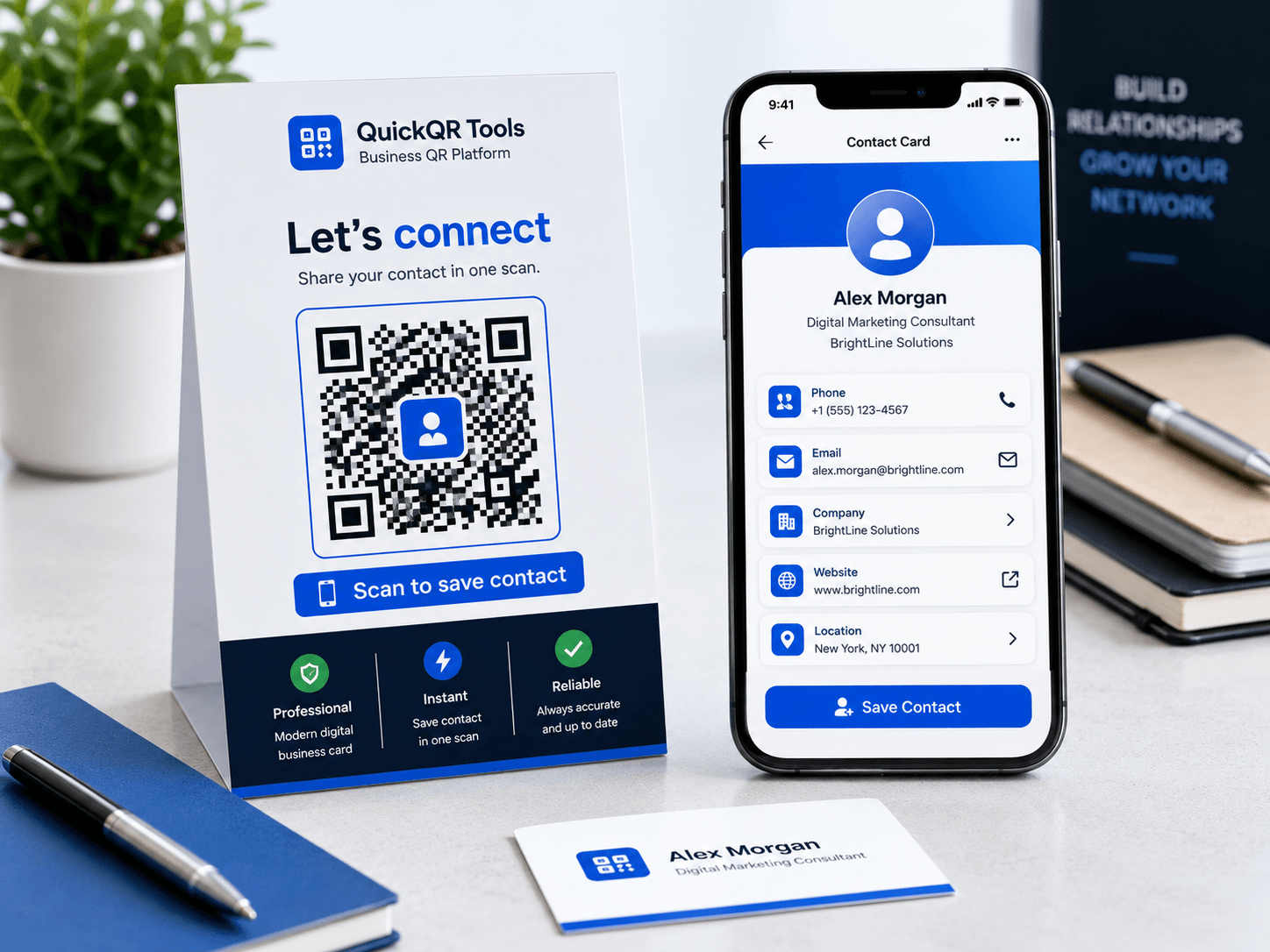
Fill the profile fields that should be saved when someone scans your QR code. This vCard QR code generator turns those details into a scannable digital business card.
Use the vCard QR code generator output on business cards, email signatures, badges, portfolios, brochures, reception desks or networking materials.
This vCard QR code generator helps people save your contact details without manually typing names, phone numbers or email addresses.
Let people save your profile immediately after a conversation.
Add a scannable contact card to printed cards and brochures.
Give prospects a fast way to store your sales or booking contact.
Share contact details from resumes, portfolios and personal websites.
Use the vCard QR code generator to create a QR code that stores contact information in a standard vCard format, then review the guide before adding it to a business card or printed material.
Enter your name, company, phone, email and website.
Create a scannable vCard QR code instantly.
Export the QR code as PNG, SVG or PDF.
Read the step-by-step guide for contact details, printing tips and business card placement.
Choose the right QR code size before printing business cards, brochures or badges.
Understand when a static vCard QR code is enough and when dynamic QR codes make sense.
A vCard QR code generator creates a scannable contact card that lets people save your name, phone, email, company, website and other details to their address book.
A vCard QR code is useful when you want people to keep your contact information after a meeting, event, appointment or sales conversation. Instead of typing your name, phone number, email address and website from a business card, the scanner can open contact details and save them to a phone address book.
This is different from a phone QR code, email QR code or WhatsApp QR code. Those tools start one action: call, email or chat. A vCard QR code stores a profile. That makes it especially useful for business cards, badges, portfolios, brochures, resumes, real estate cards, sales teams, consultants, freelancers and service providers.
The vCard QR code generator on this page builds vCard data, converts it into a QR code and lets you download the result as PNG, SVG or PDF. You can also copy the generated vCard text if you want to inspect or reuse the data.
Official vCard format referenceThe strongest vCard QR code generator use cases appear where people are likely to save your contact for future follow-up.
A useful vCard QR code generator setup includes enough information for follow-up without overloading the contact card.
Most professional vCard QR codes should include a name, job title, company, phone number, email address and website. These fields help the scanner understand who you are and how to contact you later. If the vCard is for a local business or office, adding a city or address can also be useful.
Think about the relationship you want to create. A sales rep may prioritize direct phone and email. A consultant may include a website and company name. A real estate agent may include phone, email, website and location. A freelancer may include a portfolio URL and a short note.
Only include information you are comfortable sharing. People may save the contact details from a vCard QR code, so the information should be accurate, professional and appropriate for the audience.
vCard QR codes can become dense because they encode multiple contact fields. A name, phone, email, website, company, title and note all add data. More data means more QR modules. Dense QR codes can still work, but they need enough size and print clarity.
If you add too much text, the QR code may become harder to scan on small business cards. Keep notes short and avoid unnecessary fields. For long bios, full portfolios or multiple links, use a URL QR code to a profile page instead.
The best vCard QR code balances usefulness and simplicity: enough information to save the contact, not so much that the code becomes fragile in print. This is why a vCard QR code generator should be used with focused, accurate contact fields.
Use these vCard QR code generator examples to decide which fields belong in your digital business card QR code.
| Use case | Recommended fields | Notes |
|---|---|---|
| Business card | Name, title, company, phone, email, website. | Best for everyday professional networking and follow-up. |
| Sales team | Name, company, direct phone, email, website, note. | Use direct contact details so prospects can reach the right person. |
| Real estate or local service | Name, phone, email, website, city or address. | Helpful when location and fast contact are important. |
| Portfolio or resume | Name, email, website, title, note. | Use the website field for a portfolio or professional profile. |
| Event badge | Name, company, title, email, website. | Useful for quick contact exchange during conferences and meetings. |
A vCard QR code generator saves a contact profile. Other contact QR codes start a specific communication action.
| QR code type | Best when | Recommended tool |
|---|---|---|
| vCard QR code | You want someone to save your contact details for later. | Use this vCard QR Code Generator. |
| Phone QR code | You want the scanner to call a number immediately. | Use the Phone QR Code Generator. |
| Email QR code | You want a ready-to-send email with subject and message. | Use the Email QR Code Generator. |
| WhatsApp QR code | You want to open a chat conversation with a prefilled message. | Use the WhatsApp QR Code Generator. |
| SMS QR code | You want to prepare a short text message. | Use the SMS QR Code Generator. |
A vCard QR code generator output on a business card should be easy to scan, clearly labeled and large enough for print.
Most vCard QR code generator outputs are static because they store the contact data directly inside the QR code.
A static vCard QR code is enough when your contact details are stable. This works well for business cards, badges, brochures, resumes, portfolios and printed materials where your phone, email and website will stay the same for a while.
Static vCard QR codes are simple because they do not depend on a redirect service. The contact data is encoded in the QR code itself. That makes the code fast and practical for offline sharing, especially at events and meetings.
The limitation is that printed static QR codes cannot be edited after printing. If your phone number, email address or company changes, you need a new QR code and new printed materials.
If your contact details may change often, use a URL QR code to a profile or contact page you control. That page can include your phone, email, social links, calendar link, portfolio and downloadable vCard file. If details change later, you update the page instead of reprinting the QR code.
A URL profile page is also useful when you want analytics, multiple links or richer content. A direct vCard QR code is best when the main goal is saving contact details immediately. A profile page is best when the user may need more context first.
Choose based on the purpose of the material: direct save for fast networking, profile page for flexible long-term contact management.
A vCard QR code generator creates data meant to be saved, so every field should be intentional and appropriate for the audience.
Only include contact details you want people to store. For most professional use cases, a business phone number, work email, company name and website are enough. Avoid adding private home addresses or personal phone numbers unless that is truly appropriate.
If the vCard QR code appears on public materials, assume anyone can scan it. Business cards, brochures, badges and event displays may be photographed or shared later. Keep the data professional and durable.
A short note can help explain who you are, but avoid long biographies. If you need a full profile, send users to a web page instead.
A consultant, salesperson, real estate agent, restaurant manager, freelancer and event organizer may all need different contact details. The best vCard QR code reflects how people should follow up after meeting you.
If calls matter, include a direct phone number. If formal requests matter, include email. If your portfolio drives decisions, include the website. If location matters, include city or address. The goal is to make the next step easy after the contact is saved.
Good contact sharing is not about adding every possible field. It is about adding the fields that make follow-up easier.
Avoid these vCard QR code generator mistakes before printing on business cards, badges or professional materials.
Too much contact data can make the QR code dense and harder to scan, especially on small business cards. Keep the vCard focused. Include the fields people actually need for follow-up, then use a website link for richer details.
Long notes, multiple addresses and unnecessary fields can reduce scan reliability. If the printed size is small, simplify the vCard. The QR code should scan quickly in normal lighting and from the expected distance.
Always test the final printed proof, not only the digital preview. Small cards, textured paper and low contrast designs can change scan behavior, even when the vCard QR code generator output looks clean on screen.
Scanning is only the first step. After scanning, save the contact on a phone and check how the fields appear. Confirm name order, company, title, phone, email, website and note. Some contact apps display fields differently, so testing matters.
A typo in an email address or phone number can follow someone into their address book. That is worse than a typo on a flyer because the saved contact may be used later. Review carefully before printing.
If you are printing cards for a team, test several sample profiles before producing the full batch.
A vCard QR code stores contact data in a format that many phones and contact apps can recognize after scanning.
When someone scans a vCard QR code, the phone reads the contact data and usually offers to create or save a contact. The exact screen can vary by device. Some phones show a preview card first. Others open the contacts app or ask which app should handle the contact data.
The user remains in control. The scan prepares the contact profile, but the user chooses whether to save it. This is important because it keeps contact saving intentional and avoids silently adding unknown details to an address book.
Because contact apps can display fields differently, always test the QR code on more than one device. Save the contact, then review how the name, company, phone, email, website and note appear. The QR code may scan correctly, but the saved contact should also look professional.
Clean contact data improves compatibility. Use a normal phone number, a valid email address, a complete website URL and a short note. Avoid unusual symbols, very long descriptions or unnecessary fields. The simpler the contact card, the more predictable the result across devices.
If the website field is important, include the full URL with https. If the phone number is important for international contacts, use international format. If the person may search contacts later, make sure the name and company are clear.
A vCard QR code is not only a design element. It becomes part of someone's address book. Treat the data like a small professional profile.
Placement should match the moment when someone may want to save your contact for later.
Business cards are the classic place for a vCard QR code. A printed card gives a quick visual impression, and the QR code gives the recipient a way to save accurate details. This is especially useful after conferences, trade shows, client meetings and networking events where people collect many cards.
Badges and booth materials can also work well. A badge QR code makes it easy for someone to save your contact during a conversation. A booth sign can help visitors save the sales or support contact for follow-up after the event.
Use a short call to action such as "Scan to save my contact" or "Save this business card". The label should make it clear that the scan creates a contact, not a website visit or payment action.
vCard QR codes can also be useful on resumes, portfolios, proposals, brochures and service sheets. A recruiter, client or buyer can save the contact without typing details manually. This is helpful when the printed piece may be reviewed later or passed to another person.
For local service businesses, a vCard QR code can appear on appointment cards, estimate sheets, magnet cards and leave-behind materials. If the customer saves the contact, it is easier for them to call, email or visit your site later.
For teams, keep the card design consistent but generate each person's vCard QR code separately. That preserves the brand while giving each contact accurate direct details.
A vCard QR code should be readable, clearly labeled and easy to scan on the material where it appears.
People should know what happens before they scan. A vCard QR code should have a label such as "Scan to save my contact" or "Save contact details". This reduces uncertainty and helps the code perform better on printed materials.
If the material includes several QR codes, label each one. A vCard QR code, phone QR code, email QR code and website QR code all have different actions. The user should be able to choose the right code without scanning blindly.
Clear labels are especially helpful at events where people move quickly. The faster someone understands the value of the scan, the more likely they are to use it.
Business cards are small, and vCard QR codes can be denser than simple URL codes. That makes testing essential. Print a proof, scan it with different phones and confirm that the saved contact looks right. Do not rely only on the vCard QR code generator preview.
Use strong contrast and enough quiet space around the QR code. Avoid placing the code over textures, dark photos or decorative patterns. If the card uses premium paper, embossing or glossy finishes, test under real lighting.
A vCard QR code should feel effortless: scan, preview, save. If the code is too small or too dense, the experience breaks at the exact moment when someone is trying to save your details.
Static vCard QR codes do not automatically include analytics, but you can still learn from how and where they are used.
If you want to understand which materials drive follow-up, create slightly different contact details or notes for major placements. For example, a conference badge can include a note mentioning the event, while a proposal leave-behind can include a note about consultation follow-up. When people contact you later, those details can provide context.
For teams, use separate vCard QR codes for each person. This makes follow-up more direct and helps you understand which representatives, events or printed materials create useful contacts.
If you need true scan analytics, use a URL QR code to a profile page instead. The profile page can track visits, show a downloadable contact file and include multiple contact options.
A saved contact is only valuable if it helps future communication. Make sure the phone number, email and website in the vCard are monitored and up to date. If the contact points are not active, the saved card will not help the relationship.
For sales teams, a vCard QR code can support follow-up after a conversation. For consultants, it can make it easier for prospects to reach out later. For local businesses, it can help customers keep the direct contact details they may need again.
Think of the vCard QR code as a small bridge between the first meeting and the next conversation.
A final pre-print check prevents small contact mistakes from becoming hundreds of printed cards with wrong details.
Scan the QR code, save the contact and open the saved entry. Confirm that the first name, last name, company, phone, email, website and note appear where you expect them. A vCard QR code generator can create valid QR data, but the saved contact still needs a real phone check.
Ask another person to scan it too. A second phone and a second set of eyes can catch mistakes before printing. This is especially important for team cards, event badges and business cards ordered in bulk.
Keep enough white space around the QR code and avoid placing it too close to the edge of the card. If the design uses dark backgrounds or brand colors, test contrast carefully. A beautiful card is only useful if the QR code scans quickly.
For premium print finishes, request a proof when possible. Gloss, texture, foil and small card sizes can change how phone cameras read the code. A quick test protects the contact-sharing experience.
Use these guides to prepare contact QR codes for business cards, networking, sales materials and print workflows.
Plan vCard, LinkedIn, phone, email, portfolio and booking QR codes for printed business cards.
Use contact QR codes with reviews, offers, quote requests and printed customer touchpoints.
Add agent contact QR codes to property signs, open house sheets, brochures and business cards.
Use contact QR codes on creator cards, merch tables, media kits, posters and event booths.
Understand QR code formats, static codes, print rules and professional QR workflows.
Prepare vCard QR codes for business cards, badges, brochures and other small-format print materials.
Use contact QR codes in campaigns, sales handouts, events and offline-to-online business journeys.
Follow the step-by-step article for adding a contact QR code to a professional business card.
Before printing a vCard QR code on business cards, badges, brochures, sales sheets or event materials, use these QR utilities to check scan quality, print size, distance and contrast.
Test the vCard QR code on real phones before ordering cards, badges or printed contact materials.
Choose a practical QR size for business cards, name badges, brochures and small-format print layouts.
Estimate scan distance for posters, event boards, booth signs and larger networking displays.
Check whether branded card colors, dark backgrounds and premium print designs keep the QR code readable.
Review verified QR code statistics for mobile scanning, business usage and print-to-digital contact sharing.
Answers to common questions about vCard QR codes.
Yes. You can create a free static vCard QR code with contact details.
The QR code opens contact information that can be saved to the user's address book.
Yes. vCard QR codes are useful for business cards, badges, portfolios and printed contact materials.
Yes. You can download the generated QR code as PNG, SVG or PDF.
Include the details people need for follow-up, usually name, title, company, phone, email and website.
Use a vCard QR code when you want someone to save your full contact profile. Use a phone QR code when you want an immediate call.
Use PNG for simple sharing, SVG for scalable design work and PDF when you want a print-ready file.
Not inside a static vCard QR code. If details may change, use a URL QR code that points to a profile page you control.
Create QR codes for URLs, WiFi, WhatsApp, email, SMS and phone numbers.
Explore the full QuickQR Tools business QR toolkit for contact, marketing, restaurant and social QR codes.
Create a QR code for any website link.
Let visitors connect to WiFi by scanning a code.
Open a WhatsApp chat with a prefilled message.
Open a ready-to-send email from a scan.
Prepare a text message for instant sending.
Let visitors call a number after scanning.
The Business QR Toolkit
Create a professional contact QR code for business cards, event badges, sales materials and client follow-up. Generate it free, test it on mobile and download a clean file for print or digital use.