Google Review QR Code Guide For Local Businesses
A Google review QR code helps customers open your review page faster after a visit, purchase or service experience. This guide shows local businesses how to create, place and use review QR codes professionally, without pressure, confusion or poor customer experience.
What This Google Review QR Code Guide Covers
A Google review QR code is a practical way to reduce friction between a satisfied customer and your Google review page. Instead of asking someone to search for your business later, you give them a clear scan path at the moment when the experience is still fresh.
This Google review QR code guide covers how review QR codes work, where to place them, what to say, how to avoid risky review practices and how restaurants, salons, clinics, retail shops and local service businesses can use them professionally.
Use this Google review QR code guide before printing review cards, receipts, table signs, checkout displays, appointment cards or packaging inserts.
Use a polite message that tells customers exactly what the QR code opens.
Use the QR code after a positive experience, not before the customer has received value.
Make honest feedback easier without pressure, gating, fake reviews or misleading incentives.
What Is A Google Review QR Code?
A Google review QR code is a QR code that opens a business review destination on Google. Customers scan it with their phone, reach the review page more quickly and can leave feedback without searching manually for the business name.
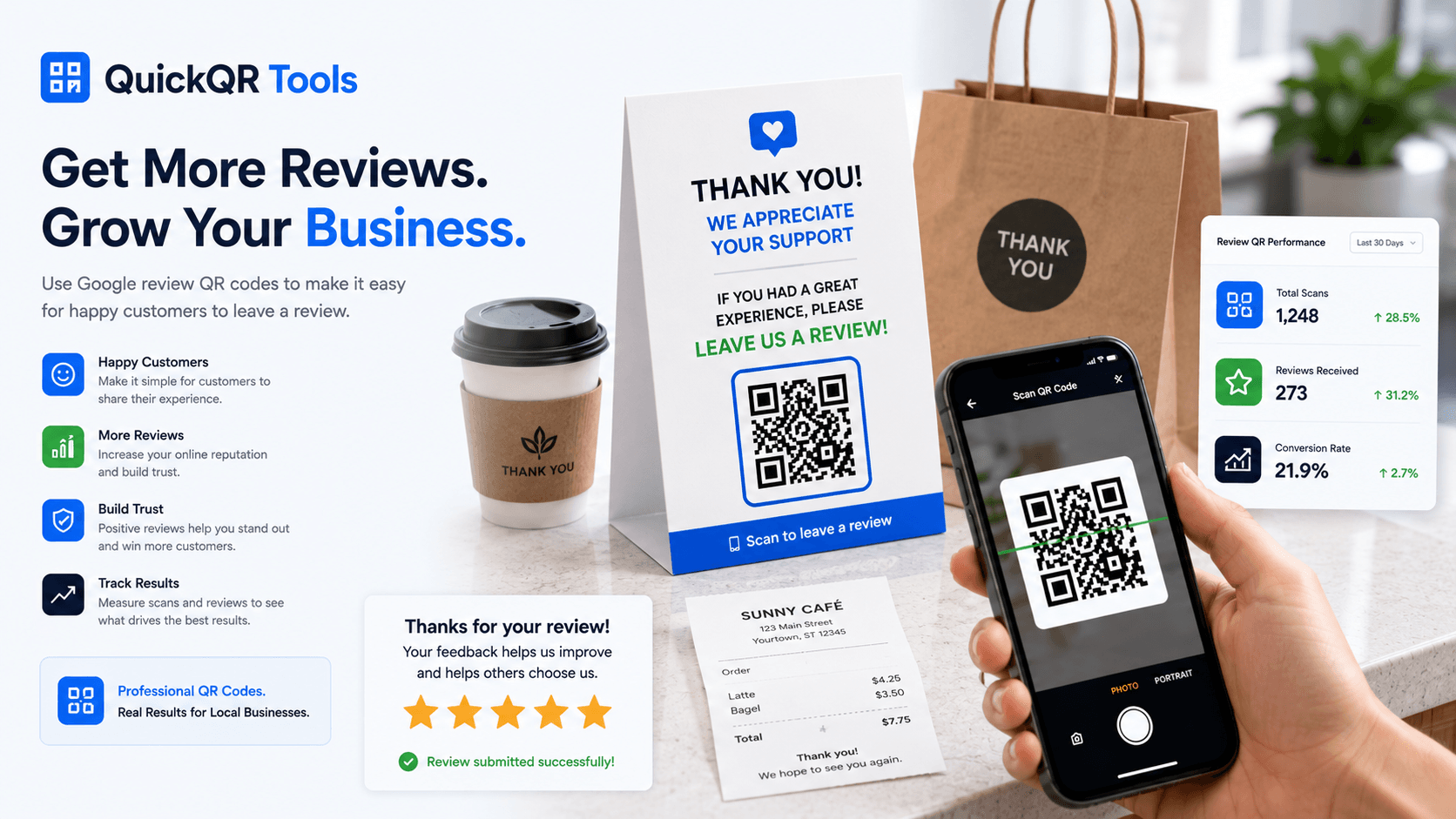
For local businesses, this matters because customers are often willing to review when the timing is right, but they may forget later. A Google review QR code removes steps. It can be placed on a receipt, table card, checkout sign, thank-you card, invoice, appointment card or takeaway insert.
The QR code does not guarantee reviews, and it should never pressure customers. Its job is to make the path easier for people who already want to share feedback.
Why Google Reviews Matter For Local Businesses
Google reviews influence how people evaluate local businesses. Before booking a table, calling a service provider or visiting a shop, many customers check ratings, recent feedback and review volume. Reviews help people decide whether a business feels trustworthy.
For restaurants, reviews can affect first impressions before someone sees the menu. For salons, clinics, repair shops and local services, reviews often act as social proof. A steady flow of honest reviews also shows that a business is active and serving real customers.
A Google review QR code supports this process by making it easier for satisfied customers to take action. It does not replace good service. It simply reduces friction after good service has happened.
Review benefits
- Build trust with new customers.
- Show recent customer experiences.
- Support local reputation and word of mouth.
- Give teams useful feedback.
- Make review requests easier to include in offline materials.
How Google Review QR Codes Work
A Google review QR code works by encoding a review link or review destination into a scannable QR code. When the customer scans it, the phone opens the Google review page or the review flow associated with the business.
The quality of the link matters. If the link opens the wrong location, a generic search result or a page that creates confusion, the customer may abandon the action. Before printing the QR code, test it on multiple phones and make sure it opens the intended review path.
Use the Google Review QR Code Generator to create the code. For detailed steps, read how to create a Google Review QR code.
How To Create A Google Review QR Code
The creation process is simple when the review link is correct. First, find the review destination for your Google Business Profile. Then generate a QR code, test it and place it where customers can scan at the right time.
Use the correct Google review destination for the exact business location you want customers to review.
Paste the link into the Google Review QR Code Generator and generate a clean code.
Use wording such as “Enjoyed your visit? Scan to leave a review.”
Scan from different phones and make sure the review flow is correct.
Show the review request after service, purchase, appointment or delivery.
If you also need general QR links for landing pages, use the free QR code generator. For all formats, start from All QR Code Tools.
Where To Place Google Review QR Codes
Placement should match the customer journey. A review request is strongest after a positive experience, not before the customer has received value. The best placement feels natural and gives the customer enough time to scan.
| Placement | Best For | Suggested CTA |
|---|---|---|
| Receipt | Restaurants, retail, services | Enjoyed your visit? Scan to leave a review. |
| Thank-you card | Clinics, salons, service businesses | Your feedback helps us improve. |
| Table card | Restaurants and cafes | Had a great meal? Review us on Google. |
| Invoice | Contractors and local services | Happy with the service? Leave a review. |
| Packaging insert | Retail and takeout | Tell us about your experience. |
| Front desk sign | Hotels, salons, clinics | Scan to share your feedback. |
Keep the design uncluttered. The QR code, the message and the business name should be easy to understand at a glance.
Google Review QR Codes For Restaurants
Restaurants are a natural fit for review QR codes because the experience is immediate. A guest leaves a table, pays a bill, picks up takeout or receives catering. If the experience was positive, a polite review request can appear at the right moment.
Good restaurant placements include receipts, bill folders, takeaway bags, thank-you cards, table cards and counter signs. The message should be short and respectful. Restaurants should also keep review requests separate from menu access so guests do not confuse the purpose of the scan.
For broader restaurant QR workflows, read the Restaurant QR Code Guide. You can pair review QR cards with Menu QR codes, WiFi cards and seasonal offer cards when each code has a clear role.
Google Review QR Codes For Local Businesses
Local businesses often rely on trust before a customer makes contact. Review QR codes can help salons, clinics, dentists, auto repair shops, plumbers, real estate agents, retailers, hotels and service providers make feedback easier to submit.
The best review request is tied to a completed experience. A salon may place the card at checkout. A plumber may include it with the invoice. A clinic may place it near reception after an appointment. A retailer may add it to a bag insert. Each placement should feel like a natural follow-up.
Businesses that serve multiple locations should create review QR codes for the correct location. Sending customers to the wrong profile can confuse customers and weaken the value of the review request.
Add a review QR code to invoices, job completion cards or follow-up materials.
Use bag inserts, counter signs and thank-you cards after purchase.
Ask politely after appointments, using a calm and professional message.
How To Ask For Reviews Professionally
Review requests should be respectful. The goal is to invite honest feedback, not pressure the customer. Ask at the right time, keep the message short and make the process easy.
Good wording focuses on the customer experience. “If you enjoyed your visit, we’d appreciate your review” is better than aggressive or manipulative language. Staff should know when to mention the QR code and when not to. If a customer is upset, the priority should be service recovery, not a public review request.
Professional wording examples
- Enjoyed your visit? Scan to leave us a Google review.
- Your feedback helps our small business grow.
- Happy with the service? We would appreciate your review.
- Tell us about your experience on Google.
Review requests work best when they are part of a genuine customer service culture. Good service creates the review opportunity; the Google review QR code simply makes the next step easier.
What To Avoid With Google Review QR Codes
Review quality matters. Businesses should avoid practices that create misleading feedback or make customers feel pressured. A QR code should not be used to manipulate reviews. It should create a simple path for honest customers to share their experience.
Review policies can change, so businesses should always respect current platform rules. Start by reviewing Google review policies before creating aggressive campaigns or incentives.
- Do not create fake reviews.
- Do not pressure customers to leave only positive reviews.
- Do not hide the review request behind misleading wording.
- Do not offer inappropriate incentives for reviews.
- Do not send customers to the wrong business location.
- Do not ask staff, friends or owners to create misleading feedback.
How To Respond After Customers Leave Reviews
A Google review QR code helps customers reach the review page, but the business still needs a response process. Reviews are public signals. When a business replies professionally, future customers can see that the team listens, appreciates feedback and takes service seriously.
Positive reviews should receive a short, genuine thank-you. The reply does not need to be long. It should mention appreciation and, when natural, refer to the service or visit. Avoid robotic copy that looks identical on every review. A personal but simple response feels more trustworthy.
Critical reviews should be handled calmly. Do not argue publicly. Acknowledge the concern, invite the customer to continue the conversation privately when appropriate and show future readers that the business cares about improvement. The goal is not to win an argument; it is to show professionalism.
This is where a Google review QR code becomes part of a larger reputation workflow. The QR code brings feedback in. The response process helps turn feedback into trust, learning and better customer service.
Respond to positive reviews with a short, human thank-you.
Handle negative reviews with professionalism and no public arguments.
Watch repeated comments about service, speed, quality or communication.
Google Review QR Codes For Multi-Location Businesses
Multi-location businesses need extra care because each location may have its own Google Business Profile. A review QR code should send customers to the correct location, not to the main brand profile or another branch. This is especially important for restaurants, salons, clinics, hotels, franchises and service businesses with several offices.
Create a separate Google review QR code for each location. Label the files clearly before printing. For example, use names like downtown-review-card, westside-receipt-review or airport-hotel-front-desk-review. This prevents teams from accidentally printing the wrong code.
Consistency still matters. Even when each location uses a different review link, the design, tone and message can stay consistent across the brand. Customers should see the same level of professionalism whether they visit one location or another.
Managers should also review performance by location. If one location receives more reviews after adding table cards or receipt inserts, another location can test the same placement. The QR system becomes a way to improve customer feedback across the business, not just a printed asset.
Build A Simple Review Request Workflow
The best review systems are easy for staff to remember. If the process is complicated, it will not be used consistently. A simple workflow can define when to mention the review card, where the printed QR code sits and how the team should explain it.
For a restaurant, the review card may go inside the bill folder. For a salon, it may sit near checkout. For a contractor, it may be included with the final invoice. For a clinic, it may appear after the appointment. Each business should choose the moment when the customer has already received value.
Staff training should be light and respectful. A good phrase might be: “If you had a good experience, this QR code makes it easy to leave us a Google review.” That wording invites feedback without making the customer feel obligated.
Keep the printed materials organized. Store the latest QR files, review card designs and destination links in one folder so the team can reprint the correct version. Review the process every month and remove outdated cards or old campaign messages.
Ask after the customer has received value, not before.
Give staff a polite sentence they can say naturally.
Make review cards, receipts or signs easy to access and replace.
Check links, print quality, placement and staff confidence.
Review Card And Print Best Practices
A review QR card should be easy to read and easy to scan. Use a strong contrast QR code, enough white space, a short CTA and a print size that matches the distance. Receipts can use smaller codes than posters, but every printed code should be tested before use.
Keep the card focused. Do not crowd it with too many messages, icons or codes. A simple card with your business name, a polite message and one QR code is usually stronger than a busy design.
For print sizing, read the best QR code size for print materials guide. For broader campaign planning, use the QR Code Marketing Guide.
Print checklist
- Use a clear CTA beside the code.
- Keep strong contrast.
- Leave a quiet zone around the QR code.
- Test on multiple phones.
- Replace damaged cards quickly.
Review Request Message Examples
The words next to the QR code matter. A customer should understand the request without feeling pushed. Keep the message short, polite and specific to the experience. Avoid exaggerated promises, pressure or language that suggests only positive reviews are welcome.
For a restaurant receipt, a friendly line can work well: “Enjoyed your meal? Scan to leave us a Google review.” For a service invoice, use a professional tone: “Happy with the service? Your review helps our local business.” For a clinic or salon, use a calm message: “Your feedback helps our team improve.”
Short messages usually perform better because they are easier to read on printed materials. Put the benefit first, keep the QR code close to the message and make sure the customer knows the scan opens Google reviews.
| Situation | Message | Why It Works |
|---|---|---|
| Restaurant receipt | Enjoyed your visit? Scan to leave a Google review. | It connects the request to the fresh dining experience. |
| Service invoice | Happy with the service? Your review helps our local business. | It is polite and explains why feedback matters. |
| Retail bag insert | Tell us about your experience on Google. | It is direct and easy to understand after purchase. |
| Salon checkout | Love your result? Scan to share your feedback. | It matches the emotional moment after the service. |
| Hotel checkout | How was your stay? Scan to leave a review. | It asks at the right time, when the visit is complete. |
Track And Improve Review Requests
You can improve review requests by watching simple signals over time. Are more reviews appearing after the card is introduced? Are staff using the card consistently? Are certain placements working better than others? Small observations can improve the system.
If you use static QR codes, one easy method is to create different printed materials for different placements and observe review growth after each change. Later, dynamic QR codes and analytics can support more detailed measurement, but a local business can start with simple tracking habits.
Make review requests part of the customer journey. A restaurant may use receipts. A clinic may use appointment checkout. A retailer may use package inserts. The right moment is usually after the customer has received value and before the memory fades.
For static and dynamic tradeoffs, read static vs dynamic QR codes. For a broader QR foundation, read the Ultimate QR Code Guide.
Google Review QR Code Examples
Examples help make a review QR system easier to plan. The same Google review QR code can work across many industries, but the message and placement should match the customer moment.
| Business | Placement | CTA |
|---|---|---|
| Restaurant | Receipt or takeaway bag | Enjoyed your meal? Scan to review us. |
| Salon | Mirror card or checkout desk | Love your result? Share your review. |
| Clinic | Reception card | Your feedback helps our team improve. |
| Plumber | Invoice or job card | Happy with the service? Leave a review. |
| Hotel | Checkout card | Tell us about your stay. |
| Retail shop | Bag insert | Share your experience on Google. |
| Real estate | Closing packet | Review your experience with our team. |
Google Review QR Code FAQ
What is a Google review QR code?
A Google review QR code is a scannable QR code that opens a Google review destination for a business, helping customers leave feedback more quickly.
How do I create a QR code for Google reviews?
Find the correct Google review link for your business, paste it into a Google Review QR Code Generator, generate the code, test it and print it with a clear review request.
Can a QR code link directly to Google reviews?
Yes, a QR code can open a Google review destination when it uses the correct review link for the business profile or location.
Are Google review QR codes free?
Static Google review QR codes can be created for free with QuickQR Tools. The code keeps working as long as the review link remains valid.
Where should I place a Google review QR code?
Good placements include receipts, thank-you cards, checkout signs, table cards, invoices, packaging inserts, appointment cards and front desk displays.
Can restaurants use Google review QR codes?
Yes. Restaurants can use review QR codes on receipts, bill folders, table cards, takeaway bags and thank-you cards after a guest experience.
Can I offer a discount for Google reviews?
Be careful with incentives. Businesses should follow Google review policies and avoid practices that pressure customers or create misleading feedback.
Do Google review QR codes expire?
Static review QR codes do not expire by themselves, but they depend on the review link staying valid and pointing to the correct business profile.
How can I get more Google reviews ethically?
Provide a good customer experience, ask politely at the right time, make the review path easy and avoid pressure, fake reviews or misleading incentives.
What should a review QR card say?
A review QR card should use a simple message such as “Enjoyed your visit? Scan to leave a Google review” or “Your feedback helps our small business grow.”
Can I print a Google review QR code?
Yes. You can print it on receipts, cards, posters, invoices, packaging inserts and counter signs as long as the code is large enough and tested before use.
Can a Google review QR code help local customers trust my business?
Yes. A Google review QR code makes it easier for happy customers to leave feedback after a real visit, purchase or appointment. More honest reviews can help new local customers feel more confident when choosing your business.
Create Your Review QR Code
Use QuickQR Tools to create a Google review QR code for receipts, thank-you cards, restaurants, local businesses, checkout signs and customer feedback campaigns.