
What is a vCard QR code?
A vCard QR code is a QR code that stores contact details in a structured contact-card format. When someone scans it, their phone can offer to save the contact. If you want to know how to create a vCard QR code for a business card, the goal is to make follow-up easier without forcing people to type your information manually.
The vCard format is widely used for exchanging contact information. The IETF describes vCard in RFC 6350. In practical terms, a vCard QR code can carry details such as name, company, title, phone, email, website, address and notes.
This is especially useful for business cards because physical cards have limited space. A clean card can show your brand and key details, while the QR code lets someone save the complete contact record in seconds. It works for consultants, real estate agents, sales teams, local service professionals, event speakers, recruiters, freelancers and anyone who depends on follow-up. This is why how to create a vCard QR code for a business card is really about making the follow-up easier after the first conversation.
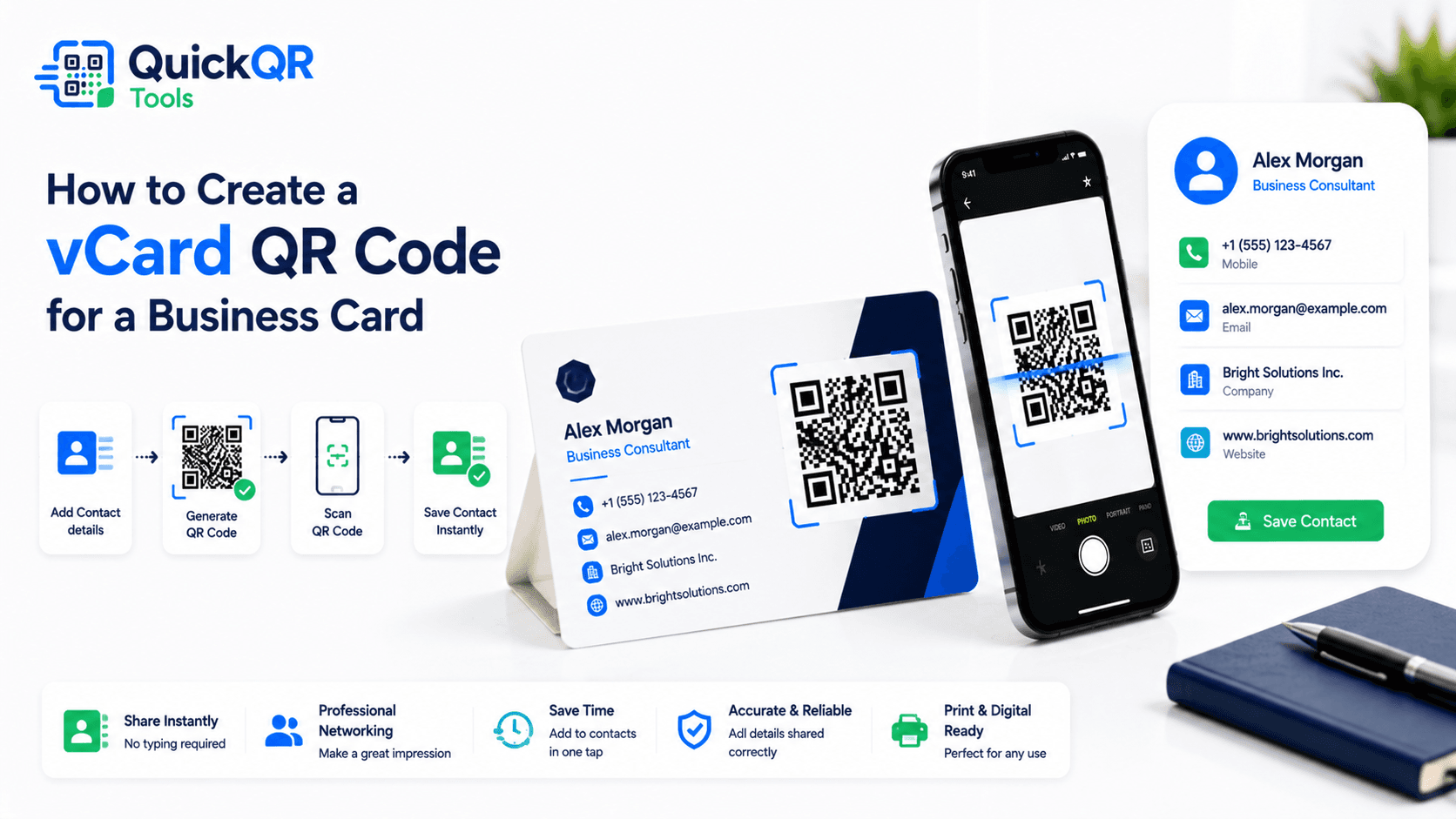
How to create a vCard QR code for a business card in 5 steps
The process is simple, but every contact field should be intentional. If you are learning how to create a vCard QR code for a business card, start with the information someone should save after meeting you.
- Choose the contact details. Decide which name, company, phone number, email, website and address should be saved.
- Open the generator. Use the vCard QR Code Generator to enter the contact fields.
- Keep the data clean. Use a business email, correct phone format and a website that supports follow-up.
- Download the right file. Use SVG or PDF for professional print, and PNG for simple digital uses.
- Test before printing. Scan the QR code with more than one phone and confirm the saved contact looks right.
A complete process for how to create a vCard QR code for a business card includes a printed proof. The QR code may scan on screen but become hard to read when printed too small, placed near the card edge or printed with low contrast.
After scanning, review the saved contact exactly as a new prospect would see it. Check whether the company name is clear, the phone number is right, the email looks professional and the website points to a useful next step. That final contact preview is part of how to create a vCard QR code for a business card that feels polished.
What contact details should a vCard QR code include?
The best vCard QR code includes enough information for a useful follow-up without cluttering the saved contact. When deciding how to create a vCard QR code for a business card, think like the person who will scan it: what do they need to remember you and contact you later?
| Field | Why it matters | Best practice |
|---|---|---|
| Name | Identifies the contact being saved. | Use the same name printed on the business card. |
| Company | Gives context after the meeting. | Use the brand or company people will recognize. |
| Job title | Explains your role. | Keep it short and clear. |
| Phone | Supports direct calls or messages. | Use the number clients should actually use. |
| Supports professional follow-up. | Use a business email instead of a casual address. | |
| Website | Gives people a next step. | Link to a homepage, booking page, portfolio or profile. |
| Address | Useful for offices, stores and local services. | Include only when location matters. |
Do not include every possible field just because the format allows it. A clean vCard is easier to save and understand. If you have several phone numbers, choose the best one for new contacts. If you have several websites, choose the page that helps people take the next step.
If you are unsure how to create a vCard QR code for a business card with multiple contact options, keep the vCard focused and add a website link for deeper context. The saved contact should be easy to recognize months later.
Where to use a vCard QR code
vCard QR codes are strongest anywhere people meet you, hear about your work or need to save your details for later. The QR code should appear where follow-up is natural.
Real estate agents can use vCard QR codes on listing brochures. Consultants can use them on proposal decks. Local service professionals can use them on leave-behind cards. Sales teams can use them at events. The best placement is where the person scanning has a reason to save you.
For networking events, the QR code can be the bridge between a short conversation and a later follow-up. For service businesses, it can help customers save the right technician, office or sales contact. For creators and consultants, it can connect a printed card to a portfolio or booking page.
How to design a business card with a vCard QR code
The card should make the QR code useful without making the layout feel crowded. A business card still needs a readable name, role, brand and primary contact path. The QR code should add convenience, not replace every visible detail.
Use a clear label near the QR code, such as "Scan to save contact" or "Scan to save my details." This tells people what will happen before they scan. Avoid vague labels like "Scan me" when the action is specifically saving a contact.
Keep enough white space around the QR code so phone cameras can detect it. Avoid placing it too close to the edge of the card. Do not stretch, skew or compress the QR code. If the card uses a dark background, place the QR code on a white or very light area.
When planning how to create a vCard QR code for a business card, test at actual business card size. A QR code that scans on a large screen may fail when reduced to a small printed card.
It also helps to show one or two visible contact details on the card even if the QR code contains everything. People should be able to understand who you are before scanning. The QR code should make saving the details easier, not make the card mysterious.
Print tips for vCard QR codes
Print quality matters because vCard QR codes often contain more data than a simple URL QR code. More data can create a denser QR pattern. Dense patterns need good contrast, enough size and clean printing.
- Use SVG or PDF for professional print layouts when possible.
- Keep enough quiet space around the QR code.
- Use dark QR modules on a light background.
- Avoid glossy or textured backgrounds that reduce scan reliability.
- Test a printed proof before ordering a full batch.
- Scan with more than one phone and contact app.
If you need sizing guidance, use the Best QR Code Size for Print Materials guide before finalizing your business card, flyer, badge or brochure. Print testing is one of the most important parts of how to create a vCard QR code for a business card because contact QR codes can be denser than simple website QR codes.
How to create a vCard QR code for a business card used at events
Events create fast introductions. People may collect many cards in one day and forget details later. A vCard QR code helps them save your contact while the conversation is still fresh. This is useful at conferences, trade shows, networking breakfasts, workshops, local business events and recruiting sessions.
For event cards, include a website or profile that reminds people what you do. A generic contact record may be saved, but a contact with company, title and website is easier to remember later. If you speak at an event, add a website that leads to your presentation, portfolio, service page or booking link.
When deciding how to create a vCard QR code for a business card used at events, think about the follow-up that happens after the event. If you want calls, include the right phone number. If you want project inquiries, include your business email. If you want people to review your work first, include a strong website URL.
How to create a vCard QR code for teams and sales staff
Teams need consistency. If several people in a company use QR business cards, the vCard fields should follow the same pattern. This makes the brand look more professional and helps contacts save details in a predictable way.
Use the same company name format, website domain, title style and address format across the team. If each sales representative has a direct number, include it. If all leads should go through a central line, use the main number. The goal is not only to create a QR code, but to create a useful saved contact.
For larger teams, decide how to create a vCard QR code for a business card before printing the full batch. Test one sample, check the saved contact on multiple phones and confirm that the contact fields appear in the right order. A small mistake repeated across hundreds of cards can be costly.
How to create a vCard QR code for a business card in local services
Local service professionals often depend on repeat contact. A plumber, electrician, cleaner, mobile mechanic, consultant, trainer, photographer or home service provider may meet a customer once and then need to be easy to reach again months later. A printed card can be misplaced, but a saved phone contact stays inside the customer's phone.
For local services, the vCard should make the next request simple. Include the business name, direct phone number, email, service area and website if those details help customers remember what you offer. If you use a booking page, quote request page or service list, include that URL in the website field so the saved contact points back to a useful destination.
When planning how to create a vCard QR code for a business card for local work, avoid vague labels and incomplete records. A saved contact named only "John" may be forgotten. A saved contact named "John Smith - Quick Plumbing" with a phone number, email and website is far more useful. The QR code should turn a quick meeting into a clear contact record that supports future calls, referrals and repeat work.
How to create a vCard QR code for real estate, consulting and professional services
Professional services need trust and easy follow-up. Real estate agents, accountants, lawyers, coaches, recruiters and consultants can use a vCard QR business card to reduce friction after a conversation. Instead of asking someone to type a name, number and email manually, the QR code lets them save the contact while the relationship is still warm.
For these use cases, include details that make the saved contact credible. The company name, role, phone, email, website and office location all help. If the contact is for a specific business unit, use the right title and department. If privacy matters, use a professional email and business phone number rather than personal details.
The best way to create a vCard QR code for a business card in a professional service is to think like the person scanning it. They may not call today. They may save the contact and return later when they need advice, a quote, a property visit, a consultation or a referral. The saved record should still make sense when they open it weeks later.
How to create a vCard QR code for brochures, badges and email signatures
A vCard QR code is not limited to paper business cards. The same contact QR code can appear on brochures, event badges, proposal documents, invoices, reception signs and email signatures. This is helpful when the main action is saving a real person or business contact rather than opening a general web page.
On brochures and printed handouts, place the vCard QR code near the contact section. On event badges, keep it large enough to scan without awkward positioning. In email signatures, use a small but clear QR code only if the design stays readable on desktop and mobile. The surrounding text should tell people exactly what will happen: "Scan to save my contact" is direct and useful.
If you want to know how to create a vCard QR code for a business card and reuse it across other materials, start with stable contact details. Reusing the same QR code can create consistency, but it also means every material carries the same information. If your phone, email or role changes, update the source file and reprint or replace every place where the QR code appears.
What to test after creating a vCard QR code
Testing is where many contact QR codes succeed or fail. A QR code can scan correctly and still create a messy saved contact. After generating the code, scan it with more than one phone. Check the contact preview, saved name, company field, phone format, email address, website link and address. The result should look natural inside the contact app.
Also test the printed layout. A business card is small, so the scan area, contrast and surrounding text matter. If the QR code is near an edge, crowded by graphics or printed on a textured surface, scanning can become unreliable. Print one proof before ordering a full batch and test it in normal lighting.
This final review is part of how to create a vCard QR code for a business card that people will actually use. The goal is not only to generate a pattern. The goal is to make saving your contact feel fast, clear and trustworthy.
Static vCard QR codes and future changes
Most vCard QR codes are static. The QR pattern stores the contact details directly. That is simple and convenient, but it also means the printed card cannot update itself when your phone number, email, role, company name or website changes.
When deciding how to create a vCard QR code for a business card, ask whether the contact details will remain stable for the life of the printed card. If your contact details change often, consider using a URL QR code that points to a contact page you control. That page can include your current vCard download, phone number, email, booking link and social profiles.
A direct vCard QR code is best for stable contact information. A contact page is better when your details may change or when you want to show several contact options. For more planning detail, read Static vs Dynamic QR Codes.
vCard QR code vs phone, email and website QR codes
A vCard QR code is best when the visitor should save your contact. Other QR code types are better when the visitor should call, email, chat or open a web page. Comparing the options helps clarify how to create a vCard QR code for a business card only when saving the contact is the main goal.
| QR code type | Best for | Use this tool |
|---|---|---|
| vCard QR code | Saving name, company, phone, email, website and address. | vCard QR Code Generator |
| Phone QR code | Opening the dialer for direct calls. | Phone QR Code Generator |
| Email QR code | Opening a ready-to-send email. | Email QR Code Generator |
| WhatsApp QR code | Starting a chat conversation. | WhatsApp QR Code Generator |
| URL QR code | Opening a portfolio, booking page, profile or landing page. | URL QR Code Generator |
Use a vCard QR code when the card is about long-term contact saving. Use a phone QR code when the visitor should call immediately. Use an email QR code when the next action is a written request. Use a URL QR code when the visitor needs more context before choosing a contact method.
Common vCard QR code mistakes
- Adding too much information. Too many fields can make the QR code denser and the saved contact less useful.
- Using outdated contact details. Check phone, email, company and website before printing.
- Printing too small. Business cards are small, so test at final size.
- No clear scan label. "Scan to save contact" is clearer than "Scan me."
- Using weak contrast. Low contrast can make the QR code hard to scan.
- Skipping phone tests. Test on more than one device and contact app.
- Expecting edits after printing. Static vCard QR codes cannot be changed after the cards are printed.
Most issues are preventable. Choose stable contact details, keep the layout clean, use a clear label and test before printing. That is the practical answer to how to create a vCard QR code for a business card that actually helps people follow up.
Checklist before printing your vCard QR business card
- The name, company and title are correct.
- The phone number and email are the right follow-up channels.
- The website or profile URL supports the next step.
- The QR code scans at actual business card size.
- The saved contact looks clean on at least two phones.
- The QR code has enough contrast and white space.
- The card includes a clear label such as "Scan to save contact."
- The contact details are stable enough for printed cards.
If every point is checked, the card is ready for print. If you are still deciding how to create a vCard QR code for a business card, start with the fields people need most: name, company, phone, email and website.
vCard QR code FAQ
These answers cover common questions before creating vCard QR codes for business cards, badges, brochures and email signatures.
Can I put a vCard QR code on a business card?
Yes. A vCard QR code is one of the most practical QR code types for business cards because it helps people save your contact details quickly.
Can a vCard QR code include phone and email?
Yes. A vCard QR code can include name, phone, email, company, job title, website, address and notes depending on what you enter.
Should I use PNG, SVG or PDF for a printed business card?
For professional printing, SVG or PDF is usually best because the QR code stays sharp. PNG can work for simple designs if the file is large enough.
Do I need to test the QR code before printing?
Yes. Always scan a printed proof with more than one phone before printing a large batch of business cards.
Is a vCard QR code better than a phone QR code?
Use a vCard QR code when the visitor should save your full contact details. Use a phone QR code when the visitor should call immediately.
What should I write near a vCard QR code?
Use a clear label such as "Scan to save contact," "Scan to save my details" or "Scan to add me to contacts."
Create your vCard QR code
Use QuickQR Tools to generate a contact QR code for your business card, badge, brochure or email signature. Download the QR code, test it and place it where people are ready to save your details.
Open vCard QR Generator