
What is a WhatsApp QR code?
A WhatsApp QR code is a scannable code that opens a WhatsApp chat with a specific phone number. It can also include a prefilled message, so the person scanning the code does not need to type the first line of the conversation. If you want to know how to create a WhatsApp QR code for business, the main idea is simple: the QR code should remove friction between attention and conversation.
Instead of asking someone to save your number, type a phone number, copy a link or search for a profile, you let them scan and start a chat. This is useful for restaurants, local services, real estate agents, events, consultants, retail stores, product support teams and ecommerce sellers. A WhatsApp QR code can turn a printed object into a direct contact point, which is why many teams learn how to create a WhatsApp QR code before printing new customer materials.
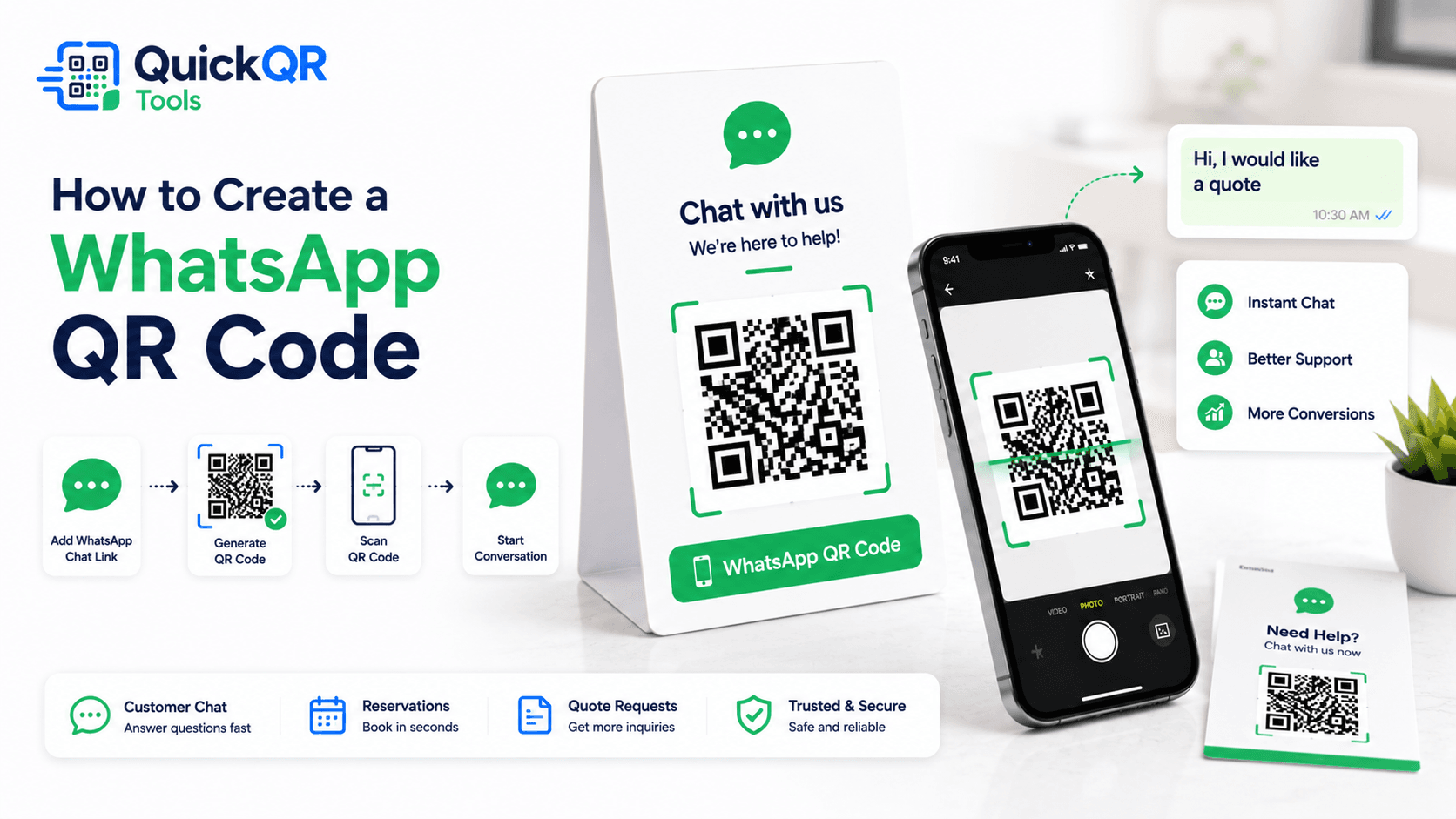
The most common setup uses a phone number in international format plus an optional message. The message might say "Hi, I would like a quote," "Hi, I want to book a table," or "Hi, I need help with my order." When the scanner opens the chat, they can send the message or edit it first.
How to create a WhatsApp QR code in 5 steps
The process is easy, but each step affects whether the QR code opens the correct chat. If you are learning how to create a WhatsApp QR code for print, customer service or sales, focus on number format, message clarity and testing.
- Choose the phone number. Use the WhatsApp number customers should contact. For a business, this is usually a support, sales, reservation or inquiry number.
- Write the number in international format. Include the country code and remove spaces, brackets, dashes and unnecessary leading zeros.
- Add a short prefilled message. Use a message that matches the scan context, such as a quote request, reservation request or support question.
- Generate the QR code. Use the WhatsApp QR Code Generator and download PNG for simple use or SVG/PDF for design and print.
- Test before sharing. Scan the code on a real phone and confirm it opens the right WhatsApp conversation with the right message.
Testing is the step people skip most often. A QR code can still scan even when the destination is wrong. Before printing a menu, flyer or business card, scan the code from the expected distance and check that the chat opens correctly. A complete process for how to create a WhatsApp QR code always ends with this real-phone test.
If the QR code will appear on materials that last for months, use a stable business phone number. If the number may change, consider sending people first to a page you control, then linking from that page to WhatsApp. The Static vs Dynamic QR Codes guide explains this planning choice in more detail.
Phone number format for a WhatsApp QR code
The phone number is the foundation of the QR code. A clean international format helps WhatsApp identify the correct account. The official WhatsApp help center explains click to chat links, which are the link format most WhatsApp QR codes use behind the scenes. If you understand this format, it becomes much easier to know how to create a WhatsApp QR code that opens the right chat.
For most QR code generators, the safest format is digits only: country code plus phone number. Do not include a plus sign, spaces, dashes, parentheses or words. If your local number starts with a trunk prefix that is not used internationally, remove it when adding the country code.
| Number detail | Recommended format | Why it matters |
|---|---|---|
| Country code | Include it before the phone number. | WhatsApp needs the international destination to identify the chat. |
| Spaces and symbols | Remove spaces, dashes, parentheses and plus signs if the generator asks for digits only. | Extra characters can break or confuse the chat link. |
| Local leading zero | Remove it if it is not part of the international number. | Some local dialing prefixes are not used in international format. |
| Business number | Use a number your team can answer consistently. | A scan should lead to a real response, not a personal or inactive number. |
If you are unsure, test the generated QR code from a phone that is not already deep inside your own WhatsApp setup. The goal is to see the same path a new customer will see. This practical check matters more than any assumption about formatting, especially when how to create a WhatsApp QR code is part of a printed campaign.
Best prefilled WhatsApp messages
A prefilled message helps guide the conversation. The message should be short enough to feel natural and specific enough to explain why the person scanned. When you decide how to create a WhatsApp QR code, do not treat the message as decoration. It is the first line of the customer journey.
| Use case | Example message | Best placement |
|---|---|---|
| Quote request | Hi, I would like a quote. | Flyers, service pages, business cards and vehicle graphics. |
| Restaurant booking | Hi, I would like to make a reservation. | Menus, table cards, window signs and event pages. |
| Customer support | Hi, I need help with my order. | Packaging, receipts, instruction sheets and help pages. |
| Product question | Hi, I would like more information about this product. | Product labels, shelf cards, brochures and catalogs. |
| Event inquiry | Hi, I would like details about this event. | Posters, tickets, booth signs and invitations. |
| Availability check | Hi, is this still available? | Listings, retail tags, real estate signs and marketplace flyers. |
Avoid messages that are too long, too formal or too vague. "Hi" is easy but not very helpful. "Hi, I have a question about your services" is better. "Hi, I would like a quote for the service shown on this flyer" is even clearer when the QR code appears on a specific campaign. In practice, how to create a WhatsApp QR code is really about matching the message to the moment.
The wording near the QR code should match the message. If the printed label says "Scan to book a table," the message should mention booking. If the label says "Scan for support," the message should mention help or support. That match builds trust.
Where to use a WhatsApp QR code
A WhatsApp QR code works best where a visitor may have a question and a phone in hand. The code should be placed close to the product, service, menu, offer or support moment that creates the need for a conversation. Before choosing a location, think about how to create a WhatsApp QR code that feels useful at that exact point.
On a business card, the WhatsApp QR code can say "Scan to message me." On packaging, it can say "Scan for support." On a menu, it can say "Scan to ask about catering." On a real estate sign, it can say "Scan to request a viewing." Clear context makes the scan feel useful. This is the visitor-first way to decide how to create a WhatsApp QR code for different materials.
If the scan should open a website, use a URL QR Code Generator. If the scan should save contact details, use a vCard QR Code Generator. If the scan should start a direct call, use a Phone QR Code Generator. Choose WhatsApp only when the next step is a chat.
How to create a WhatsApp QR code for print
Print introduces size, contrast and placement constraints. A QR code that scans on a laptop screen may fail when printed too small, placed over a busy background or shown from too far away. If your goal is print, how to create a WhatsApp QR code includes the final material, not just the digital file.
Use a high-contrast code. Dark navy or black on white usually scans more reliably than low-contrast colors. Keep a clear quiet zone around the QR pattern. Avoid placing the code on photos, textured backgrounds or glossy surfaces without testing. If the code appears on a poster or sign, make it large enough for the viewing distance.
Use PNG for simple sharing or small digital placements. Use SVG or PDF when the code will be resized in a design file or printed professionally. If you need practical size recommendations, use the Best QR Code Size for Print Materials guide before printing cards, flyers, menus, signs or packaging. For print, how to create a WhatsApp QR code should always include size and contrast checks.
WhatsApp QR code for restaurants
Restaurants can use WhatsApp QR codes for conversations that should not interrupt the menu experience. A Menu QR Code Generator is best when guests need to view the menu. A WhatsApp QR code is better when guests need to ask a question, request catering, book a table, confirm pickup details or ask about private events. Restaurants that know how to create a WhatsApp QR code can separate menu viewing from real conversations.
For table cards, keep the message specific. "Hi, I would like to ask about today's specials" works better than a generic greeting. For catering brochures, use "Hi, I would like catering information." For event menus, use "Hi, I would like to ask about a private event." These short prompts help the restaurant team understand the request immediately.
Restaurants can also combine QR codes carefully. A menu QR code can open the menu, a WiFi QR code can help guests connect, a Google Review QR Code Generator can collect feedback after the visit and a WhatsApp QR code can handle direct questions. Use separate labels so guests know exactly what each scan does.
WhatsApp QR code for support and sales
Support and sales teams use WhatsApp QR codes because they reduce the steps between a customer problem and a human response. On packaging, a code can say "Scan for setup help." On a receipt, it can say "Scan if you need support." On a brochure, it can say "Scan for a quote." The QR code should appear at the moment when the customer is likely to need help. This is a strong reason to learn how to create a WhatsApp QR code for support and sales workflows.
For support, the prefilled message should include context. A product insert might use "Hi, I need help setting up this product." A return instruction sheet might use "Hi, I need help with my order." A service receipt might use "Hi, I have a question about my recent service." That saves time for both the customer and the team.
For sales, use a message that starts the inquiry without sounding pushy. "Hi, I would like pricing information" or "Hi, I would like to check availability" is enough. A WhatsApp QR code should invite a conversation, not force a long form into a messaging app.
WhatsApp QR code vs SMS, email, phone and vCard QR codes
Choosing the right contact QR code depends on the response you want. When people ask how to create a WhatsApp QR code, they often really mean: what is the fastest way for a customer to contact me? WhatsApp is excellent for chat, but other QR formats are better for other jobs.
| QR code type | Best for | Use this tool |
|---|---|---|
| WhatsApp QR code | Fast chat, support, reservations, sales questions and quote requests. | WhatsApp QR Code Generator |
| SMS QR code | Text messages when the audience may not use WhatsApp. | SMS QR Code Generator |
| Email QR code | Formal written requests, support tickets, quotes and records. | Email QR Code Generator |
| Phone QR code | Direct calls for urgent service, bookings or customer questions. | Phone QR Code Generator |
| vCard QR code | Saving a person's contact details from a card or event badge. | vCard QR Code Generator |
Use WhatsApp when the conversation can be handled naturally in chat. Use SMS if WhatsApp adoption is uncertain. Use email when the conversation requires attachments, long details or formal documentation. Use a phone QR code when immediate voice contact is the priority. Use a vCard QR code when the main goal is saving contact details.
Static WhatsApp QR codes and future changes
Most WhatsApp QR codes are static because the QR pattern contains the chat link. Static codes are simple, fast and useful when the phone number and message will not change. They work well for business cards, flyers, receipts, product packaging and menu inserts with stable contact details. When you decide how to create a WhatsApp QR code, ask whether the phone number will stay the same.
The risk is that static QR codes cannot be edited after printing. If your phone number changes, the printed QR code still points to the old chat link. If the prefilled message becomes outdated, the printed code keeps using it. For a small campaign, that may be fine. For long-lived print material, plan carefully.
If you need more flexibility, use a URL QR code that points to a page you control. That page can explain the support options and include a WhatsApp button. This adds one step, but it lets you update the destination later without reprinting the code. For direct speed, a static WhatsApp QR code is still the simplest choice. The right answer to how to create a WhatsApp QR code depends on whether speed or future editing matters more.
Common WhatsApp QR code mistakes
- Wrong phone number format. Missing country codes, extra symbols and local prefixes can cause the chat link to fail.
- Using a personal number by accident. Use a business number that your team is prepared to answer.
- No clear call to action. "Scan me" is weaker than "Scan to request a quote on WhatsApp."
- Message does not match the placement. A reservation message does not belong on a product support insert.
- Code printed too small. Menus, flyers, posters and packaging need different sizes.
- No response plan. A WhatsApp QR code can create more inquiries, so someone should be ready to reply.
- Skipping scan tests. Always test on a real phone before publishing or printing.
These mistakes are easy to avoid. Choose the right contact number, write a clear message, generate the code, scan it, and check the customer path from start to finish. The best answer to how to create a WhatsApp QR code is not only technical. It is also about making the conversation easy for the person scanning.
Privacy, expectations and trust
A WhatsApp QR code starts a direct conversation, so visitors should understand who they are contacting and why. Place the QR code near your brand name, offer, support message or contact context. If a QR code appears alone, some visitors may hesitate because they do not know where it leads. Trust is part of how to create a WhatsApp QR code that people actually scan.
Set expectations when needed. If replies are available during business hours, say so near the code. If the code is for support, explain what information the customer should include. If the code is for quotes, explain what details help the team respond. This makes the chat more useful and reduces back-and-forth.
Do not ask customers to send sensitive personal information through a casual QR code journey unless your process clearly supports it. For simple questions, reservations, quote requests and product support, WhatsApp can be convenient. For sensitive account issues, medical information, financial details or legal documents, direct users to a more appropriate contact process.
How to measure WhatsApp QR code performance
A direct WhatsApp QR code does not automatically provide a full analytics dashboard, but you can still learn what works. Use different prefilled messages for different placements. A flyer might say "Hi, I saw your flyer and would like a quote." A package insert might say "Hi, I need help with my order." A menu card might say "Hi, I would like to ask about catering." This measurement habit improves how to create a WhatsApp QR code for each campaign.
These message differences help your team understand where chats come from. You can also ask customers how they found you, track the number of conversations after a campaign starts or use a landing page when measurement is important. For campaigns where tracking matters more than speed, a controlled URL page may be better than a direct WhatsApp QR code.
For most small businesses, the first useful signal is simple: more relevant conversations. If customers scan, ask the right question and get a faster response, the QR code is doing its job.
Checklist before publishing your WhatsApp QR code
- The phone number includes the correct country code.
- The number is the business contact you want customers to use.
- The prefilled message matches the exact placement.
- The call to action explains what happens after the scan.
- The QR code has strong contrast and enough white space.
- The final design was tested on a real phone.
- The printed sample scans from the expected distance.
- Your team knows how to answer incoming WhatsApp chats.
If every point is checked, you are ready to publish. If you are still deciding how to create a WhatsApp QR code for a specific campaign, start with one clear action and one clear message. Simpler QR codes usually perform better because the scanner understands the benefit immediately.
WhatsApp QR code FAQ
These answers cover the most common questions people ask before they create a WhatsApp QR code for print, customer service, sales or local marketing.
Can I create a WhatsApp QR code for free?
Yes. You can create a free static WhatsApp QR code with a phone number and an optional prefilled message. Use the WhatsApp QR Code Generator to generate and download it.
Can a WhatsApp QR code include a message?
Yes. A WhatsApp QR code can include a prefilled message that appears when the chat opens. The scanner can send the message as written or edit it before sending.
Do I need a country code for a WhatsApp QR code?
Yes. Use international format with the country code so WhatsApp can identify the correct phone number. Remove spaces, dashes and unnecessary local prefixes if the generator asks for digits only.
Can I print a WhatsApp QR code?
Yes. You can print a WhatsApp QR code on flyers, menus, business cards, posters, packaging, receipts and signs. Use strong contrast, enough white space and a size that matches the scan distance.
Can I use a WhatsApp QR code for customer support?
Yes. A WhatsApp QR code is useful for customer support when visitors need a fast way to ask questions, share order details or request help from a phone.
What should I write near a WhatsApp QR code?
Use a clear action label such as "Scan to chat with us," "Scan for support," "Scan to request a quote" or "Scan to book on WhatsApp." The label should match the prefilled message and the placement.
Create your WhatsApp QR code
Use QuickQR Tools to generate a WhatsApp QR code with your phone number, country code and prefilled message. Download the QR code, test it on a phone and place it where customers are ready to start a conversation.
Open WhatsApp QR Generator