What is a social media QR code?
A social media QR code is a QR code that opens a social profile, page, channel, video, post or campaign link after a scan. It can point to Instagram, TikTok, YouTube, Facebook, LinkedIn, X, Pinterest, Snapchat, Threads or another public social URL. If you know how to create a social media QR code correctly, you can connect print materials, packaging, signs and events to your social presence in seconds.
The QR code stores the public social media URL. When someone scans it, their phone opens the link in a browser or supported app. The destination can be a profile, a channel, a specific video, a campaign post, a link-in-bio page, a group page or a branded landing page that lists several social channels. This is why creators and businesses often learn how to create a social media QR code before printing cards, signs or packaging.
A social media QR code is useful because people often see a business or creator offline first. They may notice a product, a menu, a package, a poster, an event booth or a business card. The QR code gives them a direct way to follow, subscribe, watch, connect or message without typing a handle manually.
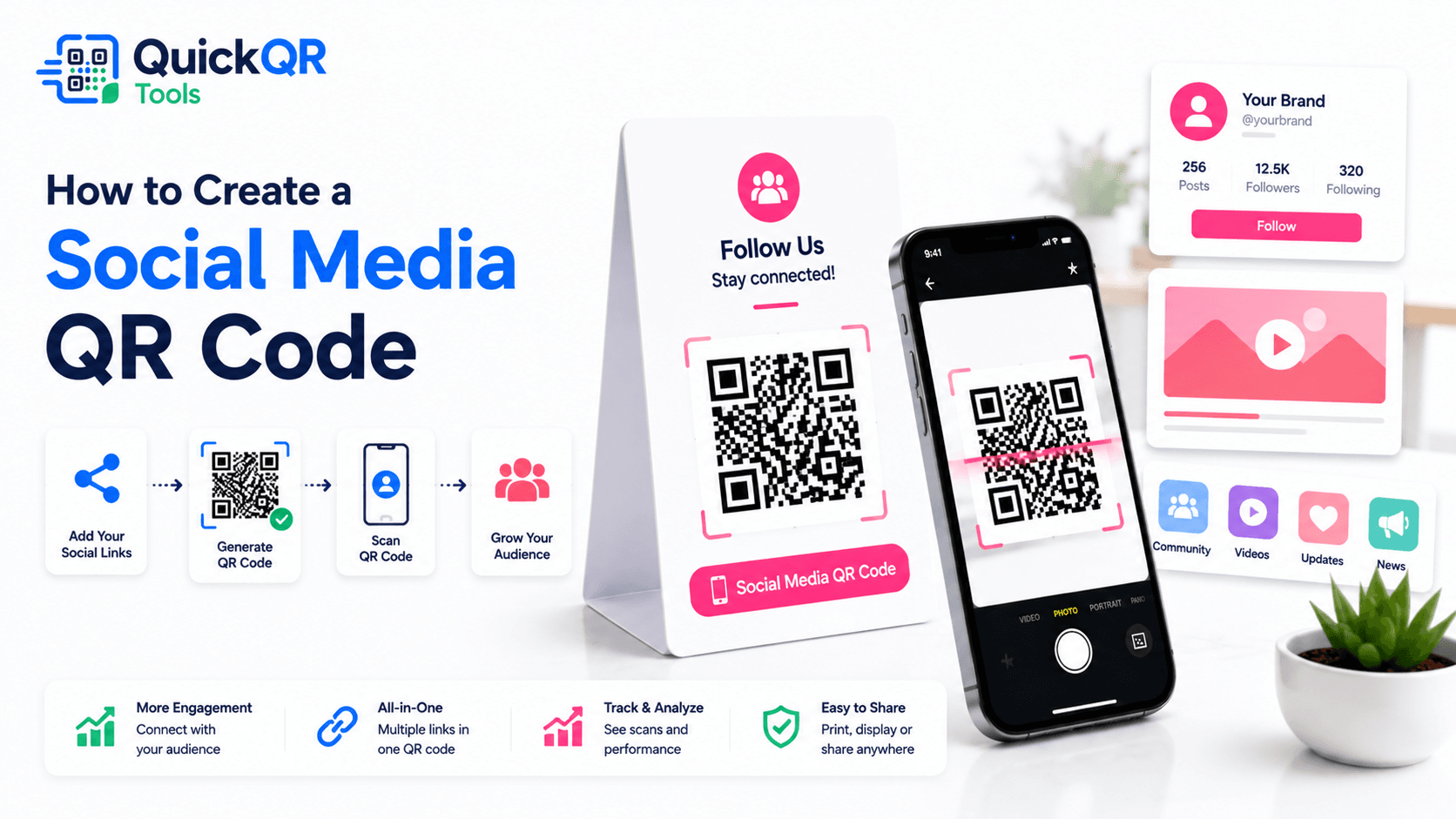
How to create a social media QR code in 5 steps
The process is simple, but the destination matters. A social media QR code should send people to the profile, video, post or channel that matches the promise near the QR code. If the label says "Scan to follow us on Instagram," the scan should open Instagram or a clear Instagram profile page.
- Choose the social destination. Decide whether the QR code should open a profile, channel, post, video, group, page or link-in-bio page.
- Copy the public URL. Use the full public link, not an editing link, private preview or temporary share link.
- Open the generator. Use the Social Media QR Code Generator, select the platform and paste the URL.
- Generate and download. Create the QR code and download PNG for simple use or SVG/PDF for professional print layouts.
- Scan-test on mobile. Confirm the code opens the right social destination on iPhone and Android before publishing or printing.
If you are learning how to create a social media QR code for the first time, start with one destination. Do not send people to a confusing page with too many choices unless the goal is clearly a social hub. A single profile or campaign URL is usually easier to understand.
After the QR code is generated, test it outside your own logged-in account when possible. This helps confirm that visitors see the public profile or post, not a private owner view. If the page is restricted, private or unavailable in some regions, the scan experience may fail. A complete process for how to create a social media QR code includes this public-view test.
Best platforms for social media QR codes
Each platform works best for a different user action. Before you create the QR code, choose the social destination that matches the business goal. Knowing how to create a social media QR code starts with choosing the platform that fits the next action.
| Platform | Best use | Example call to action |
|---|---|---|
| Creators, restaurants, stores, salons, portfolios and visual brands. | Scan to follow us on Instagram. | |
| TikTok | Short videos, creator campaigns, product demos and event clips. | Scan to watch our latest video. |
| YouTube | Channels, tutorials, demos, long videos, reviews and education. | Scan to subscribe on YouTube. |
| Local communities, events, business pages and older audiences. | Scan to follow our Facebook page. | |
| Professionals, founders, recruiters, B2B brands and company pages. | Scan to connect on LinkedIn. | |
| X or Threads | Announcements, commentary, product updates and public conversation. | Scan for our latest updates. |
Use Instagram when visuals and lifestyle matter. Use TikTok when the next action is watching short content. Use YouTube when the content needs time, explanation or search value. Use LinkedIn when the goal is professional credibility, hiring, networking or B2B leads. Use Facebook when the audience already follows local pages, groups or events.
Social profile, video, post or link-in-bio?
A social media QR code can open different types of social destinations. The best choice depends on what the scanner should do next. If you understand how to create a social media QR code for each destination type, the scan feels more relevant.
If the printed label says "Scan to follow us," send people to a profile. If it says "Scan to watch the demo," send them to a video. If it says "Scan to enter the giveaway," send them to the post or campaign page. Clear matching between label and destination improves trust.
Knowing how to create a social media QR code also means knowing when not to send people to a homepage. If the scan promise is social, keep the destination social or clearly explain why the landing page is useful.
Where to use social media QR codes
Social media QR codes work best where people discover your brand offline and may want to continue the relationship online. The code should appear where people have enough time and reason to scan. For print campaigns, how to create a social media QR code includes choosing the right placement.
Restaurants can place social QR codes on menus, receipts, table cards or takeaway packaging. Retailers can use them on shelf signage, tags and packaging. Professionals can use them on business cards, event badges and brochures. Event teams can place them on posters, entrance signs and stage screens.
If the QR code is used in a high-traffic area, make the label short and the code large enough. People scanning a poster or storefront sign may not stand close. For small items like cards or packaging inserts, make the label specific so the scanner understands the benefit quickly.
Best wording for social media QR codes
The call to action should tell people exactly what they will get. "Scan me" is weaker than "Scan to follow us on Instagram" because it does not explain the reward.
The wording should match the destination. If the QR code opens a profile, say follow or connect. If it opens a video, say watch. If it opens a campaign post, say enter, view, vote or comment, depending on the action. This small detail makes the scan feel intentional. Strong wording is part of how to create a social media QR code that people actually scan.
A clear call to action is part of how to create a social media QR code that performs well. The QR image creates access, but the wording creates motivation.
Social media QR code best practices
- Use the full public URL of the profile, page, post, video or channel.
- Test the QR code on iPhone and Android before printing.
- Add a clear call to action, such as "Scan to follow us".
- Make sure the social destination is public and current.
- Use enough white space around the QR code.
- Choose a print size that matches the scan distance.
- Use SVG or PDF export for professional print materials.
- Check the destination again after profile changes, rebrands or campaign updates.
For sponsored content, influencer campaigns or endorsements, make sure disclosures are clear and easy to notice. The FTC provides guidance for social media disclosures, which is useful when a QR code sends people to promotional creator content.
If your social campaign includes discounts, use a separate coupon page or the Coupon QR Code Generator. If the goal is customer messaging, use the WhatsApp QR Code Generator. A social media QR code should match the action you want after the scan. The practical goal of how to create a social media QR code is to remove friction between offline attention and the right online action.
How to create a social media QR code for print
Print adds practical constraints. A QR code that works on a screen can fail when printed too small, placed on a glossy surface, surrounded by busy graphics or shown from too far away. If the QR code will be printed, test the final printed version. For print, how to create a social media QR code includes scan distance, contrast and material choice.
Use high contrast. A dark QR code on a white background is usually safest. Keep a clear quiet zone around the pattern. Avoid placing the QR code over photos, gradients or detailed textures. If brand colors are used, make sure contrast stays strong enough for phone cameras.
Use PNG for simple uses. Use SVG or PDF when the code will be placed in a professional design file. If you need size guidance for cards, flyers, posters, menus or packaging, use the Best QR Code Size for Print Materials guide.
When you create a social media QR code for print, scan the actual printed sample from the expected distance. A QR code on a business card, poster, storefront window and product box will not be scanned the same way.
How to create a social media QR code for restaurants and retail
Restaurants can use social media QR codes to grow Instagram followers, promote TikTok food videos, share YouTube behind-the-scenes clips or keep customers connected after a visit. Good placements include receipts, table cards, menu inserts, takeaway bags, window signs and loyalty cards. For restaurants, how to create a social media QR code should start with the channel guests are most likely to follow.
Retail stores can use social media QR codes on packaging, hang tags, shopping bags, shelf displays and event signage. A customer who likes a product can scan to follow the brand, watch styling videos, join a community or see new arrivals.
For restaurants, avoid mixing too many jobs into one QR code. Use a Menu QR Code Generator when the scan should open the menu. Use a social media QR code when the scan should build a following. Use a Google Review QR code when the visit is complete and the customer is ready to share feedback.
For retail, pair social media QR codes with visual content. A product label can say "Scan to see styling ideas" and open an Instagram or TikTok page. A product insert can say "Scan for setup videos" and open YouTube. The label should make the social value obvious.
Static or dynamic social media QR code?
A static social media QR code stores the social URL directly in the QR pattern. If the profile URL or campaign URL changes, the printed QR code still points to the old address. This is fine when the social profile is stable, but it matters for short campaigns or temporary posts. This is an important detail when deciding how to create a social media QR code for long-term materials.
For a long-term business profile, a static QR code is often enough. For campaign posts, giveaways, seasonal content or influencer collaborations, a stable landing page or dynamic QR setup can provide more flexibility. The destination can change while the printed material remains useful.
If you are unsure how to create a social media QR code for a campaign that may change, use a page you control as the destination. That page can link to your latest social campaign, while the QR code URL stays stable.
For more detail, read the Static vs Dynamic QR Codes guide.
Common social media QR code mistakes
- Using a private or broken link. Make sure the destination opens for visitors, not only for account owners.
- Using the wrong destination. A follow request should open a profile, while a video request should open the video.
- Printing the code too small. Posters, signs and packaging need different QR sizes.
- Using vague wording. Tell people whether they will follow, watch, subscribe, connect or message.
- Changing the profile URL after printing. Static QR codes keep pointing to the old URL.
- Sending people to outdated content. Check campaign QR codes after social posts expire or are removed.
- Ignoring mobile behavior. Test whether the link opens cleanly on phones and in supported apps.
Most problems are preventable. Copy the public URL carefully, generate the QR code, scan it on real phones and confirm that the destination matches the label near the code. The safest way to learn how to create a social media QR code is to test the exact path a visitor will use.
How to combine social media QR codes with other QR tools
A social media QR code is strongest when the goal is following, watching, subscribing or connecting. If the customer needs a different action, use the QR tool that matches that action. Knowing how to create a social media QR code also helps you decide when another QR type is more useful.
Use the Google Review QR Code Generator when the customer should leave feedback after a real experience. Use the Coupon QR Code Generator when the scan should reveal an offer. Use the vCard QR Code Generator when the scan should save contact details. Use the URL QR Code Generator for a general campaign page.
For restaurants, a menu QR code and social QR code can sit on the same table card if each label is clear. One says "Scan to view menu." The other says "Scan to follow us." Clear separation prevents confusion.
Browse All QR Code Tools when you want to match the right QR code type to a specific customer journey.
Checklist before publishing your social media QR code
Use this checklist before placing a social media QR code on business cards, packaging, flyers, posters, signs, menus or event materials. It summarizes how to create a social media QR code that is clear, scannable and useful.
- The social URL is public and opens for visitors.
- The QR code opens the exact profile, post, video or channel promised by the label.
- The call to action is clear.
- The printed QR code is large enough for the scan distance.
- The QR code has enough blank space around it.
- The destination is mobile friendly and current.
- The code has been tested on real phones.
- Sponsored or promotional content uses clear disclosures when needed.
- The campaign has a plan if the social URL changes later.
This checklist summarizes how to create a social media QR code that is clear, scannable and useful. It protects the user experience before the QR code reaches print or public screens.
Final recommendation
The best way to learn how to create a social media QR code is to start with a specific action. Decide whether people should follow, subscribe, watch, connect, message or view a campaign post. Then copy the correct public URL, generate the QR code and test it on mobile.
Use direct profile links for long-term follower growth. Use post or video links for specific campaigns. Use a stable landing page when the campaign may change. Use clear wording near the QR code so people know what will happen after scanning.
When you are ready, use the Social Media QR Code Generator to create a QR code for Instagram, TikTok, YouTube, Facebook, LinkedIn, X or any public social URL.
Social media QR code FAQ
Can I create a QR code for Instagram?
Yes. Copy your Instagram profile, post or reel URL, then use a social media QR code generator to create a QR code from that link.
Can I create a QR code for TikTok or YouTube?
Yes. Paste a TikTok profile, TikTok video, YouTube channel or YouTube video URL into the generator and test the scan on mobile.
Can I print a social media QR code?
Yes. Social media QR codes work well on business cards, flyers, posters, packaging, menus, signs, event materials and storefront displays.
Can I update the social media link later?
A static QR code points to the same URL. If the URL changes, create and print a new QR code or use a stable landing page that you control.
Should a social media QR code open a profile or a post?
Use a profile link when the goal is followers. Use a post or video link when the printed material promotes one specific campaign, video or announcement.
What should I write near a social media QR code?
Use a clear label such as "Scan to follow us on Instagram," "Scan to watch the demo" or "Scan to connect on LinkedIn."
Create your social media QR code
Use QuickQR Tools to generate a QR code for Instagram, TikTok, YouTube, Facebook, LinkedIn, X or any public social URL.
Open Social Media QR Generator