
What is a WiFi QR code?
A WiFi QR code stores your network name, security type and password in a scannable format. When a guest scans it with a phone camera, the device can offer to join the network automatically. The guest does not need to type the password, spell the network name or ask someone to repeat the login details.
This is especially helpful when the password is long, contains symbols or changes regularly. It also reduces mistakes caused by confusing characters such as zero and the letter O, uppercase and lowercase letters, or special characters that are hard to read on a sign.
A WiFi QR code is not magic; it simply packages the network connection details in a standard format that many phones understand. The visitor still chooses whether to join the network. The code makes the connection step faster and more convenient. If you know how to create a WiFi QR code correctly, guests can connect in seconds instead of asking for the password.
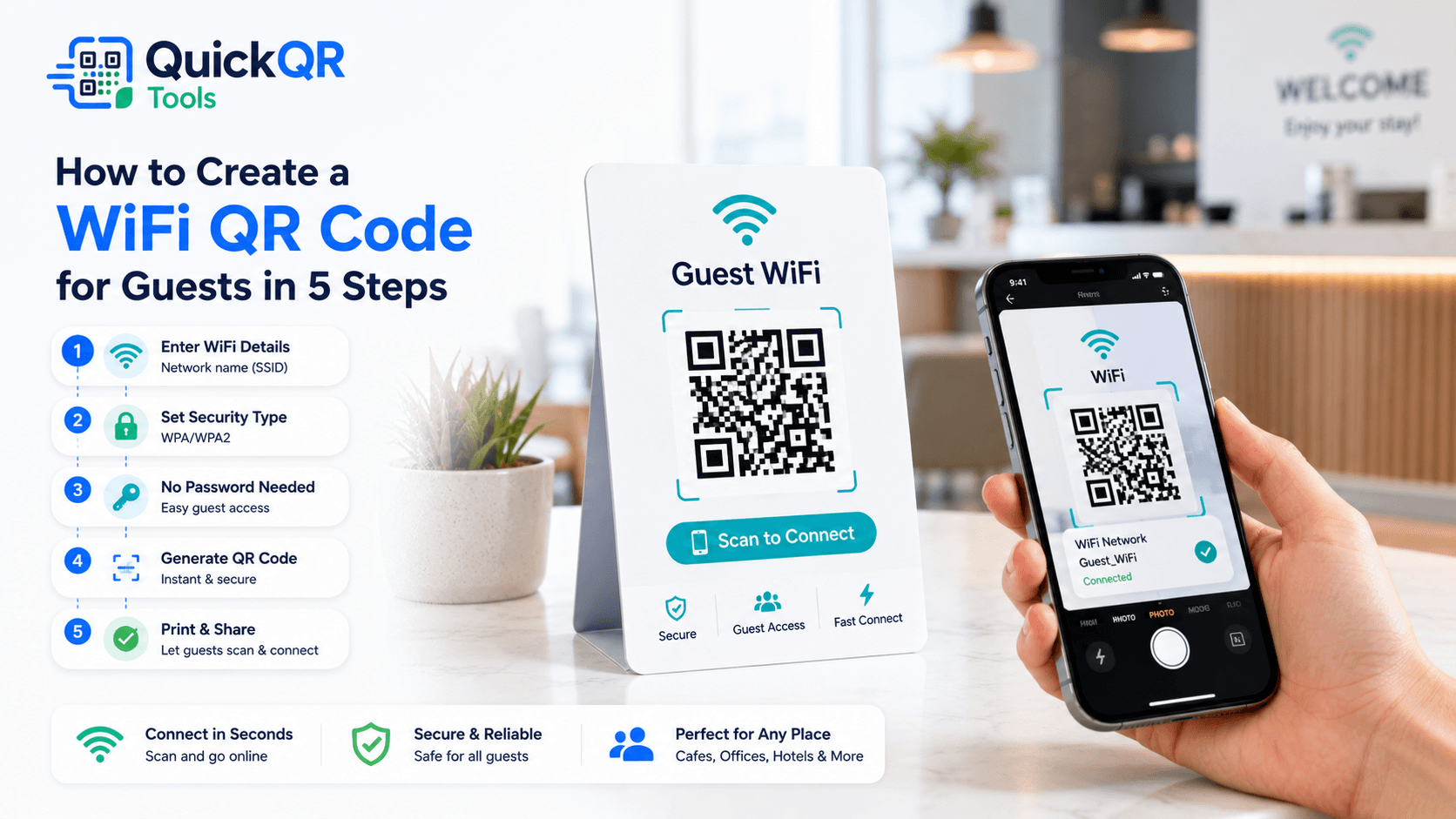
How to create a WiFi QR code in 5 steps
The process is simple, but accuracy matters. A single wrong character in the network name or password can prevent guests from connecting. Follow these steps before printing or sharing the QR code. This is the safest way to learn how to create a WiFi QR code that works on real phones.
After testing, download the code in the format that fits your use case. PNG works well for simple signs and digital sharing. SVG or PDF is better when you need a sharp print file for table cards, posters, welcome books or venue signage.
Information you need before generating the code
To create a WiFi QR code, you need three pieces of information: the network name, the security type and the password. The network name is often called the SSID. The security type is usually WPA or WPA2 on modern routers. The password is the guest WiFi password people normally type manually. Before you decide how to create a WiFi QR code for guests, verify each detail from the router or a trusted password source.
The SSID must be exact. If your network is named Cafe Guest, entering cafe guest may not work because capitalization and spacing can matter. If the network is hidden, guests may still need additional instructions depending on their device.
The security type matters because phones use it to understand how to connect. WPA and WPA2 are common. Some older networks may use WEP, but that is outdated and not recommended for modern security. Open networks do not require a password, but they should be used carefully because they offer less protection.
Before creating a public WiFi QR sign, confirm that the password is correct and intended for guests. Do not use the same password that protects private routers, staff devices, point-of-sale systems or internal business tools.
Best places to use a WiFi QR code
WiFi QR codes work best anywhere guests need fast internet access without asking staff or typing a password manually. The more often people ask “What is the WiFi password?”, the more useful a QR code becomes. Businesses that understand how to create a WiFi QR code can reduce small support questions and make the first visit feel smoother.
Hotels can place WiFi QR codes in rooms, lobbies, meeting areas and welcome materials. Clinics and waiting rooms can use them to reduce front desk questions. Schools and training centers can use them for temporary visitor access. Salons, gyms and studios can use them to make the waiting experience smoother.
If the WiFi QR code is part of a larger print layout, consider adding nearby links to other useful actions. For example, a cafe sign may include WiFi access and a menu QR code. A rental welcome card may include WiFi and a website QR code with local instructions.
Security tips before sharing WiFi access
Convenience should not come at the cost of security. A WiFi QR code can make guest access easier, but it should be used with a network setup that protects your private devices and business systems. The best way to approach how to create a WiFi QR code is to start with a separate guest network.
- Create a guest network instead of sharing your main private network.
- Use WPA or WPA2 security when available.
- Update your guest password when staff, tenants or event access changes.
- Avoid placing router login details near the QR code.
- Remove public signs if the network should no longer be accessible.
- Use a different password for guest WiFi than for router management.
- Limit guest network access to the internet instead of private devices where possible.
A guest network is the safest default for cafes, offices, rentals and events. It lets visitors connect to the internet while keeping printers, storage devices, point-of-sale systems and private computers separate.
The Federal Trade Commission publishes business guidance on privacy and security. For everyday WiFi sharing, the practical lesson is simple: only share the access guests need, and avoid exposing private systems.
Can you create a WiFi QR code without showing the password?
A WiFi QR code can make the password less visible than printing it as plain text, but the code still contains the network details needed to connect. Anyone who can scan the code may be able to connect to the network. In some cases, a technical user may also be able to inspect the encoded information. That is why how to create a WiFi QR code and where to display it are both important decisions.
This is why a WiFi QR code should not be treated as a way to hide a sensitive password. It is a convenience tool, not a security barrier. If the network should be private, do not place the code in a public area.
For public guest access, this is usually acceptable. A cafe, rental, lobby or event often wants guests to connect. The right security step is not hiding the password inside the QR code; it is using a dedicated guest network with appropriate permissions.
If you need tighter control, change the guest password regularly, create event-specific access, use a captive portal if your router supports it or ask your network provider about managed guest access.
How to make the QR code easy to scan
Print it large enough
For table signs and wall signs, make the QR code large enough to scan from the expected distance. Small codes can fail when printed on textured paper, viewed at an angle or used in low light. If you plan to print the code, review the QR code size for print guide.
Keep contrast high
Use a dark QR code on a light background. Avoid placing it on busy photos, patterns or low-contrast colors. A clean white area around the QR code is often the most reliable design choice.
Add a clear label
Use short text such as “Scan to connect to WiFi” so guests instantly understand what the code does. If several QR codes appear nearby, label each one clearly.
Keep it accessible
Place the WiFi QR code where people can reach it with a phone camera. Avoid placing it too high, too low, behind glass glare or in a crowded corner where scanning feels awkward. Knowing how to create a WiFi QR code is only useful if the final sign is easy to scan.
How to display a guest WiFi QR code professionally
A WiFi QR code should feel like part of the guest experience, not like an afterthought taped to a wall. A clean sign, table card or welcome card makes the code easier to trust and easier to use. Keep the layout simple: short heading, QR code, optional network name and one clear instruction. This is part of how to create a WiFi QR code that feels professional, not just functional.
Good labels include “Scan to connect to WiFi,” “Guest WiFi,” or “Scan for free WiFi.” Avoid long explanations on the sign itself. Guests usually need only enough context to know what the code does.
For cafes and restaurants, place the code where guests naturally look: table tents, counter signs, receipt holders, menus or waiting areas. For rentals, place it in the welcome guide and near the entry area. For offices, place it in reception, meeting rooms and visitor instructions.
If the environment is busy, use a framed or bordered area around the QR code. This helps the code stand out from menus, posters, notices and other printed materials. Keep enough white space around the pattern so the phone camera can detect it quickly.
Do not crowd the WiFi QR code with several unrelated QR codes. If you also show a menu QR code, review QR code or website QR code, give each code its own label and spacing. Guests should not have to guess which code connects them to WiFi.
What to do when a WiFi QR code does not work
If a guest scans the code but cannot connect, the problem usually comes from one of a few simple issues. Start with the network name. The SSID must match the router exactly. Extra spaces, missing capital letters or wrong punctuation can break the connection. A reliable process for how to create a WiFi QR code always includes checking the SSID twice.
Next, check the password. WiFi passwords are case-sensitive, and symbols matter. If the password was typed manually into the generator, compare it carefully with the router or password manager. A single wrong character is enough to fail.
Then check the security type. If the QR code says WPA but the router uses a different setup, some phones may not understand the connection details. Most modern networks use WPA or WPA2, but the exact setting should match your router.
If the code is printed, check the physical design. Low contrast, small size, glossy reflection, curved surfaces or damaged paper can prevent scanning. If the phone recognizes the QR code but does not connect, the problem is more likely the network details. If the phone does not recognize the QR code at all, the problem is probably visual quality or size.
Finally, test with more than one phone. Some older devices may handle WiFi QR codes differently. If several modern phones fail, recreate the code from scratch with verified network details.
Static vs dynamic WiFi QR codes
Most WiFi QR codes are static because the network details are encoded directly into the QR code. That is usually the right approach. The phone needs the SSID, security type and password to connect, so the code contains those details. When learning how to create a WiFi QR code, remember that password changes require a new code.
If the password changes, the old static WiFi QR code will still contain the old password. You need to generate a new code, replace printed signs and update any digital copies. This is why it is smart to keep WiFi signage easy to replace.
Dynamic QR codes are more common for website links and marketing campaigns than for direct WiFi connection details. If you want an editable experience, one option is to create a stable web page with WiFi instructions and update that page when needed. But for direct phone connection, a static WiFi QR code is the most straightforward choice.
For a deeper comparison of editable and fixed codes, read the static vs dynamic QR codes guide. It explains when flexibility matters and when a simple static QR code is enough.
Password rotation and guest network maintenance
Guest WiFi should be maintained, especially in businesses, rentals and event spaces. If many people use the network over time, rotate the guest password periodically. This is especially important when staff changes, tenants leave, events end or signs have been visible to the public for a long time. Teams should document how to create a WiFi QR code again whenever the guest password changes.
When you change the guest password, generate a new WiFi QR code immediately. Replace printed signs, table cards, welcome books and digital copies. If old signs remain visible, guests may scan a code that no longer works and assume the WiFi is broken.
Use a simple version system for printed signs. For example, keep a date or version note in your internal file name, such as guest-wifi-qr-june-2026.png. You do not need to show the version to visitors, but it helps your team avoid using old files.
For rentals and hotels, update the welcome guide every time the network details change. For offices and coworking spaces, tell reception or support staff where the latest QR code file is stored. For events, prepare the WiFi QR code before printing attendee materials and test it again at the venue.
WiFi QR code checklist before guests scan
Before you publish, print or display the code, use a short checklist. This prevents small mistakes from becoming support questions later. It also gives your team a repeatable method for how to create a WiFi QR code without missing a key detail.
- Confirm the SSID is exact.
- Confirm the security type matches the router.
- Confirm the password is correct and intended for guests.
- Scan the QR code with at least one iPhone and one Android device if possible.
- Confirm the phone offers to join the correct network.
- Print one sample and test the final size.
- Place the code where guests can scan comfortably.
- Use a clear label such as “Scan to connect to WiFi.”
- Remove old WiFi QR signs when the password changes.
This checklist is especially useful for restaurants, rentals and offices where several people may update printed materials. It keeps the guest experience consistent and reduces simple connection problems.
Common WiFi QR code mistakes
- Typing the SSID incorrectly. Network names must match exactly, including spaces and capitalization.
- Choosing the wrong security type. If the QR code uses the wrong security format, phones may not connect.
- Sharing the main private network. Use a guest network whenever possible.
- Printing before testing. Always scan the final code before placing it in public.
- Using a tiny sign. Guests should not struggle to scan from a normal distance.
- Leaving old signs active. Remove or replace signs when the guest password changes.
- Putting several unlabeled QR codes together. Label WiFi, menu, review and website codes clearly.
WiFi QR code ideas by business type
For cafes and restaurants, a WiFi QR code can sit on table tents, menu inserts or counter signs. Pair it with a simple label and keep the code away from spills, folds and glossy glare. If guests also need your menu, use a separate Menu QR Code Generator code with its own label. When staff know how to create a WiFi QR code, they can update signs quickly after a password change instead of rewriting passwords on paper.
For offices and coworking spaces, place the code in meeting rooms, reception areas and visitor guides. This reduces interruptions and makes meetings smoother. If clients also need to save a contact, link them to a vCard QR Code Generator code or a contact page. A visitor badge, welcome email or conference room sign can all include the guest network QR code.
For rentals and hotels, add the WiFi QR code to the welcome book, fridge card, room information sheet or check-in message. Guests often look for WiFi immediately after arrival, so make the code easy to find. Hosts who know how to create a WiFi QR code can make arrival smoother without exposing private router notes or long passwords in multiple places.
For events, place the code near registration, session rooms, exhibitor areas and support desks. Large events may need multiple signs so attendees do not crowd one location. Test the code under venue lighting before doors open. Event teams should create the QR code after the final network details are confirmed, not while the WiFi setup is still changing.
For clinics, salons, gyms and studios, place the WiFi QR code in waiting areas where guests naturally pause. Keep the sign calm and readable. A guest should be able to scan from a seated position or while standing at reception without needing help.
How to create a WiFi QR code for print and digital sharing
The same WiFi QR code can be used in print and digital formats, but each format needs a little care. For print, the code must be large enough, high contrast and placed where guests can scan comfortably. For digital sharing, the image should be clear and easy to save or display on a screen.
If you create a printed sign, download a high-quality file and test the final size. Table cards, posters and welcome sheets need enough quiet zone around the QR code. If you share the code in a digital welcome message, make sure the image is not compressed so much that the QR pattern becomes blurry.
For rentals, you can include the WiFi QR code in a PDF welcome guide and also print it in the property. For offices, you can add the code to a visitor email and meeting room sign. For events, you can use it on a digital screen and printed signs near registration.
When deciding how to create a WiFi QR code for both print and digital use, keep one master file in your workspace. Use clear file names so your team can identify the latest version after password updates.
Should you show the network name next to the QR code?
In most guest settings, showing the network name next to the QR code is helpful. It lets guests confirm they are joining the right WiFi network. This is especially useful in buildings where several networks appear on nearby devices.
You do not always need to print the password in plain text. The QR code can carry the connection details, while the sign simply says “Guest WiFi” and shows the network name. If you also print the password, keep the sign in an appropriate location and update it when the password changes.
For businesses, a simple format works well: business name, “Scan to connect to WiFi,” the QR code, and the guest network name. That is usually enough. Avoid adding router instructions, internal notes or technical setup details that guests do not need. The goal of how to create a WiFi QR code is a clean guest action, not a technical manual.
If guests often struggle with scanning, a short backup password can help. But if you want a cleaner experience, the QR code plus network name is usually the best balance.
Final recommendation
If you need to share internet access with guests, learning how to create a WiFi QR code is one of the simplest improvements you can make. It saves time, avoids password typing errors and gives visitors a smoother first experience in your space.
Use a guest network, confirm the SSID and password carefully, generate the code, test it on real phones and place it where guests can scan easily. That process works for cafes, rentals, hotels, offices, waiting rooms, coworking spaces and events.
For most users, the best setup is simple: one clear guest network, one clean QR code, one short label and one tested sign. When the password changes, update the code and remove old signs immediately.
QuickQR Tools keeps the process focused. Use the WiFi generator when the goal is network access, and use related QR tools when guests need a menu, website, contact card, location or review link.
FAQ
Can phones connect to WiFi by scanning a QR code?
Yes. Many modern phones can recognize WiFi QR codes and offer to join the network automatically after scanning. The guest usually confirms the connection before joining.
Is a WiFi QR code safe?
A WiFi QR code is safe to use when you share a guest network and avoid exposing private router or business network details. It should be treated as guest access, not as a security barrier.
Can I create a WiFi QR code without showing the password?
The QR code can avoid printing the password as plain text, but it still contains the network details needed to connect. Anyone with access to the QR code may be able to join the network.
Do I need internet to scan a WiFi QR code?
No. The QR code can be scanned without internet because the network details are stored inside the code. The internet connection starts after the device joins the WiFi network.
Should I use a guest network for a WiFi QR code?
Yes, a guest network is recommended whenever possible. It helps keep visitors separate from private devices, staff systems and internal business equipment.
Can I print a WiFi QR code for guests?
Yes. You can print a WiFi QR code on table cards, welcome guides, signs, flyers, room cards or event materials. Test the printed version before placing it where guests will scan.