What is an app store QR code?
An app store QR code is a QR code that sends someone to an app download destination after they scan it with a phone. The destination can be an Apple App Store listing, a Google Play listing, a universal app link, a branded landing page, a referral page or a campaign page. If you know how to create an app store QR code correctly, the scan can reduce friction between offline attention and mobile installation.
The QR code does not contain the app itself. It stores a link. When a person scans the code, the phone opens that link in a browser or app store experience. That is why the quality of the destination matters as much as the QR code design. A fast, clear, mobile-friendly page can increase trust and make the next action obvious.
Businesses use app store QR codes on posters, product packaging, event booths, receipts, restaurant table cards, hotel welcome cards, retail displays, onboarding documents and print ads. The purpose is simple: give people a fast path to download the app while their interest is fresh.
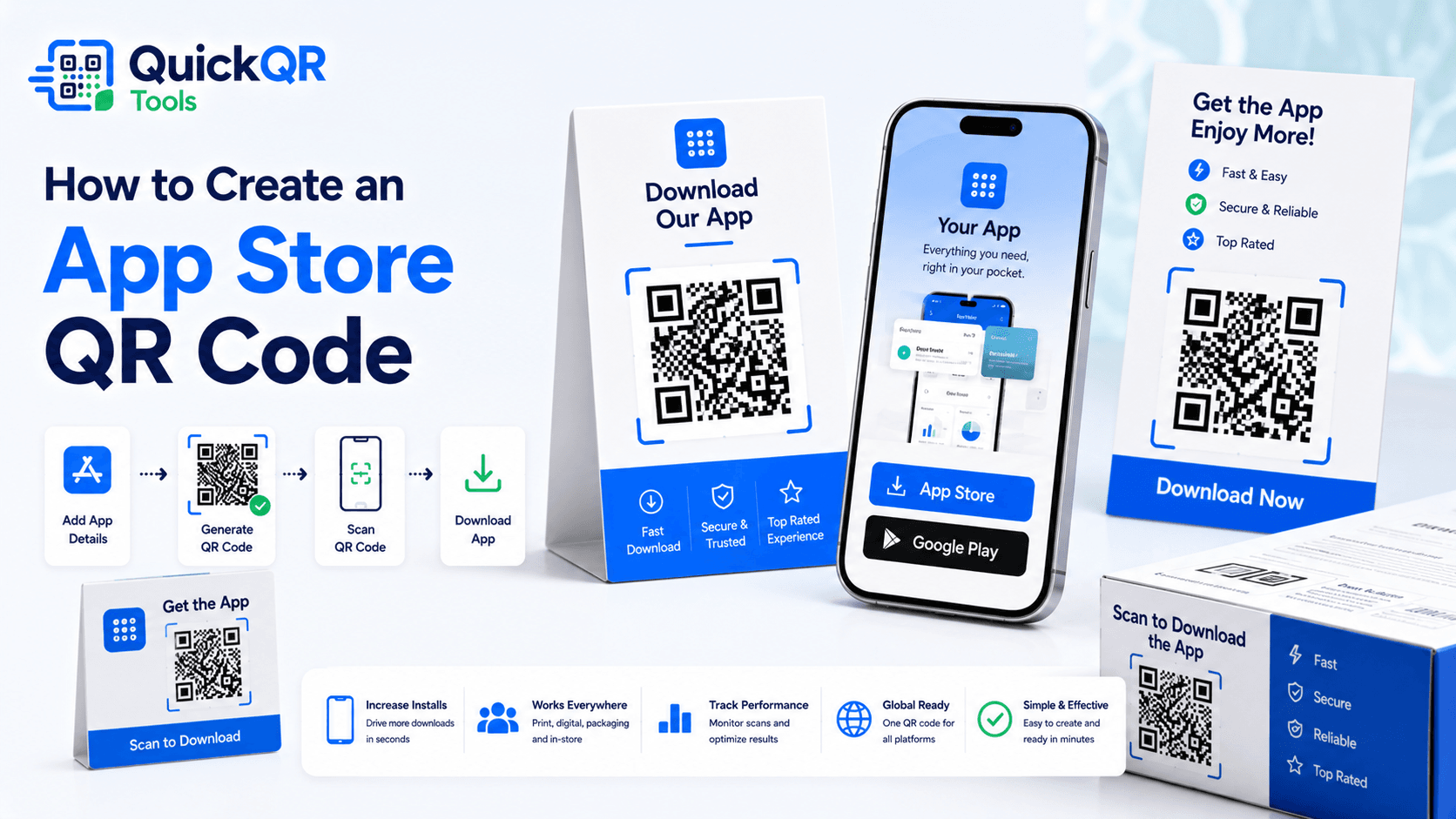
How to create an app store QR code in 5 steps
- Choose the app destination. Decide whether the QR code should open the Apple App Store, Google Play, a universal app link or a landing page.
- Copy the public URL. Use the app listing URL or a campaign page that anyone can open without login.
- Generate the QR code. Paste the URL into the App Store QR Code Generator and choose a readable color.
- Download the right format. Use PNG for everyday use, SVG for design work and PDF for simple print cards.
- Test before publishing. Scan the final code on iPhone and Android, then test again after placing it in the final design.
The most important part of how to create an app store QR code is choosing a destination that matches the user’s device and campaign context. If most of your audience uses iPhone, an Apple App Store link may work well. If you promote an Android app, a Google Play link is better. If your audience includes both, a universal link or landing page can be safer.
If you are deciding how to create an app store QR code for a real campaign, start with the audience first. A code for a retail loyalty app, a restaurant ordering app and an event app may all look similar, but each one needs a different destination, message and testing plan.
A landing page can be useful because it lets you explain the value of the app, show both store buttons and include trust signals before asking for the download. For a simple print card that only targets one platform, a direct store link can be faster. The practical goal of how to create an app store QR code is to remove search friction while keeping the user confident about the next tap.
Best destinations for an app store QR code
Before you create the QR code, decide where the scan should go. The right destination depends on your app, audience and campaign. A restaurant app may need a simple landing page with both store buttons. A retail loyalty app may work better with a deep campaign page. A private event app may need a page that explains access instructions before sending people to the store.
This is where how to create an app store QR code becomes a strategy question. The QR code is only the entry point; the destination decides whether the visitor understands the app, trusts the brand and knows which button to tap next.
| Destination | Best for | What to check |
|---|---|---|
| Apple App Store URL | iPhone-focused campaigns and iOS app launches. | Open the link on iPhone and confirm it loads the correct app listing. |
| Google Play URL | Android-focused campaigns, Android app promotions and app install ads. | Open the link on Android and confirm the package name is correct. |
| Universal app link | Mixed audiences where iPhone and Android users scan the same printed code. | Test routing on both platforms and on desktop as a fallback. |
| App landing page | Campaigns that need explanation, screenshots, benefits, reviews or both store buttons. | Make the page fast, mobile-friendly and focused on the download action. |
Apple provides App Store marketing guidelines for using its badges and app promotion materials. Google provides guidance for linking to Google Play. These official references are useful when your campaign includes store badges, app listing links or branded download buttons.
When to use a direct store link
A direct store link is useful when the campaign is simple and the audience is clearly tied to one platform. If you are promoting an iOS-only app at an Apple-focused event, the app store QR code can point directly to the Apple App Store listing. If you are promoting an Android-only app, a Google Play link may be the cleanest option.
Direct links reduce the number of steps. A person scans, sees the app listing and can install. This can be strong for posters, business cards, packaging inserts and QR codes placed near a checkout or event desk where people already understand why they are scanning.
If your team already knows how to create an app store QR code and the campaign is platform-specific, a direct store link can be the fastest option. The key is to confirm that the printed material clearly names the app and that the store listing opens correctly from the target device.
The risk is device mismatch. If someone scans an Apple App Store link on Android, the experience may be confusing. If someone scans a Google Play link on iPhone, they may not get the intended download path. This is why how to create an app store QR code is not only a technical task; it is a user experience decision.
When to use an app landing page
An app landing page is often the best destination when your audience includes both iPhone and Android users. The page can show a short explanation, app screenshots, trust signals, benefits and two clear buttons: Download on the App Store and Get it on Google Play. This avoids forcing one store link into every scan.
For many brands, the safest answer to how to create an app store QR code is to use one stable landing page, then let that page guide users to the right store. This gives you more control over copy, tracking, design and future updates.
A landing page also helps when the app needs context. If people scan from a flyer, trade show booth, restaurant table, hotel card or retail display, they may need a quick reminder of what the app does. A focused landing page can answer that question before the store listing opens.
For brand trust and a smoother user journey, a landing page on your own domain can be useful. It gives you a stable URL that you control. If the store listing changes, your QR code can still point to the same landing page while you update the buttons behind it. For teams comparing how to create an app store QR code across multiple campaigns, a landing page also keeps reporting and messaging easier to manage.
If you plan to print thousands of QR codes, a landing page or redirect that you control is usually safer than a link you cannot easily update. This is especially important for product packaging, manuals, outdoor signs and long-running campaigns.
Design tips for app download QR codes
The QR code should be visually clear, easy to scan and clearly connected to the app. Add a short label such as “Scan to download the app” or “Get the app”. If the QR code appears on a poster or package, include the app name near the code so people know what they are scanning.
A practical guide on how to create an app store QR code should always include the visual context around the code. The surrounding message tells people why the scan is worth their time.
Keep strong contrast between the QR pattern and the background. Dark navy, black or deep blue on white usually scans better than pale colors on a busy background. QuickQR Tools lets you choose a brand-friendly color, but readability should always come first.
Give the QR code enough quiet zone, which is the blank space around the pattern. Avoid placing text, icons, borders or photos too close to the code. If you are using a colored background, place the QR code inside a clean white area to improve scan reliability.
For app marketing materials, the surrounding design should explain the value of the app. A QR code by itself is rarely enough. Add one benefit, a clear call to action and the app name. The code should feel like a helpful shortcut, not a mystery block. This is why how to create an app store QR code should always include the words placed beside the code.
Print checklist before launching an app QR campaign
Testing is the step that protects your campaign. A code that looks perfect on a screen can fail after printing if it is too small, low contrast, distorted or placed on a curved surface. When you create an app store QR code for print, test the final printed version before ordering a large batch.
Anyone learning how to create an app store QR code for print should test the complete journey, not only the scan. The user should scan, land on the correct destination, understand the next action and be able to install or learn more without confusion.
- Scan the code on iPhone and Android.
- Test from the distance people will actually scan.
- Check the QR code after resizing inside the final design.
- Confirm that the destination opens without login.
- Make sure store buttons and landing pages load quickly on mobile data.
- Print one sample before printing hundreds or thousands.
- Use the QR code size for print guide if the code will appear on flyers, posters, cards or packaging.
For small cards, keep the design simple. For posters and signs, make the QR code large enough for people to scan without standing too close. For packaging, avoid folds, seams, shiny reflections and curved areas that can distort the pattern. A reliable process for how to create an app store QR code always ends with a real printed scan test.
App store QR code use cases
App store QR codes also work for gyms, hotels, clinics, campuses, delivery services, appointment apps, membership programs and local service businesses. The best campaigns make the scan feel useful immediately. Tell people what the app helps them do, then make the download path short.
In every use case, how to create an app store QR code comes down to one promise: make the next mobile action easier than typing, searching or asking for help.
Where to place an app store QR code
Placement changes how people scan. A code on a table card is scanned from close range, while a code on a poster may be scanned from several feet away. A code on packaging may be scanned at home, after purchase, when the customer has more time. When you decide how to create an app store QR code, choose the design and message based on where the code will live.
For retail stores, place the app QR code near moments where customers already need the app: loyalty signup, digital coupons, pickup tracking, receipts, shelf signs and checkout counters. A QR code near checkout should have a very short message because the customer may be in a line. A QR code on a receipt can include more context because the customer may scan later.
For events, use the app QR code before attendees need it. Put it on confirmation emails, badges, entrance signs, registration desks and printed schedules. If the app contains maps, agendas, tickets or networking features, tell people that benefit near the QR code. “Scan to get the event app” is useful, but “Scan for maps, sessions and updates” is stronger.
For products, place the QR code on inserts, setup cards, manuals or packaging panels that remain easy to scan after opening. If the companion app is needed for setup, the app store QR code should appear early in the unboxing flow. If the app is optional, use the code beside a clear benefit such as warranty registration, tutorials, remote control or rewards. In product onboarding, how to create an app store QR code is really about placing the scan at the exact moment the customer needs the app.
App store QR code copy examples
The words beside the QR code can improve scan rates. People are more likely to scan when they understand what will happen and why it helps them. A good label does not need to be long. It should name the action, the app and the benefit.
| Use case | Clear copy | Why it works |
|---|---|---|
| Retail loyalty app | Scan to download the app and collect rewards. | It connects the scan with a direct customer benefit. |
| Restaurant app | Scan to get the ordering app for pickup and offers. | It explains what the app helps guests do. |
| Event app | Scan for the event app, schedule and venue map. | It gives attendees a practical reason to scan before they need help. |
| Product companion app | Scan to install the setup app and start faster. | It makes the scan feel like part of the product setup flow. |
If you are learning how to create an app store QR code for a business campaign, avoid vague text like “Scan me”. It tells people what to do, but not why. A better message connects the scan to a useful outcome: download the app, unlock rewards, view the schedule, set up the product or manage an account. The strongest copy explains both the scan and the benefit in one short line.
Static or dynamic app store QR code?
A static app store QR code stores the destination URL directly in the QR pattern. If the URL stays the same, the code can keep working for a long time. If the URL changes after printing, the printed code cannot be edited. This is why stable destinations are important.
When you plan how to create an app store QR code for long-term materials, think about whether the destination may change later. If the app name, campaign URL or store setup could change, use a destination you control.
A dynamic QR code or controlled redirect can be helpful if you need analytics, campaign tracking, A/B testing, platform routing or the ability to update the final destination later. For example, a brand may print one QR code on packaging and later change the campaign page without reprinting packaging.
For many simple campaigns, a static code pointing to a stable landing page is enough. For expensive print runs or long-term packaging, plan the destination carefully. If you want a deeper comparison, read the static vs dynamic QR codes guide. If the campaign may change later, how to create an app store QR code should include a stable URL plan before printing.
Troubleshooting an app store QR code
If an app store QR code does not work well, separate the problem into three parts: scan, destination and conversion. A scan problem means the phone has trouble recognizing the QR pattern. A destination problem means the link opens the wrong page, loads slowly or fails on certain devices. A conversion problem means the link opens correctly, but people do not install the app.
For scan problems, increase the QR code size, improve contrast, add more quiet zone and remove decorative elements too close to the pattern. Test under the same lighting where the code will be used. If the code is on a glossy sign, reflections may make scanning harder.
For destination problems, test the link on iPhone, Android and desktop. Confirm that the app listing is public, available in the expected country and not blocked by login, age restrictions or private testing settings. If you use a landing page, make sure the store buttons are easy to tap and do not move around while the page loads. Troubleshooting how to create an app store QR code is easier when you test scan quality and destination quality separately.
For conversion problems, improve the message around the code and the landing page. People may scan but hesitate if they do not understand the app value. Add one clear benefit, show a recognizable app name and reduce unnecessary steps before the download action. This is another reason how to create an app store QR code should include both QR design and destination design.
Pre-launch checklist for app QR campaigns
Before publishing a campaign, use a short checklist. This helps catch small issues before they become expensive print mistakes or missed installs. The checklist is especially important when multiple people work on design, app links, store listings and printed materials.
- Confirm the app is live or the landing page explains when it will be available.
- Check that the app name, logo and campaign message match the store listing.
- Test the QR code from the final design file, not only from the generator preview.
- Scan the printed sample with at least one iPhone and one Android phone.
- Open the destination on mobile data, not only office WiFi.
- Check that the landing page or app listing loads quickly.
- Make sure the call to action says what the scan does.
- Keep a copy of the final QR image and destination URL in your campaign folder.
Once this checklist is complete, the app store QR code is ready for a real campaign. The workflow may feel careful, but it protects the user experience and makes the campaign easier to trust. For a launch team, how to create an app store QR code should be treated as a campaign quality step, not only a file export.
Common app store QR code mistakes
- Using the wrong platform link. A code that only works well for one device can frustrate mixed audiences.
- Sending people to a slow page. App download intent can disappear quickly if the page takes too long to load.
- Printing without testing. Always scan the final printed code before publishing the campaign.
- Using vague labels. “Scan to download the app” is clearer than an unlabeled code.
- Changing URLs after printing. If the destination changes, printed static QR codes may become outdated.
- Ignoring store rules. Use official store badges and app references correctly when designing marketing materials.
- Forgetting mobile fallback. Desktop users, unsupported devices or older phones may need a clear backup path.
How to measure app store QR code performance
If you use a landing page, you can measure visits, button clicks and campaign performance with analytics tools. If you use a direct app store link, measurement may be more limited unless you use campaign tracking, attribution links or a redirect system. The best measurement setup depends on the app, store platform and marketing stack.
For simple campaigns, track the printed material where the QR code appears and compare app installs during the campaign period. For more advanced campaigns, use unique QR codes or unique landing URLs for different placements. A flyer, receipt, event poster and packaging insert can each have a separate destination so you know which placement performs best.
Do not add tracking complexity if it makes the scan experience worse. The priority is still a fast, trustworthy path to the app. Measurement should support the campaign, not slow it down. A balanced approach to how to create an app store QR code keeps the path simple for users while giving the business enough data to improve the next campaign.
FAQ about app store QR codes
Can I make a QR code for an app download?
Yes. Paste the public Apple App Store, Google Play, universal app link or app landing page URL into the App Store QR Code Generator, then download the QR code.
Should an app store QR code go directly to the store?
It can, especially for a single-platform app. For mixed iPhone and Android audiences, a landing page with both store buttons is often better.
Can one QR code work for both iPhone and Android?
Yes, if the QR code points to a universal app link, smart link or landing page that gives users the correct store option.
What should I write next to an app QR code?
Use a clear label such as “Scan to download the app” and include the app name or main benefit.
Can I print an app store QR code?
Yes. Download a high-quality PNG, SVG or PDF, keep enough quiet zone around the code and test the final printed version.
Can I change the destination later?
A static QR code cannot be edited after printing. Use a stable landing page, redirect or dynamic QR setup if you need future flexibility.