
Start setup faster
Send buyers to a quick start page, installation steps, product manual, care guide or first-use checklist.
QR Codes For Packaging Inserts
QR codes for packaging inserts help customers open setup guides, warranty registration, support pages, review links, product videos, reorder offers and care instructions from cards placed inside the box.
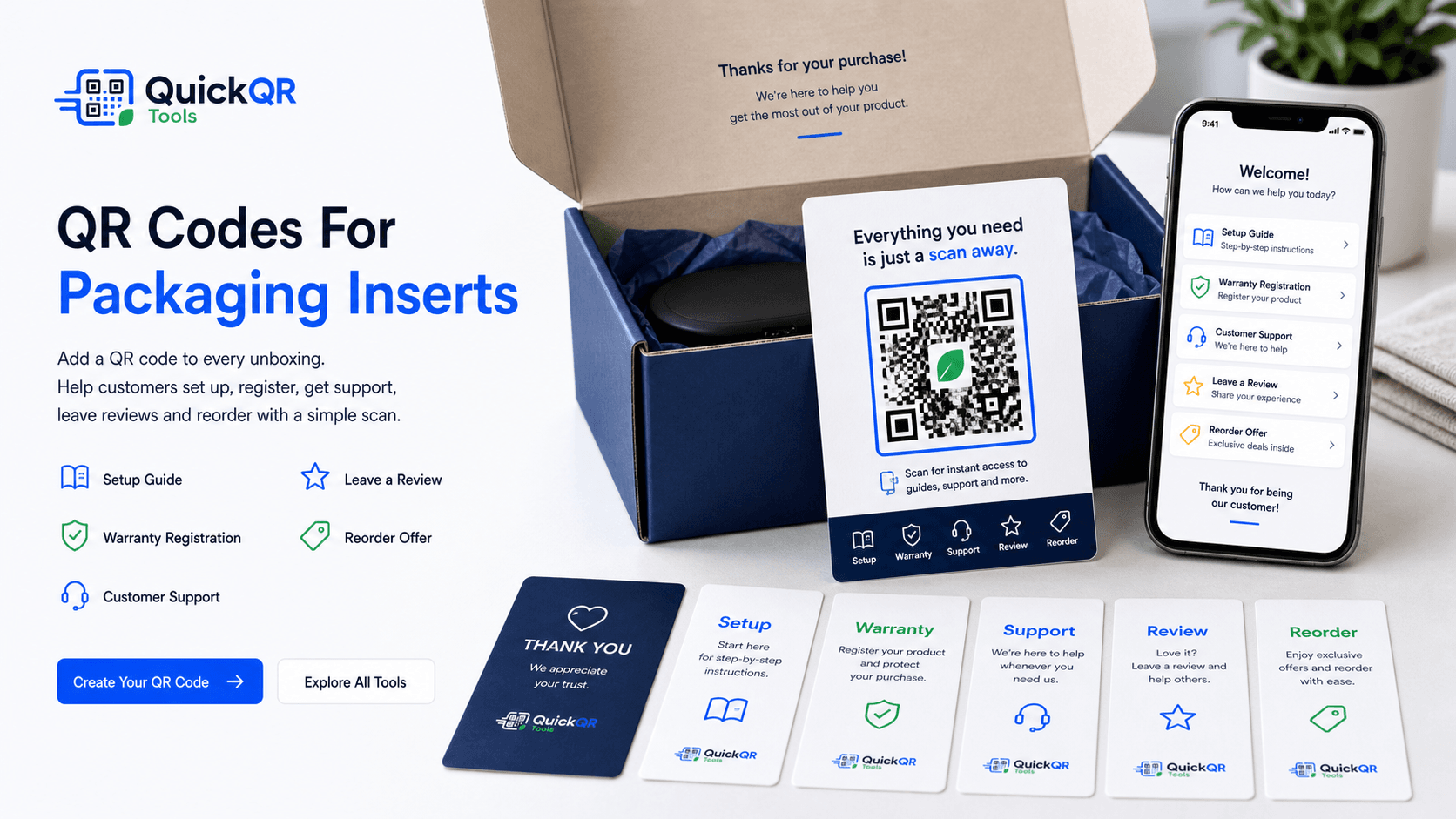
Unboxing actions
A packaging insert sits inside a high-attention moment. A clear QR code can make setup, support, reviews and repeat purchase actions easier without asking customers to search later.
Send buyers to a quick start page, installation steps, product manual, care guide or first-use checklist.
Open a warranty form, product registration page or account setup page directly from the insert card.
Connect customers to troubleshooting, WhatsApp chat, email support, help center articles or return instructions.
Open demos, assembly videos, care tutorials, recipe ideas, usage tips or product education pages.
Invite satisfied customers to open a review page or feedback form after they receive the product.
Send repeat buyers to refill pages, accessory pages, coupon codes, loyalty rewards or related products.
Planning
QR codes for packaging inserts perform best when the card has one clear promise. The insert should tell the customer what happens after the scan: get setup help, register your warranty, watch the product guide, contact support, leave a review or claim a reorder offer.
Do not make customers guess. If the card says scan for setup, send them to setup. If it says scan for warranty, send them to the warranty page. If you need several actions, use one mobile-friendly page that organizes the choices into clear buttons.
Packaging inserts are useful because they arrive when the customer already has the product in hand. That makes the QR code practical for reducing confusion, improving onboarding, collecting feedback and making repeat purchases easier.
Examples
Match the QR code to a useful post-purchase action, then use the right QuickQR tool for the destination.
| Packaging insert type | Best QR destination | Useful QuickQR tool |
|---|---|---|
| Quick start card | Setup steps, onboarding checklist, installation guide or product tutorial page. | QR Code Generator |
| Warranty card | Warranty registration form, product account page or proof-of-purchase page. | QR Code Generator |
| Instruction insert | PDF manual, safety sheet, care instructions or troubleshooting guide. | PDF QR Code Generator |
| Support card | WhatsApp support, help center, contact form, return instructions or email support. | WhatsApp QR Code Generator |
| Review request card | Google review page, product review page, feedback form or testimonial request. | Google Review QR Code Generator |
| Reorder card | Refill page, replacement parts, accessories, subscription page or related products. | QR Code Generator |
| Coupon insert | Discount code, thank-you offer, loyalty reward or next-purchase promotion. | Coupon QR Code Generator |
| Video guide card | YouTube video, product demo, assembly guide, care video or tips playlist. | YouTube QR Code Generator |
| Community card | Instagram, TikTok, YouTube, Facebook group or social landing page. | Social Media QR Code Generator |
Print readiness
Inserts are often printed in batches. A small size issue, low contrast or slow destination page can affect every card in the box.
Use a practical checklist to test packaging insert QR codes before printing cards at scale.
Test scan readinessChoose a safer QR size for thank-you cards, warranty cards, setup inserts and small print pieces.
Calculate sizeCheck whether branded insert colors keep enough contrast for reliable scanning.
Check contrastRelated tools
Create QR codes for setup pages, warranty forms, reorder pages and product support destinations.
Create URL QRShare manuals, safety sheets, product documents, care cards and instruction files.
Create PDF QRInvite customers to leave a review from thank-you cards and post-purchase inserts.
Create review QRAdd a reorder discount, loyalty code, thank-you offer or next-purchase incentive.
Create coupon QRLet customers ask support questions from inside the box without searching for contact details.
Create WhatsApp QRBrowse QR tools for inserts, packaging, labels, support, offers, files and reviews.
Explore toolsRelated guides
Plan broader product insert QR use cases for setup, support, warranty, reviews and reorders.
Explore product insertsUse QR codes on boxes, labels and inserts for guides, videos, coupons, reviews and support.
Explore packaging usesPlan QR codes for labels, stickers, tags, bottles, product details and care instructions.
Explore label usesConnect store materials, packaging, product displays and post-purchase cards to useful actions.
Explore retail usesUse inserts and thank-you cards to request reviews at a natural post-purchase moment.
Explore review usesReview print size, quiet zone, contrast and scan testing before producing insert cards.
Read printing guideReferences
Helpful for brands planning warranty communication, product registration and customer-facing warranty information.
Helpful when packaging insert QR codes open mobile setup guides, videos, support pages or warranty forms.
Create a clean QR code for setup guides, warranty registration, support, reviews, reorders or offers, then test it before printing insert cards.
FAQ
QR codes for packaging inserts are scannable codes printed on cards inside a product box so customers can open setup guides, warranty registration, support pages, videos, review links, reorder pages or special offers.
A packaging insert QR code should link to the most useful post-purchase action, such as setup instructions, warranty registration, customer support, a product video, review page, reorder offer or care guide.
Yes. A warranty insert can use a QR code to open a product registration form or warranty activation page directly on a customer's phone.
Yes. A thank-you card or review request insert can send customers to a review page or feedback form after they receive the product.
One QR code is usually easier to understand. If the insert needs several actions, link to a simple mobile page with clear buttons for setup, warranty, support, review and reorder.
The QR code should be large enough for the final print size and scan distance. Test a printed sample and use a QR size calculator when the insert is small.
Print a sample insert, scan it with multiple phones, check the destination on mobile, verify contrast and confirm that the QR code remains readable on the final card stock.
Static QR codes usually do not expire as long as the destination remains online. If the destination page is removed, the printed QR code may stop being useful.