What is a Google review QR code?
A Google review QR code is a QR code that opens the review link for a Google Business Profile. When a customer scans it, they can reach the place where they can write a review for your business. If you know how to create a Google review QR code correctly, you can place that review path on receipts, table cards, thank-you cards, appointment cards, invoices, packaging, front desk signs and follow-up materials.
The QR code does not create reviews by itself. It removes friction. A customer who already had a real experience with your business does not need to search your name, open Maps, choose the right listing and find the review button. The QR code gives them a shorter path to the correct review page. This is why many local teams want to know how to create a Google review QR code before printing feedback cards.
This is especially useful for restaurants, salons, clinics, gyms, hotels, dentists, repair shops, contractors, real estate agents, retail stores and local service businesses. Reviews help future customers understand what to expect, and a simple review QR code makes it easier for satisfied customers to share feedback at the right moment.
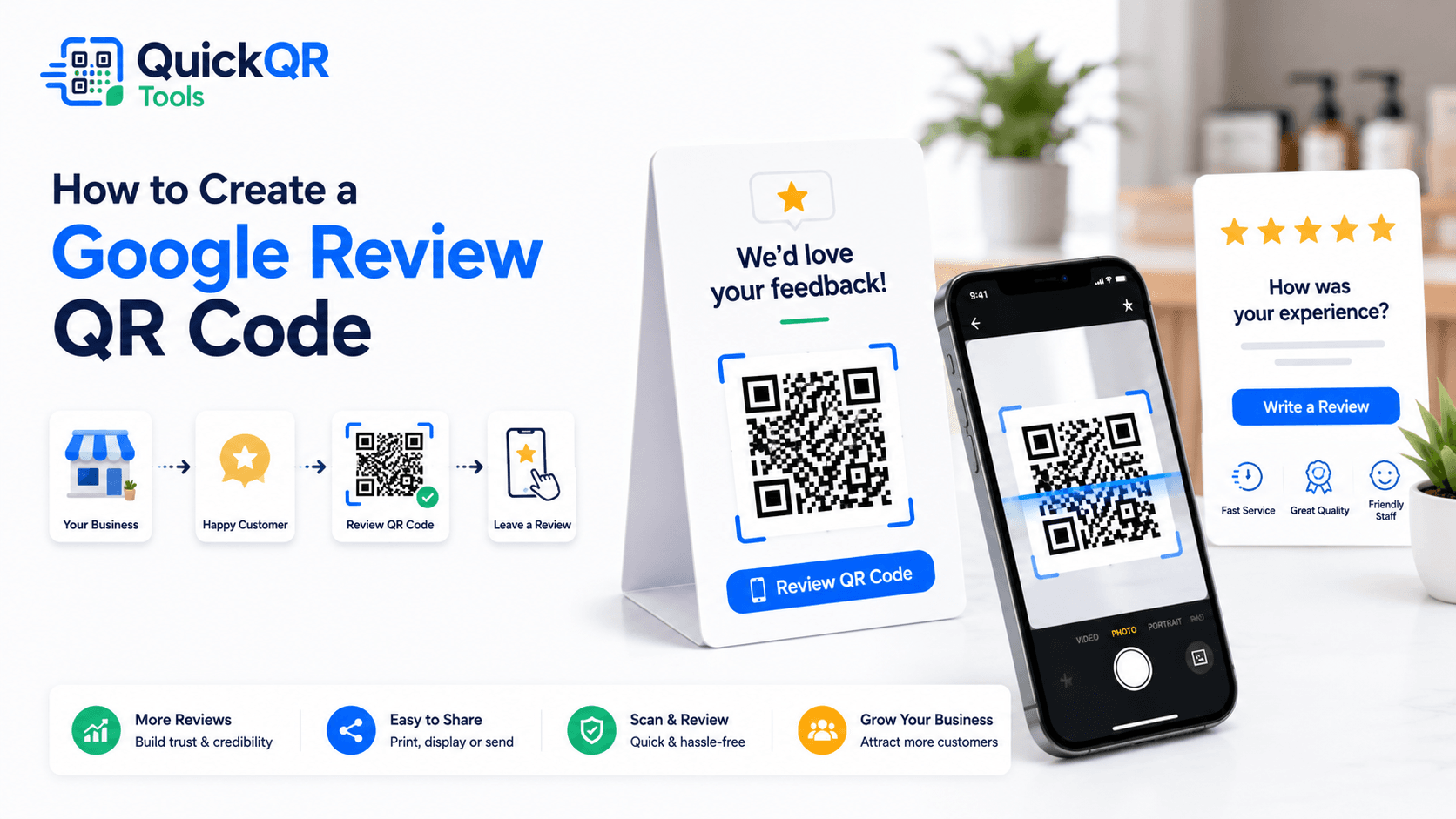
How to create a Google review QR code in 5 steps
The process is simple, but the details matter. A review QR code should open the correct business listing, work on mobile and use respectful wording. It should invite honest feedback, not pressure customers into a specific rating.
- Open your Google Business Profile. Use the profile connected to the business location that should receive the review.
- Copy your review link. In your profile review tools, use the option to get more reviews or ask customers for reviews, then copy the review link.
- Open the review QR generator. Use the Google Review QR Code Generator and paste the review link.
- Generate and download the QR code. Use PNG for quick use, or SVG/PDF when the code will be placed in professional print designs.
- Scan-test before publishing. Confirm the QR code opens the correct Google review flow on a phone before printing or sharing it.
If you are learning how to create a Google review QR code for the first time, test the link in a private browser or on a phone that is not already managing the business profile. This helps confirm that customers see the review flow, not an owner-only view. A clean test is the easiest way to confirm how to create a Google review QR code that works for real customers.
Google says businesses can create and share a link or QR code to help customers leave reviews, including in thank-you emails, chat interactions and receipts. Google also says reviews should reflect genuine experiences and that incentives in exchange for reviews are prohibited. That means your QR code should make honest feedback easier, not manipulate the review process.
Where to find your Google review link
The exact interface can change, but the general workflow is to go to your Google Business Profile, open the reviews area and use the option to get more reviews or share a review request. Google's Business Profile help explains that owners can share a link or QR code to request reviews and can copy the review link from the profile tools. That official review link is the key ingredient when you learn how to create a Google review QR code.
Use the official review link for the correct location. If your business has several locations, each profile may need its own review QR code. A QR code for the wrong location can send reviews to the wrong branch, confuse customers and make performance tracking messy.
If you cannot find the review link, check whether the Business Profile is verified, whether you have access to manage it, and whether you are viewing the right location. For multi-location businesses, label each QR code file clearly before printing materials.
Where to place a Google review QR code
The best placement is close to the moment when a real customer has completed an experience and can give meaningful feedback. A review QR code should feel like a helpful invitation, not a demand. Place it where customers have time to scan and understand what they are being asked to do. For physical materials, how to create a Google review QR code includes choosing the right customer moment.
| Placement | Best for | Suggested call to action |
|---|---|---|
| Receipts | Restaurants, cafes, retail stores, salons and local shops. | Scan to leave us a Google review. |
| Table cards | Restaurants, bars, hotels, cafes and waiting areas. | Enjoyed your visit? Share your feedback. |
| Invoices | Contractors, consultants, repair shops and service businesses. | Tell us how we did. |
| Front desk signs | Clinics, studios, gyms, dental offices and salons. | Review your experience on Google. |
| Thank-you cards | Real estate, home services, events and appointment-based businesses. | Scan to share your honest review. |
Printed review cards work well when staff hand them to customers after a completed service. Receipts work well because the customer has just purchased. Front desk signs work well when customers are waiting or checking out. Table cards can work for restaurants, but the message should be light and optional.
When you create a Google review QR code, keep the scan context in mind. A customer leaving a busy shop may not scan a tiny code near the door. A customer receiving a thank-you card or invoice may have more time. The best placement matches the customer journey.
Best wording for a Google review QR code
The words beside the QR code matter. They tell customers what will happen after they scan. They also set the tone. A good review request is polite, clear and neutral. It should ask for honest feedback instead of suggesting the customer should only leave a positive review. Strong wording is part of how to create a Google review QR code that feels trustworthy.
Avoid wording like "scan for a 5-star review," "leave a positive review for a discount" or "only review us if you loved us." These messages can feel pushy and may conflict with review platform expectations. A clean, neutral request creates more trust.
If you want to know how to create a Google review QR code that customers actually use, write the request like a human. Thank them, ask for honest feedback and make the scan easy. The review should remain the customer's choice.
Google review policies to respect
A Google review QR code should support genuine customer feedback. It should not be used to create fake reviews, reward only positive ratings, block negative feedback or ask employees to write reviews as customers. The goal is to make the review process easier for real customers. Any guide on how to create a Google review QR code should include this compliance step.
Google's guidance says reviews and other contributions should reflect genuine experiences. It also states that offering incentives, such as discounts, free goods or services, in exchange for posting or changing a review is not allowed. Businesses should ask for honest reviews and value all feedback.
This is important because review trust depends on authenticity. Future customers read reviews to make decisions. If a business pressures customers or filters who can review, the feedback becomes less useful. A review QR code should make honest feedback easier, not distort it.
How to use a Google review QR code ethically
Ethical review requests are simple: ask real customers, use neutral wording, accept all honest feedback and avoid rewards tied to reviews. This approach protects trust and keeps the review process useful for future customers. In practice, how to create a Google review QR code ethically means making feedback easier without trying to control the rating.
- Ask after a real purchase, appointment, meal, stay or completed service.
- Invite honest feedback instead of asking for only positive reviews.
- Do not offer discounts, gifts or rewards in exchange for reviews.
- Do not discourage unhappy customers from leaving reviews.
- Do not ask staff, friends or vendors to pose as customers.
- Reply professionally to both positive and negative reviews.
When a customer has a complaint, a review QR code is not a replacement for support. Give customers a direct way to reach your team too. Many businesses use both: a public review QR code for honest feedback and a contact option for people who need help with a specific issue.
Learning how to create a Google review QR code is partly technical, but the real value comes from using it responsibly. A business with honest review practices can build stronger trust over time.
Best businesses for Google review QR codes
Review QR codes are useful for any business where customer trust affects buying decisions. They are especially helpful for local businesses because customers often compare ratings, review volume and recent feedback before calling, booking or visiting. This is why how to create a Google review QR code is a practical skill for customer-facing teams.
A dentist might place a QR code on a checkout card. A plumber might add it to the final invoice. A restaurant might include it on the receipt. A real estate agent might include it in a closing thank-you card. A hotel might add it near checkout. In every case, the review request should match the real customer experience.
How to create a Google review QR code for print
Print quality matters because review QR codes are often used on small physical materials. Receipts, cards and table tents have limited space. If the code is too small, low contrast or surrounded by clutter, customers may not scan it. When the goal is print, how to create a Google review QR code also means designing a scannable card or sign.
Use strong contrast, ideally a dark QR code on a white background. Keep enough blank space around the QR pattern. Avoid placing the code on photos, textures or busy backgrounds. Add a short label above or below the code so customers know what they are scanning.
Use the right download format. PNG works for basic printing and digital sharing. SVG or PDF is better for professional print layouts because the QR code stays sharp when resized. If the review card will be produced by a designer or print shop, ask which format they prefer.
Before printing a full batch, print one sample. Scan it with an iPhone and Android if possible. Test the code from the distance customers will actually use. For more print guidance, read the Best QR Code Size for Print Materials guide.
Static or dynamic Google review QR code?
A Google review QR code is often static because it points directly to a review link. Static QR codes are simple and free. If the review link stays valid, the QR code keeps working. For many small businesses, this is enough. The simplest answer to how to create a Google review QR code is usually to encode the official review link directly.
Dynamic QR codes can be useful if you need editable destinations, scan analytics, campaign tracking or different review flows by location. But dynamic QR codes usually depend on a redirect service. If you only need to send customers to one Google review link, a static QR code can be simpler.
The main question is whether the destination may change after printing. If the business profile, location or review link changes, printed static QR codes may need to be updated. If your business has multiple locations or campaigns, create and label each QR code carefully.
For a deeper explanation of editable and non-editable QR destinations, read the Static vs Dynamic QR Codes guide.
Common Google review QR code mistakes
- Using the wrong business location. Multi-location businesses need the correct profile link for each location.
- Not testing the review flow. Always scan the code and confirm it opens the expected Google review page.
- Printing the QR code too small. Receipts, cards and signs need enough size and contrast.
- Offering incentives for reviews. Avoid rewards, discounts or gifts in exchange for reviews.
- Asking only happy customers. Invite honest feedback from real customers instead of filtering requests.
- Using vague labels. "Scan to leave a Google review" is clearer than an unlabeled QR code.
- Ignoring negative reviews. Reply professionally and use feedback to improve service.
These mistakes can reduce trust or waste printed materials. A few minutes of testing and careful wording can prevent most problems before the QR code reaches customers. The safest way to learn how to create a Google review QR code is to test the whole path before the code goes public.
How to combine review QR codes with other QR tools
A Google review QR code should have one clear job: open the review link. If customers also need WiFi, a menu, a coupon or contact details, use separate labeled QR codes or a simple landing page with clear choices. Knowing how to create a Google review QR code also helps you decide when another QR tool is more appropriate.
For restaurants, pair a review QR code with a Menu QR Code Generator on table materials, but label each code clearly. One can say "Scan to view menu" and the other can say "Scan to leave a Google review." Mixing both actions into one vague QR code can confuse guests.
For local services, use a review QR code after the service is complete, and use a vCard QR Code Generator or Phone QR Code Generator when the goal is future contact. If the goal is a promotion, use a Coupon QR Code Generator instead.
The best QR setup helps the customer choose the right action quickly. Browse All QR Code Tools when you need to match a QR type to a specific customer journey.
Checklist before publishing your review QR code
Use this checklist before placing a review QR code on receipts, signs, table cards, invoices or follow-up materials. It summarizes how to create a Google review QR code that is clear, ethical and ready for customers.
- The QR code opens the correct Google Business Profile review link.
- The business location is correct.
- The request wording asks for honest feedback.
- No incentive, reward or discount is tied to the review.
- The printed QR code is large enough and high contrast.
- The scan works on real phones.
- The QR code has a clear label.
- Staff know when and how to share the review request.
- The business has a plan to reply to reviews professionally.
This checklist keeps the review QR code practical. It helps you confirm the link, design, message and customer experience before the code is printed or shared widely.
Final recommendation
The best way to learn how to create a Google review QR code is to keep the process simple and honest. Copy the correct review link, generate a clean QR code, test it on mobile, use neutral wording and place it where real customers can choose to leave feedback after a genuine experience.
Use the QR code on receipts, thank-you cards, invoices, front desk signs, table cards and follow-up messages. Keep the request polite. Do not reward reviews or pressure people into positive ratings. Honest reviews are more useful for future customers and healthier for your business reputation.
When you are ready, use the Google Review QR Code Generator to turn your review link into a print-ready QR code.
Google review QR code FAQ
Can I create a QR code for Google reviews?
Yes. Copy your Google review link from your Google Business Profile, then use a Google review QR code generator to turn that link into a scannable QR code.
Where do I get my Google review link?
You can get it from your Google Business Profile review tools. Look for the option to get more reviews, ask for reviews or share a review link.
Can I print a Google review QR code?
Yes. Google review QR codes can be printed on receipts, table cards, flyers, invoices, packaging, thank-you cards and front desk signs.
Can I offer rewards for Google reviews?
No. Avoid incentives such as discounts, free goods or services in exchange for reviews. Ask for honest feedback from real customers.
Why does my Google review QR code not open the review page?
The link may be wrong, private, outdated or connected to the wrong business location. Copy the review link again from the correct Google Business Profile and regenerate the QR code.
Should I use a static QR code for Google reviews?
A static QR code is usually fine if the review link will stay the same. If you need editable campaigns, tracking or multiple destinations, a dynamic QR setup may be useful.
Create your Google review QR code
Use QuickQR Tools to generate a QR code from your Google review link and download it for receipts, signs, table cards, invoices and follow-up materials.
Open Google Review QR Generator