
What is a menu QR code?
A menu QR code is a QR code that opens a restaurant menu after a guest scans it with a phone. The destination can be a PDF menu, a page on your website, a mobile ordering page, a hotel room service menu, a bar menu, a catering menu or a seasonal specials page. If you know how to create a menu QR code correctly, guests can move from table card to menu in seconds.
The QR code stores the menu URL, not the full menu design itself. That means your menu needs to be online before you generate the code. If the menu is a PDF, upload it somewhere public and copy the file URL. If the menu is a web page, copy the page URL. If the menu is on an ordering platform, use the public ordering link.
A menu QR code is useful because guests do not need to type a website address, search your restaurant name or ask staff where the menu is. They scan the code and land directly on the menu. This can reduce wait time, help staff during busy periods and make table service smoother.
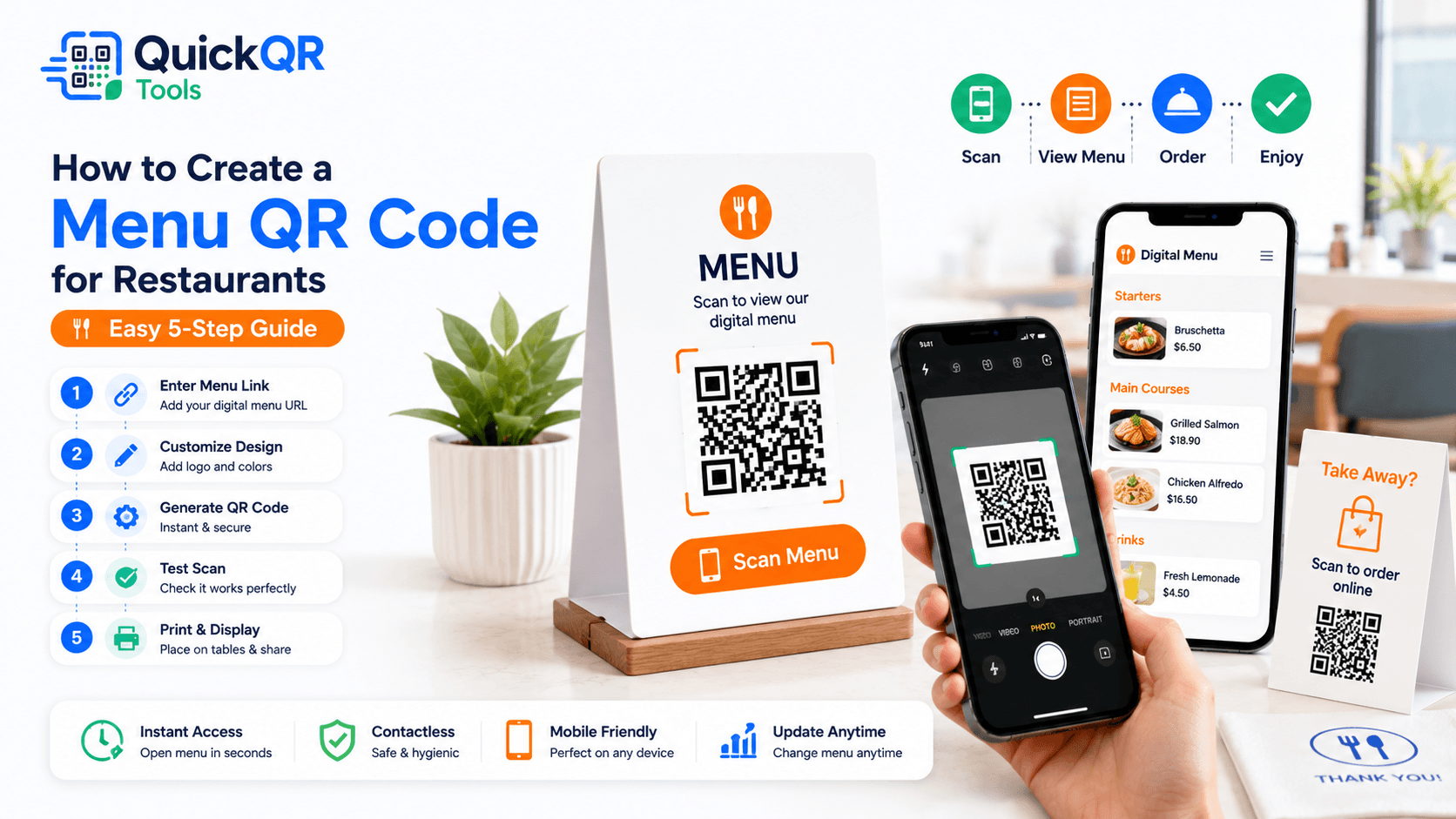
How to create a menu QR code in 5 steps
The process is simple, but the details matter. A menu QR code should open fast, look trustworthy and send guests to the exact menu they expect. Follow these steps before printing or adding the code to a restaurant design. This is the safest way to learn how to create a menu QR code that works in real service conditions.
- Prepare your menu destination. Use a PDF menu, website menu page, online ordering page or dedicated digital menu that is public and mobile friendly.
- Copy the exact public URL. Avoid draft links, private preview links, temporary files or links that require staff login.
- Open the Menu QR Code Generator. Use the Menu QR Code Generator and paste the menu URL.
- Generate and download the QR code. Use PNG for simple digital or print use, and SVG or PDF for sharper professional printing.
- Scan and test before printing. Test on iPhone and Android if possible, and make sure the menu opens quickly on mobile.
If you are learning how to create a menu QR code for the first time, start with one clean destination. Do not send guests to a general homepage if they expect a menu. A direct menu page creates less friction and feels more professional.
PDF menu or online menu page?
Both formats can work. The best choice depends on how often the menu changes, how the menu looks on mobile and how you want guests to order. A PDF menu is often fast to create because many restaurants already have a print menu file. A website menu page is usually better for mobile reading and frequent updates. Before deciding how to create a menu QR code, choose the menu format guests will actually enjoy using on a phone.
| Format | Best for | Important note |
|---|---|---|
| PDF menu | Menus that need to look like a printed document. | Keep the same file URL if you want the printed QR code to keep working. |
| Website menu page | Menus that change often or need mobile-friendly sections. | Usually easier to update without replacing files. |
| Online ordering page | Takeaway, delivery and order-at-table workflows. | Test the full ordering path before printing the QR code. |
Use a PDF menu when your restaurant already has a well-designed document and updates are rare. Make sure the file is not too large, because guests may be scanning on mobile data or a busy WiFi network. Compress the PDF if it takes too long to load.
Use a website menu page when the menu changes often, when you want sections like breakfast, lunch, dinner and drinks, or when you want guests to tap buttons, filter items or move into online ordering. A mobile-friendly page usually gives a better guest experience than a large PDF that requires zooming.
If you use a PDF menu, try to keep the same file URL when you update the menu. If the URL changes, your printed QR code may point to the old file. If you use a website page, keep the page URL stable and update the content on that page.
Where to place menu QR codes
Placement should match the moment when guests need the menu. On tables, the code should be visible when guests sit down. On windows, the code should be large enough for people outside to scan before entering. On takeaway packaging, the code should lead to the current menu or reorder page. Knowing how to create a menu QR code also means knowing where guests will naturally scan it.
Do not hide the QR code in a decorative corner. If the menu is important, give the code enough space and add a clear label such as “Scan to view menu.” For hotels, use the code on room service cards, lobby signs and in-room welcome guides. For events, place it near food stations and seating areas.
Menu QR code best practices
- Use a short call to action such as "Scan to view menu".
- Make sure the menu opens quickly on mobile.
- Use a QR code size that is easy to scan from the expected distance.
- Keep enough white space around the QR code.
- Test on iPhone and Android before printing.
- Use the QR code size guide before printing table cards, posters or window signs.
The best menu QR code experiences are direct and predictable. If the table card says “Scan to view menu,” the scan should open the menu immediately. If the code opens a page with several buttons, ads or unrelated information, guests may feel slowed down. A restaurant that understands how to create a menu QR code should remove steps, not add them.
Keep the landing page clean. Use readable text, large tap targets and fast loading images. If your menu includes food photos, optimize them so the page still loads quickly. If the menu is a PDF, check that it is readable without excessive zooming.
Use one menu QR code per clear job. If you also want guests to join WiFi, leave a review or claim a coupon, use separate labeled codes or a well-designed landing page. For guest WiFi, use the WiFi QR Code Generator. For reviews, use the Google Review QR Code Generator.
How to create a menu QR code for print
When you create a menu QR code for print, test the final printed version, not only the image on your screen. A QR code that scans perfectly on a laptop may become harder to scan when printed small, laminated, placed behind glass or used in low restaurant lighting. The print step is a major part of how to create a menu QR code that guests can use without help.
For table cards and menu inserts, keep the code large enough to scan from a normal seated position. For window signs, make the code larger because people may scan from outside and through reflections. For takeaway bags or stickers, avoid curved or folded areas that distort the QR pattern.
Keep a clean quiet zone around the QR code. This is the blank space around the pattern that helps phones recognize it. Do not place the code directly against borders, photos, decorative icons or dense text. A simple white square behind the QR code is often the safest design choice.
Before printing a full batch, print one sample and scan it with multiple phones. Test under the lighting where guests will actually use it. If the code is on a laminated table tent, test after lamination, not before.
Static or dynamic menu QR code?
Many menu QR codes are static because they point to a menu URL. If that URL stays the same, the QR code keeps working even when you update the menu content at that URL. This is why a stable website menu page can be a smart choice. When learning how to create a menu QR code, the most important long-term detail is keeping the menu URL stable.
If the URL changes every time you upload a new PDF, the printed QR code may become outdated. To avoid that, either keep the same file URL, use a stable menu page, or use a redirect that you control. For a deeper explanation, read the static vs dynamic QR codes guide.
Dynamic QR codes can be useful for restaurants that change menus often, run seasonal campaigns, test ordering pages or need scan analytics. But many small restaurants can keep things simple by using a stable page on their own website and updating the menu there.
The key question is this: will the destination URL stay the same after printing? If yes, a static menu QR code can work well. If not, plan the redirect or dynamic setup before printing hundreds of table cards.
Menu QR code ideas for restaurants and cafes
A restaurant can use menu QR codes on table cards, printed menus, outdoor signs, receipts, flyers and takeaway packaging. A cafe can place one near the counter for drinks, pastries and seasonal specials. A food truck can use one on the serving window so customers can review the menu while waiting in line. For each setting, how to create a menu QR code depends on scan distance, lighting and the menu destination.
Hotels can use menu QR codes for room service, breakfast menus, bar menus and event catering. Event venues can use QR codes for buffet menus, allergen notes, drink menus or food station information. Catering businesses can use them on proposals, tasting cards and event signage.
Menu QR codes can also support promotions. Add a coupon QR code beside the menu to promote a lunch offer, loyalty reward or seasonal discount. If you want a separate promotion, use the Coupon QR Code Generator instead of mixing menu and coupon actions into one unclear code.
For restaurants that receive questions through messaging apps, a WhatsApp QR code can help guests ask about reservations, catering or pickup. Keep the menu QR code focused on the menu, and use separate labeled codes for other actions when needed.
Common menu QR code mistakes
- Linking to a private file. Guests need a public URL that opens without login.
- Using a huge PDF. Large files can load slowly on phones and frustrate guests.
- Changing the menu URL after printing. If the URL changes, the printed QR code may stop working.
- Printing the code too small. Table cards, window signs and posters need different sizes.
- Skipping mobile testing. Always scan and open the menu on a real phone before printing.
- Using vague labels. “Scan to view menu” is clearer than an unlabeled QR code.
- Combining too many actions. Separate menu, WiFi, review and coupon codes when each has a different purpose.
How to create a menu QR code that guests trust
A menu QR code should look official. Guests are more likely to scan when the table card, window sign or flyer clearly belongs to the restaurant. Use your restaurant name, logo, brand colors and a short instruction. Avoid anonymous QR codes with no label, because guests may not know what will open. Trust is part of how to create a menu QR code that people actually scan.
Trust also comes from the destination. The menu should open on your restaurant domain, a known ordering platform or a clearly branded menu page. If guests scan a code and land on a confusing page, a slow file or a generic document viewer, the experience feels less professional.
If you are deciding how to create a menu QR code for a new restaurant, start with a simple branded menu page. It can include categories, prices, dietary notes, opening hours and a clear ordering or reservation path. This gives you more flexibility than a single static PDF.
For existing restaurants that already have a polished PDF menu, a PDF QR code can still work well. The important part is that the file is public, compressed, readable on phones and kept at a stable URL.
Mobile menu experience matters
Most guests scan menu QR codes with a phone, so the menu must be comfortable on a small screen. A desktop-style PDF with tiny text can frustrate guests, even if the QR code itself works perfectly. The scan is only the first step; the menu experience after the scan is what guests remember. A strong approach to how to create a menu QR code always includes mobile menu testing.
Use clear categories such as appetizers, mains, desserts, drinks and specials. Keep item names readable. Put prices near items. If the menu is long, use sections or anchor links so guests can move quickly. If your menu includes photos, optimize them so the page still loads quickly.
For PDF menus, test the document on a phone before printing the QR code. If guests need to zoom constantly, consider building a mobile menu page instead. A website menu page usually works better for long menus, changing prices, daily specials and ordering buttons.
The strongest menu QR code setup combines a reliable QR code with a mobile-friendly destination. That is why how to create a menu QR code should always include testing the menu page, not just testing the scan.
Updating prices, specials and seasonal menus
Restaurants change menus often. Prices change, items sell out, seasonal dishes arrive, ingredients change and promotions end. A good menu QR code setup should make updates easy without breaking printed materials. This is why how to create a menu QR code should include an update plan before the first table card is printed.
If you use a website menu page, keep the page URL stable and update the content on that page. If you use a PDF, try to replace the file without changing the public URL. If that is not possible, use a stable page that links to the newest PDF.
For seasonal menus, create a stable page such as a specials page and update it as needed. The QR code can point to the same URL while the content changes behind it. This prevents old table cards or window signs from becoming useless after one menu update.
When changing prices or items, scan the printed QR code again after the update. Confirm that guests see the current menu and that old files are not cached or linked from the page. This is especially important before weekends, holidays and large events.
Accessibility and allergen information
A digital menu should be easy for as many guests as possible to use. Use readable text, strong contrast and simple navigation. Avoid menus that are only images with tiny text because they can be hard to zoom, hard to read and less accessible. Restaurants learning how to create a menu QR code should think about readability as much as the QR design.
If your restaurant serves guests with allergies or dietary needs, include clear allergen and dietary notes where appropriate. A QR menu can make this easier because you can update information online. Still, guests with serious allergies should be encouraged to speak with staff before ordering.
In the United States, the FDA provides consumer information about food allergies. Restaurant menus are not the same as packaged food labels, but clear allergen communication can help guests make safer decisions.
If you include allergen notes, keep them close to menu items or in a clearly labeled section. Do not hide important information behind several taps. A helpful digital menu should reduce uncertainty, not create more questions for guests.
How to create a menu QR code for online ordering
A menu QR code can do more than show a menu. It can send guests to an online ordering page, reservation page, pickup form or order-at-table experience. This is useful for food trucks, counter-service restaurants, hotels, bars and busy venues. If your goal is ordering, how to create a menu QR code should include testing the full order flow.
If the QR code opens online ordering, test the full path before printing. Guests should be able to scan, choose items, review the cart and complete the order without confusion. If the ordering page is slow or hard to use, the QR code may bring traffic but not orders.
Use a clear label. “Scan to order” is different from “Scan to view menu.” If guests only want to read the menu, sending them straight into an ordering flow may feel pushy. If the goal is ordering, say so clearly.
For restaurants with separate dine-in and takeaway menus, consider separate QR codes or a landing page that asks guests to choose. This prevents table guests from accidentally opening the delivery menu or takeaway customers from seeing dine-in-only items.
Restaurant workflow after publishing the QR code
After the menu QR code is published, create a simple workflow for staff. Someone should know where the menu file or page is managed, how updates are made, and where the latest QR code file is stored. This prevents confusion when prices change or a new menu is released. A repeatable workflow is part of how to create a menu QR code that stays useful over time.
Keep the printed QR code files organized. Use clear names such as menu-qr-table-card-2026.png or menu-qr-window-sign.pdf. Keep older versions archived but do not reuse them unless the destination is still correct.
When updating the menu, scan a table card after the update. This checks the same path guests use. If the update works only from your computer but not from the printed code, the guest experience is still broken.
For multi-location restaurants, each location may need its own menu QR code if menus, prices, hours or ordering links differ. Label files by location to avoid printing the wrong code for the wrong restaurant.
Final recommendation
If you want a fast and reliable setup, the best approach is simple: create one stable public menu URL, generate one clean QR code, test it on real phones and print it at a size guests can scan comfortably. This works for restaurants, cafes, bars, food trucks, hotels and event menus. That simple process is the core of how to create a menu QR code without overcomplicating the guest experience.
For restaurants that update menus often, a mobile website menu page is usually the strongest long-term option. For restaurants that already have a polished print menu and update less often, a compressed PDF menu can work well. In both cases, the URL must stay stable after printing.
Learning how to create a menu QR code is not only about the QR image. It is about giving guests a clear path from table, window, flyer or package to the exact menu they need. Keep the scan fast, the label clear and the destination useful.
Checklist before publishing your menu QR code
Use this checklist before you place a menu QR code on tables, windows, flyers or packaging. It gives your team a practical way to confirm how to create a menu QR code that is ready for real guests.
- The menu URL is public and opens without login.
- The menu loads quickly on mobile.
- The page or PDF is readable on a phone screen.
- The QR code scans on iPhone and Android.
- The printed code is large enough for the expected scan distance.
- The design has enough quiet zone around the QR code.
- The label tells guests what they will get after scanning.
- The restaurant team knows how to update the menu without breaking the QR code.
This checklist matters because a menu QR code is often the first interaction guests have after sitting down. A smooth scan creates confidence. A broken or slow menu creates frustration before the meal begins.
Menu QR code FAQ
Can I create a QR code for a restaurant menu?
Yes. Create a public menu URL first, then use a menu QR code generator to turn that link into a scannable QR code for table cards, flyers, windows or signs.
Should I use a PDF menu or a website menu?
A PDF menu is useful when you already have a print-style menu. A website menu is usually better when the menu changes often, needs to load fast or should be easier to read on mobile.
Can I print menu QR codes?
Yes. Menu QR codes can be printed on table cards, flyers, posters, windows, packaging and business cards. Test the printed version before using it with guests.
Can I update the menu later?
Yes, if the menu keeps the same URL. If the URL changes, you need to generate and print a new QR code or use a redirect that you control.
What size should a menu QR code be?
For table cards, a menu QR code should be large enough to scan from a seated position. Window signs and posters need larger codes because guests scan from farther away.
Can a menu QR code link to online ordering?
Yes. A menu QR code can point to an online ordering page as long as the link is public, mobile friendly and tested before printing.
Create your menu QR code
Use QuickQR Tools to generate a QR code from your menu URL and download it for table cards, flyers, windows and signs.
Open Menu QR Generator