
What is a PDF QR code?
A PDF QR code is a QR code that opens a PDF file after someone scans it with a phone. The PDF might be a restaurant menu, product catalog, instruction manual, event schedule, registration form, portfolio, sales brochure, price list, warranty guide or downloadable checklist. If you know how to create a PDF QR code correctly, you can place one scannable code on print materials and send visitors directly to the document they need.
This guide explains how to create a PDF QR code from start to finish, including file preparation, hosting, QR code generation, print testing, mobile readability and future updates.
The QR code does not store the entire PDF inside the square pattern. It stores the public URL of the PDF file. That means the file must be uploaded online first. When a person scans the code, their phone reads the URL and opens the PDF in a browser, document viewer or PDF app.
This matters because a PDF can be large, visual and structured like a document. A QR code is better at storing a short destination link than carrying the file itself. The clean workflow is simple: prepare the PDF, upload it, copy the public file URL, generate the QR code, test the scan and use the final QR code on your design.
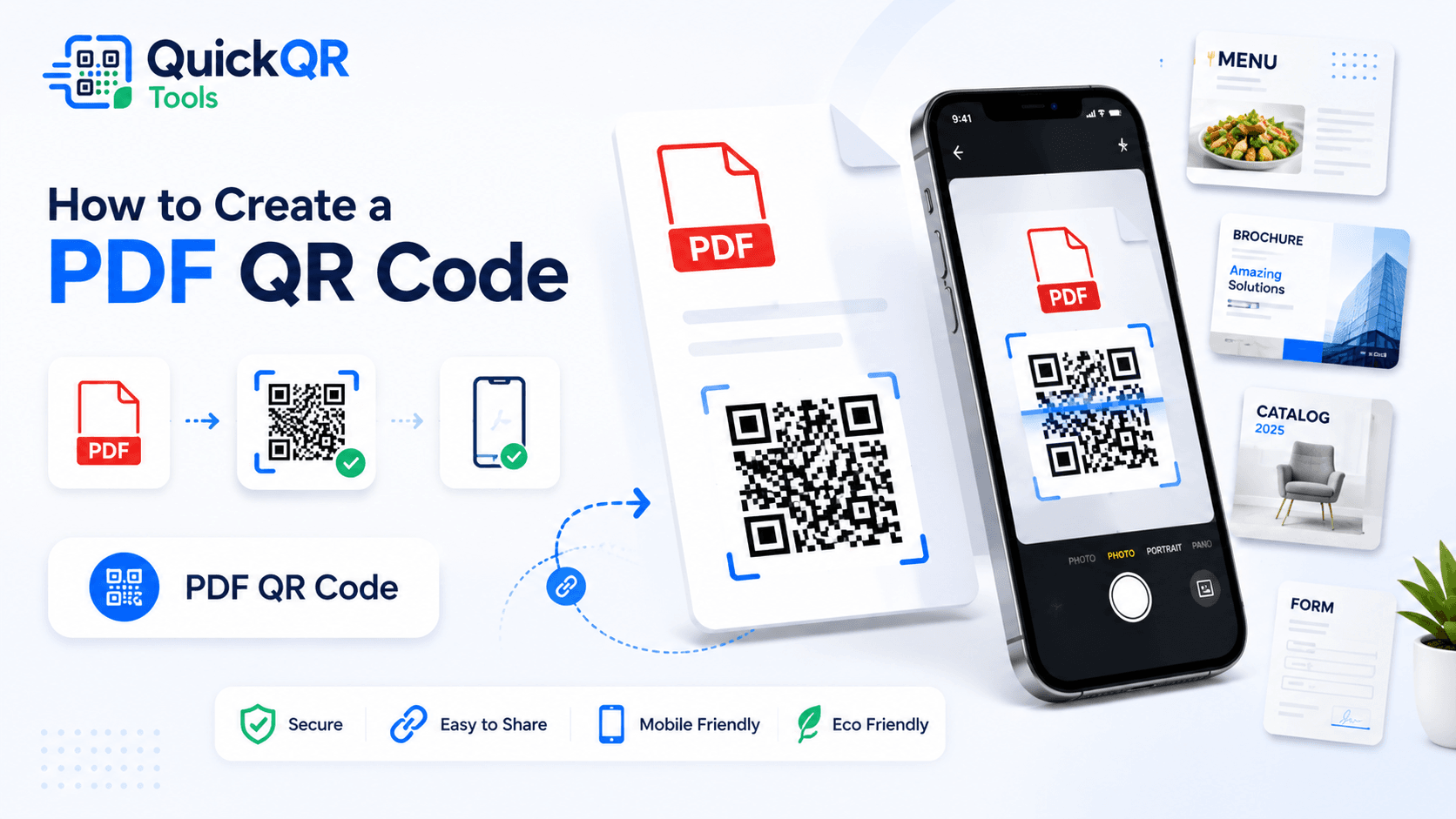
How to create a PDF QR code in 5 steps
The safest way to learn how to create a PDF QR code is to treat the PDF, the link and the printed QR image as one complete experience. The scan should open the exact document people expect, without login screens, broken file permissions, slow loading or tiny unreadable pages.
- Prepare the PDF file. Use a clear file name, compress large images and make sure the document is readable on mobile.
- Upload the PDF online. Use WordPress Media Library, your website, a public document page or another reliable file host.
- Copy the public PDF URL. The link should open in a browser without asking for private access, preview access or a restricted login.
- Generate the QR code. Open the PDF QR Code Generator, paste the PDF URL and create the code.
- Test and download. Scan with a phone, confirm the PDF opens, then download PNG for simple use or SVG/PDF for sharper print work.
If you are learning how to create a PDF QR code for the first time, do not rush the upload step. Most problems come from private links, temporary preview URLs or files that are too heavy for mobile. A QR code can only open the destination you give it. If the PDF URL is weak, the scan experience will be weak too.
After generating the QR code, test it the same way your audience will use it. If the code will be printed on a restaurant table card, scan it from a seated distance. If it will be printed on a poster, scan it from farther away. If it will be used on packaging, test it on the actual packaging surface before producing a full batch. This final test is part of how to create a PDF QR code that works beyond the screen.
Best uses for PDF QR codes
A PDF QR code works best when the destination is a document people want to open, read, download or keep. It is especially useful when the printed space is limited but the information behind the QR code is longer than a flyer or label can hold. If the goal is document access, how to create a PDF QR code starts with choosing the right file.
| Use case | Best document type | Useful scan label |
|---|---|---|
| Restaurant or cafe | PDF menu, drink list, catering menu or allergen guide. | Scan to view menu |
| Retail or product packaging | Manual, warranty guide, size chart or product sheet. | Scan for instructions |
| Events and venues | Program, schedule, venue map, sponsor packet or ticket guide. | Scan for event guide |
| Sales and marketing | Brochure, price list, media kit, catalog or proposal. | Scan for brochure |
| Schools and offices | Forms, policies, onboarding packets and checklists. | Scan to download form |
The use case should decide the label. A QR code with no label asks people to guess. A QR code labeled "Scan to view our brochure" or "Scan to download the form" sets a clear expectation before the scan. That small line of text can improve trust and reduce confusion.
For restaurant menus, a PDF QR code can be quick because many restaurants already have a designed menu file. For product packaging, a QR code can replace bulky printed instructions and make it easier to update manuals. For events, one code can keep the printed program clean while giving guests access to the full schedule.
PDF QR code or regular URL QR code?
A PDF QR code and a regular URL QR code are technically similar because both usually store a URL. The difference is the intent. A PDF QR code is specifically used when the destination is a PDF document. A URL QR code can point to any web page, landing page, form, booking page, shop page or article. Knowing how to create a PDF QR code also means knowing when a regular URL QR code is the better choice.
Use a PDF QR code when the document format is part of the value. A catalog may need page layout. A menu may already be designed for print. A product sheet may include tables, diagrams and official formatting. A contract template, brochure or form may need to remain a downloadable file.
Use a URL QR code when the destination should behave like a website. If the user needs buttons, navigation, checkout, booking, embedded video, filters or frequent content updates, a web page usually gives a better mobile experience. The URL QR Code Generator is better for those cases.
In simple terms, create a PDF QR code when people need the file. Create a website QR code when people need an interactive page. If you are unsure, open the PDF on your phone. If it is easy to read and useful as a document, a PDF QR code can work. If it feels cramped or slow, consider a mobile page instead.
PDF QR code best practices
The best PDF QR codes are easy to scan, easy to trust and easy to open. They do not depend only on the QR image. The PDF itself, the hosting location, the file size and the print design all affect the final experience. A strong process for how to create a PDF QR code checks every part of that path.
- Use a public PDF URL that opens without login or permission prompts.
- Compress the PDF so it loads quickly on mobile connections.
- Give the file a clean name that matches the document topic.
- Use a clear label near the QR code, such as "Scan to view the PDF".
- Keep enough quiet zone around the QR code so phones can read it.
- Test the code on iPhone and Android before publishing or printing.
- Use SVG or PDF export for professional print materials when possible.
- Keep the destination URL stable after printing.
If you want to know how to create a PDF QR code that works in real conditions, focus on the scanner's environment. Someone may scan in a restaurant with low light, at a trade show with weak reception, from a folded brochure, or from packaging that reflects light. The cleaner the QR code and the faster the PDF, the better the result.
Also check whether the PDF is comfortable on a phone. A beautiful desktop PDF can become frustrating if the text is tiny, columns are narrow, pages are huge or links are too small to tap. A QR code should reduce friction, not move people into a document that is difficult to use.
How to prepare the PDF before generating the QR code
Before you create the QR code, prepare the PDF like a public document. The file should be current, readable, compressed and safe to share. This step is often more important than the QR generator itself because the QR code simply sends people to the file. Anyone learning how to create a PDF QR code should start by improving the PDF itself.
Use a file name that is readable and specific, such as spring-menu-2026.pdf, product-catalog-quickqr-tools.pdf or event-program-may-2026.pdf. Avoid file names with random exports, spaces, drafts or confusing version numbers. Clean file names look more professional when users see the URL or download the file.
Compress the PDF if it includes large photos. A 25 MB menu or catalog can feel slow on mobile. If the document must include images, use optimized image sizes before exporting. Test the PDF on a phone with normal mobile data, not only on fast office WiFi.
Make sure the document is final before printing the QR code. If the PDF includes prices, dates, legal text, schedules or contact details, proofread it carefully. A QR code makes access easier, but it also makes mistakes easier to distribute.
If accessibility matters for your audience, structure the document with readable text, clear headings and useful link text. The W3C has detailed guidance for PDF accessibility techniques, which is especially useful when documents need to support a broad audience.
Where to host a PDF for a QR code
You can host the PDF on your own website, in WordPress Media Library, on a public file service or on a dedicated document page. The best option is the one you control, can update safely and can keep public without permissions breaking the scan.
For many WordPress users, the simplest method is to upload the PDF to the Media Library and copy the file URL. Then paste that URL into the generator. If the PDF is part of a larger experience, consider creating a page that introduces the document and links to the PDF. That can be more helpful for users and more flexible for updates.
Avoid private preview links. A link that opens for you while logged in may not open for a visitor. Always test the PDF URL in a private browser window or on a phone that is not connected to your editing account. If the link does not open directly, fix the hosting before generating the code.
How to create a PDF QR code for print
Print adds a second layer of responsibility. A QR code that scans perfectly on a screen can fail if it is printed too small, placed on a glossy surface, distorted by packaging, cropped by a designer or surrounded by busy artwork. If your final goal is print, test the final print design. For printed materials, how to create a PDF QR code includes layout, contrast and scan distance.
Use a high contrast QR code. Black or dark navy on white is usually safest. Avoid pale colors, low contrast backgrounds and busy patterns behind the code. Keep a blank quiet zone around the QR square. This blank space helps the phone camera identify the QR code quickly.
Use the right file format. PNG is fine for many simple uses, but SVG or PDF can produce sharper results in professional layouts. If you are sending the code to a print designer, ask whether they prefer SVG, PDF or high-resolution PNG. The QR code size guide can help you choose a size for menus, flyers, posters and signs.
Print one sample before producing a large batch. Scan it from the expected distance, under the expected lighting, and on the real material. A table tent, laminated menu, window sticker and cardboard box can all affect scanning differently.
When you create a PDF QR code for packaging, avoid seams, folds and curved areas that can distort the square. When you use one on a poster, make the code large enough for people to scan without stepping too close. When you use one on a business card, keep the label short and make the code clear.
Static PDF QR codes and future updates
Most free PDF QR codes are static because the PDF URL is encoded directly into the QR pattern. If the URL changes, the printed QR code still points to the old URL. This is not a problem when the PDF will not change, but it matters when you expect updates. A complete plan for how to create a PDF QR code should include what happens when the document changes.
The smart approach is to keep the destination URL stable. If you upload a menu PDF today and replace it next month with a new URL, old printed table cards may stop being useful. If you keep the same URL or point the QR code to a stable page that links to the latest PDF, the printed material has a longer life.
If you need analytics, editable destinations or campaign tracking, a dynamic QR platform may be useful. If you only need a simple public PDF to open from a scan, a static PDF QR code can be enough. For a deeper comparison, read the Static vs Dynamic QR Codes guide.
When deciding how to create a PDF QR code for long-term use, ask one question before printing: will this exact URL still be valid later? If the answer is uncertain, use a stable page or redirect that you control.
Common PDF QR code mistakes
- Using a private PDF link. The link opens for the owner but not for customers, guests or visitors.
- Uploading a file that is too large. A slow PDF can make people abandon the scan.
- Printing before testing. Always scan the real printed sample before ordering a full batch.
- Changing the file URL later. Static QR codes keep pointing to the old address.
- Using an unlabeled QR code. Tell people what they will get after scanning.
- Sending mobile users to a desktop-style document. Make sure the PDF is readable on a phone.
- Putting sensitive content behind a public QR code. Public QR codes should open only documents meant to be public.
These mistakes are easy to avoid with a short checklist. Open the PDF URL on a phone, scan the QR code, review the PDF, check the label and print one sample. That small routine protects the user experience and prevents expensive reprints. It is also the simplest way to confirm that you understand how to create a PDF QR code for real-world use.
PDF QR code examples by business type
Different businesses use PDF QR codes in different ways. The best examples are specific, useful and easy to understand before scanning. That is why how to create a PDF QR code should always begin with the visitor's next action.
A restaurant might place a PDF menu QR code on table cards and window signs. A retail store might add one to shelf labels so shoppers can open a product specification sheet. A real estate agent might put one on a flyer so buyers can download the full property brochure. An event organizer might place one on badges or posters to open the full schedule.
Each example works because the PDF is the next useful step. If the scan only opens a generic homepage, the user still has to search. A PDF QR code should remove that extra step and deliver the exact document promised by the label.
How to create a PDF QR code for menus
PDF menus are one of the most common uses for this type of QR code. Restaurants, cafes, bars, hotels and food trucks often already have a designed menu file. A PDF QR code lets guests open that menu from a table card, window sign, flyer or takeaway package.
The key is mobile readability. A menu designed for print may look beautiful on paper but feel cramped on a phone. Before printing, open the PDF on a phone and ask whether a guest can read item names, descriptions and prices without constant zooming. If the menu is hard to read, a dedicated mobile menu page may be better. The Menu QR Code Generator is useful when the scan destination is specifically a menu experience. For restaurants, how to create a PDF QR code is really about making the menu easy to open and easy to read.
If the menu is short and clean, a PDF QR code can be fast and practical. Compress the file, keep the URL stable and use a simple label like "Scan to view menu." If you update prices often, use a stable page or controlled redirect so old printed table cards do not become outdated after every menu change.
For restaurant workflows, test the QR code after every menu update. Scan the physical table card, not just the file on your computer. This confirms that the real guest path still opens the current menu.
How to create a PDF QR code for brochures and catalogs
Brochures and catalogs often include more information than a printed flyer can hold. A PDF QR code lets you keep print materials clean while still giving prospects the full document. This is useful for trade shows, product launches, showroom displays, direct mail, sales sheets and packaging inserts. In sales contexts, how to create a PDF QR code should support a clear next step, not just a file download.
When you create a PDF QR code for a brochure, use a scan label that matches the business goal. "Scan for full catalog" is clearer than "Scan me." If the PDF includes pricing, confirm that the pricing is current before printing the QR code on long-lasting materials.
For catalogs, file size matters. Product images can make PDFs heavy. Optimize the file so it opens quickly on phones. If the catalog is very long, consider a mobile web catalog instead, because users may want search, filters, categories and product links.
For sales teams, keep one approved brochure URL. This prevents different team members from generating QR codes for outdated versions. A shared, stable document location makes printed materials easier to manage.
Security and privacy for PDF QR codes
A public PDF QR code should only point to a document that is safe for the public to open. Do not use a public QR code for private contracts, employee files, customer records, passwords, medical documents, internal policies or confidential information unless the access is properly protected by a secure system. Security is part of how to create a PDF QR code responsibly.
Remember that a QR code can be photographed, copied, shared or scanned by anyone who sees it. If the PDF URL is public, the file is public. A QR code does not add security. It only makes access faster.
If a document should be restricted, use a secure portal, password-protected document system or authenticated file platform. For public brochures, menus, catalogs, forms and manuals, a PDF QR code is fine as long as the file does not expose private data.
Also be careful with editable or temporary links. A temporary file sharing link may expire after printing. A private preview link may work only for you. A secure document link may ask visitors to sign in. Test from a visitor's point of view before publishing.
Checklist before publishing your PDF QR code
Use this checklist before adding the QR code to menus, brochures, packaging, flyers or signs. It is a practical way to confirm that you know how to create a PDF QR code that is ready for real users.
- The PDF URL opens in a private browser window without login.
- The PDF loads quickly on a phone.
- The document is readable on mobile.
- The file name is clean and professional.
- The QR code has a clear label near it.
- The QR code has enough blank space around it.
- The printed sample scans from the expected distance.
- The destination URL will stay stable after printing.
- The document does not contain private or outdated information.
This checklist is short, but it catches the issues that usually cause problems. A PDF QR code should feel effortless for the person scanning it. If the user has to zoom too much, wait too long, request access or guess what the QR code opens, the experience needs improvement.
Final recommendation
The best way to learn how to create a PDF QR code is to keep the workflow simple and controlled. Prepare a clean PDF, upload it to a stable public URL, generate the QR code, test the scan on real phones and print a sample before using it widely. That process works for menus, catalogs, brochures, forms, product sheets and event documents.
Use a PDF QR code when the file format is the right experience. Use a web page QR code when visitors need a responsive page, booking flow, checkout, video, form or interactive content. If you need to compare options, start with the All QR Code Tools page and choose the QR type that matches the user's real task.
If your document is public, readable and ready to share, the PDF QR Code Generator gives you a fast way to turn the PDF URL into a scannable QR code for print and digital use.
PDF QR code FAQ
Can a QR code open a PDF?
Yes. A QR code can open a PDF when the QR code points to the public URL of the PDF file. Upload the PDF online first, copy the file URL and generate the QR code from that link.
Can I upload a PDF directly into a QR code?
No. A QR code usually stores the PDF link, not the entire file. Upload the PDF to your website, WordPress Media Library or another public host, then use the public URL.
How do I create a QR code for a PDF menu?
Upload the PDF menu, copy the public PDF URL, paste it into a PDF QR code generator and test the scan on a phone before printing table cards or signs.
Can I change the PDF after printing the QR code?
Yes, if the URL stays the same. If the PDF file URL changes, a static QR code will still point to the old address and you may need a new QR code.
Is a PDF QR code good for brochures?
Yes. PDF QR codes are useful for brochures, catalogs, product sheets, event programs and forms because people can scan printed material and open the full document.
Should I use PNG, SVG or PDF for the QR code download?
Use PNG for simple digital use and basic printing. Use SVG or PDF export when the QR code will be placed in a professional print layout and needs to stay sharp.
Create your PDF QR code
Use QuickQR Tools to generate a QR code from your PDF file URL and download it for menus, brochures, catalogs, flyers, packaging and signs.
Open PDF QR Generator