
What is an SMS QR code?
An SMS QR code is a QR code that opens a text message on a phone. It can include the recipient phone number and an optional prefilled message. If you want to know how to create an SMS QR code for a business, the goal is to make a short mobile reply easier than typing a number by hand.
Many SMS QR codes use the sms: link format. The IETF describes this format in RFC 5724, which explains the SMS URI scheme. In practical terms, a QR code can store a text-message action so that scanning opens the messaging app on a phone.
An SMS QR code is useful when the message should be short, direct and mobile-first. It works well for appointment confirmations, event RSVP, service inquiries, quote requests, support labels, local signs, repair tags and customer replies. It is not the best format for long explanations, formal records or attachments. For those, an email QR code or contact form may be better. This is why how to create an SMS QR code starts with deciding whether a short text is truly the best next step.
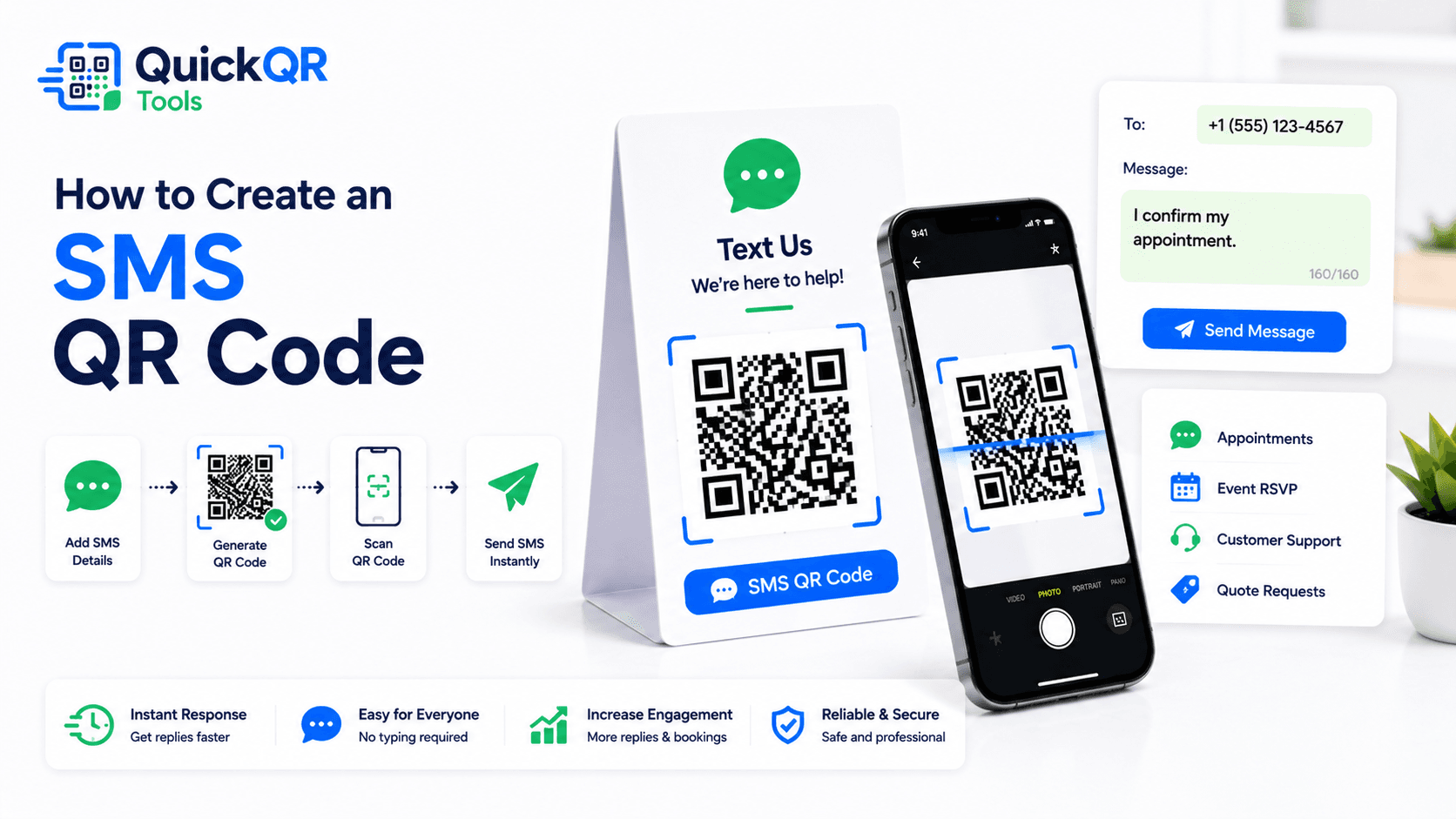
How to create an SMS QR code in 5 steps
The process is simple, but the details affect the scan experience. If you are learning how to create an SMS QR code for print, support or local marketing, focus on phone number format, message length and mobile testing.
- Choose the receiving phone number. Use a number that can receive and manage incoming text messages.
- Use a clear phone number format. For public materials, include the country code when your audience may scan from different regions.
- Write a short prefilled message. Use a message the scanner can send quickly without heavy editing.
- Generate and download the QR code. Use the SMS QR Code Generator and export PNG, SVG or PDF.
- Scan-test before publishing. Confirm the messaging app opens with the correct number and message.
A complete process for how to create an SMS QR code includes a real phone test. Different devices and messaging apps may handle SMS links slightly differently. Test with the type of phone your audience is likely to use when possible.
If the QR code will be printed, test the final printed design, not only the web preview. The QR code must be large enough, high contrast and surrounded by enough clear space to scan reliably. A reliable process for how to create an SMS QR code always checks the final material.
Phone number format for SMS QR codes
The phone number controls where the text message goes. A small mistake can send visitors to the wrong number or make the message fail. When deciding how to create an SMS QR code, choose the phone number format based on your audience and campaign area.
| Number detail | Recommended approach | Why it matters |
|---|---|---|
| Country code | Use it for public or international audiences. | It reduces confusion when people scan outside your local area. |
| Local number | Use only when the audience is clearly local and the number format is familiar. | It may be enough for local appointment cards or neighborhood campaigns. |
| Spaces and symbols | Keep the number clean if your generator asks for digits only. | Extra characters can create inconsistent behavior. |
| Shared inbox | Use a business texting number when multiple people need to respond. | A personal phone number can become hard to manage. |
If you are using SMS for business, make sure the number is monitored. A QR code that creates messages is only useful when someone answers. For campaigns that may create many responses, use a workflow your team can manage. In practice, how to create an SMS QR code is also about preparing for the replies it can generate.
Best prefilled SMS messages
An SMS QR code should keep the message short. A text message is not the place for a long form or detailed explanation. When you decide how to create an SMS QR code, start with the smallest useful message that matches the scan context.
| Use case | Example message | Best placement |
|---|---|---|
| Appointment confirmation | Hello, I confirm my appointment. | Appointment cards, reminders, clinic desks and service receipts. |
| Quote request | Hello, I would like a quote. | Flyers, postcards, yard signs and local service campaigns. |
| Event RSVP | Hello, I would like to RSVP. | Invitations, posters, tickets and community boards. |
| Support request | Hello, I need help with... | Product labels, equipment stickers, receipts and help desks. |
| Availability check | Hello, is this still available? | Listings, retail displays, rentals and local offers. |
| Pickup confirmation | Hello, I am here for pickup. | Restaurants, local stores, service counters and curbside pickup. |
The message should sound like something a real person would send. Avoid long scripts, multiple questions or complicated instructions. If the scan needs to collect detailed information, link to a form instead of using SMS. The easiest way to decide how to create an SMS QR code is to keep the first message focused on one action.
Where to use an SMS QR code
SMS QR codes work best where a short text reply is enough. The code should appear at the moment when the visitor knows exactly why they are texting. That context is what makes the scan useful.
Restaurants can use SMS QR codes for pickup arrival or simple reservation messages. Clinics and salons can use them for appointment confirmation. Local service businesses can use them for quote requests. Event teams can use them for RSVP or volunteer messages. The best use cases are fast, clear and mobile-friendly. That is the practical lens for how to create an SMS QR code that people will actually use.
How to create an SMS QR code for print
Print adds real-world constraints. A QR code that works on a screen can fail when printed too small, placed on a glossy surface or surrounded by busy artwork. If your goal is print, how to create an SMS QR code includes the final material and scan distance.
Use strong contrast. A dark QR code on a white background is the safest option. Keep a clear quiet zone around the code. Avoid placing it over photos, textures or patterned backgrounds. If you use brand colors, test the printed result before producing many copies. For print, how to create an SMS QR code includes readability from the real scan distance.
Use PNG for simple documents and digital sharing. Use SVG or PDF when the QR code will be resized in a design file or printed professionally. For sizing help, use the Best QR Code Size for Print Materials guide.
SMS QR code for appointments and reminders
Appointment-based businesses can use SMS QR codes to reduce friction around confirmations and quick replies. A salon, clinic, repair shop, consultant or local service provider can place a code on appointment cards, reminder sheets or printed instructions.
A simple prefilled message might say "Hello, I confirm my appointment" or "Hello, I need to reschedule my appointment." This saves the client from typing a number and gives the business a clear message to process. If you know how to create an SMS QR code for appointments, you can make small operational tasks easier without adding a complex tool.
Keep expectations clear. If replies are handled during business hours, say so near the QR code. If urgent changes require a phone call, provide a separate phone QR code or visible phone number. This keeps how to create an SMS QR code aligned with the actual service experience.
SMS QR code for events and local campaigns
Events often need quick mobile replies. An SMS QR code can help people RSVP, ask a question, request volunteer information, confirm attendance or get a simple follow-up. It can appear on invitations, posters, ticket inserts, booth signs and community boards.
For events, the message should identify the event. "Hello, I would like to RSVP for the workshop" is better than "Hello, I would like to RSVP." If several events use the same phone number, a specific message helps your team sort replies.
Local campaigns can use SMS QR codes for quote requests, availability checks and simple lead capture. A yard sign can say "Scan to text for a quote." A flyer can say "Scan to ask about availability." The closer the wording is to the campaign, the easier the reply is to understand. For local marketing, how to create an SMS QR code means matching the message to the exact offer.
How to create an SMS QR code for customer support labels
Support labels are a practical place for SMS QR codes because the customer is often standing next to the product, machine, counter or receipt when they need help. A small QR code can open a message that says "Hello, I need help with this product" or "Hello, I have a question about my order." This reduces typing and gives the support team a clearer starting point.
For equipment, place the QR code near the model name, serial number or support instruction. For packaging, place it near the setup guide or warranty note. For receipts, place it near the return or support information. The QR code should not appear alone. Add a label that explains what the scan does, such as "Scan to text support" or "Scan for product help."
If you are deciding how to create an SMS QR code for support labels, keep the message generic enough for many cases but specific enough to be useful. A message like "Hello, I need support for this product" is often better than a long message that tries to collect every detail. The customer can add the missing information after the message opens.
Make sure the phone number is managed by the right team. If support messages go to a personal phone, the workflow may break when that person is unavailable. A shared business texting number is usually better for customer-facing materials that stay in circulation.
How to create an SMS QR code for restaurants and pickup
Restaurants, cafes and local food businesses can use SMS QR codes for simple pickup and arrival messages. A QR code near a pickup window can open "Hello, I am here for pickup." A catering flyer can open "Hello, I would like catering information." A table card can open "Hello, I have a question about my order."
For restaurants, SMS can be useful when the message is quick and operational. It should not replace a menu QR code. If guests need to view the menu, use a Menu QR Code Generator. If they need to ask a short question or confirm pickup, an SMS QR code can work well.
When planning how to create an SMS QR code for restaurant use, separate each scan action. One QR code can be for pickup. Another can be for catering. Another can be for feedback or reviews. Mixing too many jobs into one message makes the customer journey less clear.
Keep the call to action visible and specific. "Scan to text us for pickup" is clearer than "Scan here." The person scanning should know whether the QR code opens a message, a menu, a review page or a website before they scan.
When an SMS QR code should link to a form instead
SMS QR codes are best for short replies. A form is better when you need structured details. If a quote request needs address, service type, photos, budget, availability and consent, a text message may be too limited. In that case, use a URL QR code that points to a form page.
Forms are also better when the request must be routed to different departments, stored in a system or validated before submission. SMS is convenient, but it can become messy when many messages arrive without enough context. The best choice depends on what your team needs to respond well.
A good rule is simple: use SMS when one short message is enough; use email when the sender may need more detail or attachments; use a form when you need required fields. This helps keep how to create an SMS QR code focused on use cases where texting is genuinely the easiest path.
SMS QR code vs WhatsApp, email, phone and vCard QR codes
SMS is only one contact option. The right QR code depends on the action you want after the scan. When people ask how to create an SMS QR code, they often need to compare text messaging with chat apps, email, calls and saved contact details.
| QR code type | Best for | Use this tool |
|---|---|---|
| SMS QR code | Short text replies, confirmations, RSVP and quick local questions. | SMS QR Code Generator |
| WhatsApp QR code | Chat conversations, sales, support and customer messaging in WhatsApp. | WhatsApp QR Code Generator |
| Email QR code | Written requests, longer details, support records and attachments. | Email QR Code Generator |
| Phone QR code | Immediate voice calls for urgent questions or direct booking. | Phone QR Code Generator |
| vCard QR code | Saving contact details from business cards, badges and brochures. | vCard QR Code Generator |
Use SMS when the message should be short and familiar. Use WhatsApp when the audience expects chat in WhatsApp. Use email when the message needs detail or attachments. Use phone QR codes when speed matters most. Use vCard QR codes when the goal is saving a contact. This comparison helps clarify how to create an SMS QR code only when SMS is the right contact path.
Static SMS QR codes and future changes
Most SMS QR codes are static. The QR pattern stores the phone number and message. That is simple and fast, but it means the printed QR code cannot be edited later. If the phone number changes, the printed code still opens the old number.
When deciding how to create an SMS QR code for long-lived materials, choose a phone number that will remain active. A business texting number or shared team number is often better than a personal number. If you expect the destination to change, use a URL QR code that points to a page you control.
A landing page adds one step, but it lets you update contact options later. For direct, fast replies, a static SMS QR code remains the simplest option. For a broader comparison, read Static vs Dynamic QR Codes.
Common SMS QR code mistakes
- Using the wrong phone number. Test that the message opens to the correct recipient before printing.
- Writing a message that is too long. SMS works best when the text is short and easy to send.
- Using a personal number for a business campaign. A shared business number is easier to manage.
- No clear call to action. "Scan to text us" is clearer than "Scan me."
- Printing the QR code too small. Cards, posters and signs need different sizes.
- Skipping device tests. Check the code on at least one real phone before publishing.
- Using SMS for complex requests. If the message needs many fields, use a form or email QR code instead.
Most SMS QR code mistakes are avoidable. Choose the right number, keep the message short, explain the scan action, test the final code and make sure someone is ready to reply. The strongest answer to how to create an SMS QR code is a code that works technically and makes sense to the person scanning it.
Checklist before publishing your SMS QR code
- The receiving phone number is correct and monitored.
- The prefilled message is short and specific.
- The call to action tells people what happens after the scan.
- The QR code opens the messaging app correctly.
- The final design has strong contrast and enough white space.
- The printed sample scans from the expected distance.
- Your team knows how to handle incoming text messages.
- A different QR type is used if the request needs long details or attachments.
If every point is checked, the SMS QR code is ready to use. If you are still deciding how to create an SMS QR code for a campaign, start with one clear phone number, one short message and one obvious reason to scan.
SMS QR code FAQ
These answers cover common questions before creating SMS QR codes for appointments, events, support labels, flyers and local campaigns.
Can I create an SMS QR code for free?
Yes. You can create a free static SMS QR code with a phone number and optional message using the SMS QR Code Generator.
Can an SMS QR code include a prefilled message?
Yes. An SMS QR code can open the messaging app with a prefilled message. The scanner can review, edit and send the message.
What happens when someone scans an SMS QR code?
The QR code opens the user's messaging app with the phone number and optional message prefilled. The user still chooses whether to send it.
Can I print an SMS QR code?
Yes. SMS QR codes can be printed on flyers, appointment cards, posters, labels, packaging and signs. Always test a printed sample before larger print runs.
Is an SMS QR code better than a WhatsApp QR code?
Use SMS when the audience can send normal text messages. Use a WhatsApp QR code when your customers expect to contact you through WhatsApp chat.
What should I write near an SMS QR code?
Use a clear label such as "Scan to text us," "Scan to confirm your appointment," "Scan to RSVP" or "Scan to request a quote."
Create your SMS QR code
Use QuickQR Tools to generate an SMS QR code with a phone number and prefilled text message. Download the QR code, test it on a phone and place it where visitors are ready to send a quick reply.
Open SMS QR Generator