
What is an email QR code?
An email QR code is a QR code that opens an email app with a prefilled recipient address. It can also include a subject line and an optional message body. If you want to know how to create an email QR code for a business, the goal is simple: make it easier for people to send the right email without typing your address or guessing the subject.
Most email QR codes use a mailto link. A mailto link tells the phone, tablet or computer to open the user's default email app. The visitor can review the email, edit the message and send it. MDN explains how links can be used for linking to an email address, which is the same idea behind many email QR codes.
An email QR code is useful when a written request is better than a chat or phone call. It gives the sender more space, creates a record, supports attachments and helps teams organize incoming messages by subject line. That makes email QR codes useful for support teams, service businesses, events, schools, real estate agents, product packaging and professional networking. This is why learning how to create an email QR code is especially valuable for workflows that need clear written details.
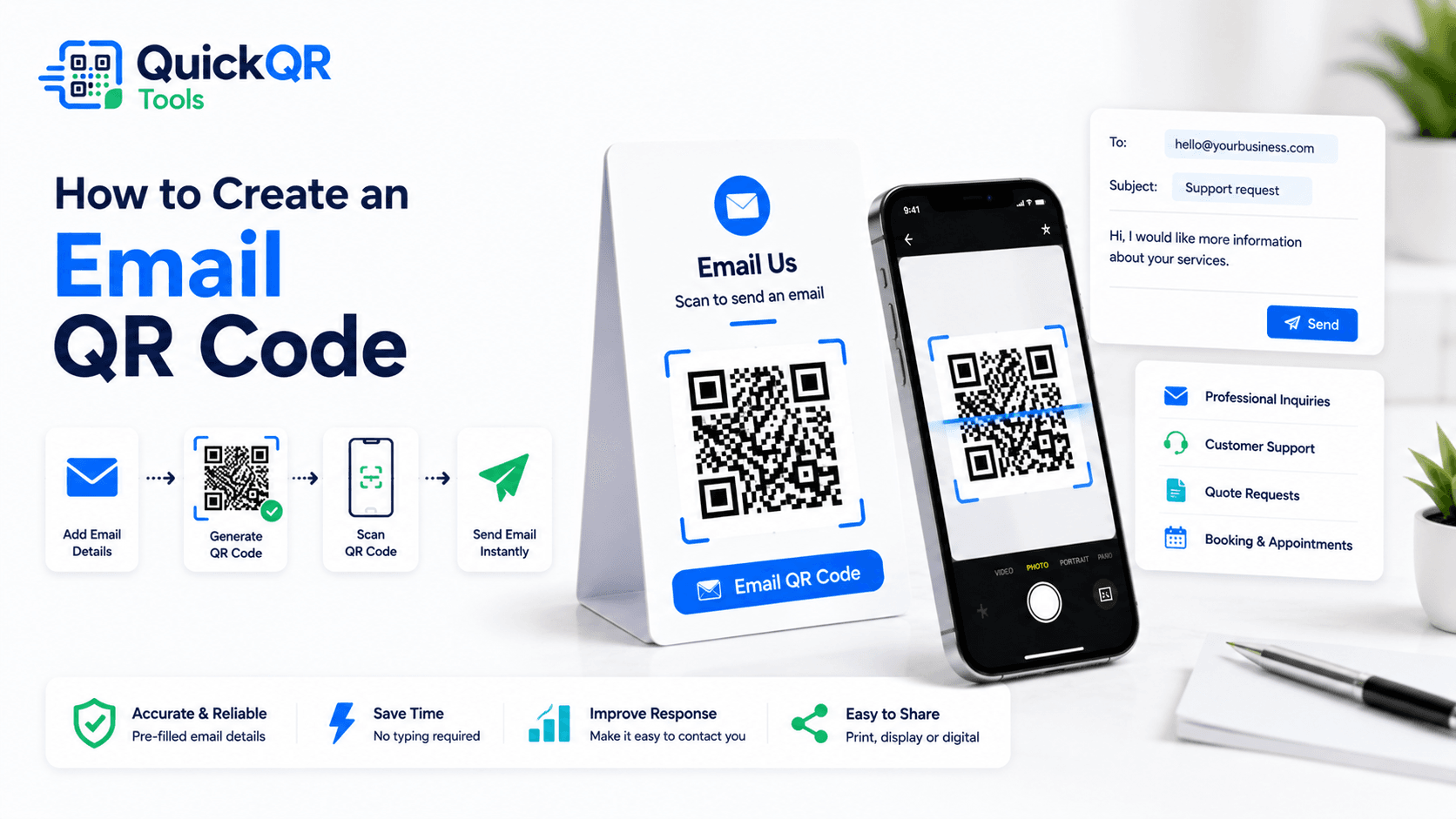
How to create an email QR code in 5 steps
The technical process is simple, but a useful email QR code needs the right inbox, subject and message. If you are learning how to create an email QR code for print, customer support or sales, the details should match the exact reason someone will scan.
- Choose the recipient email address. Use a monitored inbox such as support, sales, bookings, quotes or hello.
- Write a clear subject line. Use a short subject that helps your team understand the request quickly.
- Add an optional message body. Give the sender a helpful starting sentence without making the email too long.
- Generate and download the QR code. Use the Email QR Code Generator and export PNG, SVG or PDF.
- Scan-test the result. Confirm the email app opens with the correct recipient, subject and message.
A complete process for how to create an email QR code includes more than pressing generate. Test the final code on at least one phone, because email app behavior can vary. Some phones open Apple Mail, Gmail, Outlook or another app depending on the user's settings.
Before printing, scan the code from the final design. A QR code can work in a browser preview but fail when it is too small, low contrast or placed on a busy background. If the code will appear on flyers, cards, packaging or signs, print a sample first. A reliable process for how to create an email QR code always checks the final material, not only the generator preview.
What information can an email QR code include?
An email QR code can include a recipient, subject and message body. The recipient is the destination inbox. The subject tells your team what the request is about. The body gives the sender a starting point. When deciding how to create an email QR code, think about the minimum information needed to make the email useful.
| Email field | Recommended use | Example |
|---|---|---|
| Recipient | Use the inbox responsible for the request. | support@example.com or quotes@example.com |
| Subject | Use a short label that sorts the message. | Support request, Quote request, Booking inquiry |
| Message body | Use a short prompt that helps the sender start. | Hello, I would like help with... |
| CC or BCC | Use only if the workflow truly needs it. | Team copy for internal visibility |
Keep the prefilled body short. A long message can feel awkward because the visitor still needs to review and send it. A simple sentence such as "Hello, I would like more information about..." gives direction without taking control away from the sender. The best way to decide how to create an email QR code is to ask what the visitor needs to send in the fewest clear words.
Do not include sensitive personal data in the prefilled text. Let the sender decide what to share. For support workflows, ask for safe details such as order number, product name or preferred contact time only when appropriate.
Best subject lines and message examples
The best email QR code creates a useful email before the visitor types anything. A clear subject line helps you respond faster, especially if several QR codes send to the same inbox. This is one of the most practical parts of how to create an email QR code for real business use.
| Use case | Subject example | Message example |
|---|---|---|
| Customer support | Support request | Hello, I need help with... |
| Quote request | Quote request | Hello, I would like a quote for... |
| Booking inquiry | Booking request | Hello, I would like to ask about availability. |
| Product question | Product question | Hello, I have a question about this product. |
| Event information | Event inquiry | Hello, I would like more information about the event. |
| Feedback | Customer feedback | Hello, I would like to share feedback about... |
Avoid vague subjects such as "Hello" or "Question" when the QR code has a specific purpose. A restaurant catering flyer can use "Catering inquiry." A product insert can use "Product support request." A service postcard can use "Quote request." The subject should make the email easier to handle after it arrives.
If you run several campaigns, use different subject lines. This lets you see which materials create emails. For example, a flyer can use "Flyer quote request" while a business card can use "Business card follow-up." Small wording differences help you understand where the inquiry started. This practical tracking habit improves how to create an email QR code for each campaign.
Where to use an email QR code
Email QR codes work best where a visitor may need to send a written request, provide details or attach information later. The code should appear near the reason to contact you. Before choosing a placement, think about how to create an email QR code that fits the user's next action.
Schools can use email QR codes on forms and notices. Real estate agents can use them on property brochures. Local service companies can use them on postcards and estimates. Event organizers can use them on badges, posters and sponsor packets. The best placement is where the visitor has enough context to write a useful message. In that sense, how to create an email QR code starts with understanding the moment of contact.
If the scan should start a quick chat, use the WhatsApp QR Code Generator or SMS QR Code Generator. If the scan should create a written record with more detail, an email QR code is usually better.
How to create an email QR code for print
Print quality matters because the QR code must be scanned by real phone cameras in real lighting. If you need to know how to create an email QR code for flyers, business cards, packaging or signs, plan the final size and contrast before sending anything to print.
Use high contrast. A dark code on a white background is the safest choice. Keep the quiet zone around the QR code clear. Do not place the code over a photo, texture or busy pattern. If you use brand colors, make sure the QR code remains easy to scan in normal light. For print, how to create an email QR code includes readability from the real scan distance.
Use PNG for simple digital use and small documents. Use SVG or PDF when the QR code will be resized, placed in a professional design or printed at larger sizes. The Best QR Code Size for Print Materials guide can help you choose sizes for cards, flyers, posters, menus and packaging.
Email QR code for customer support
Customer support is one of the strongest uses for email QR codes. A QR code on packaging, receipts, manuals or help sheets can open an email with the support inbox already filled in. The subject can be "Support request" and the message can ask the customer to describe the issue. Support teams that know how to create an email QR code can collect clearer requests with less typing from customers.
This works well when the customer may need to include details, screenshots, photos or order information. A chat can be faster, but email creates a clearer written record. For products, warranty requests and technical questions, email often gives the support team more context.
If you are deciding how to create an email QR code for support, keep the message simple. Ask for the product name, order number or issue description only if that information is safe and useful. Do not ask customers to send passwords, payment details or highly sensitive data through a general email QR code.
Email QR code for quotes, bookings and forms
Many service businesses need written requests. An email QR code can help someone request a quote from a flyer, ask about availability from a brochure, send a booking inquiry from a sign or follow up after a meeting. When you know how to create an email QR code for these workflows, you can reduce typing and make inquiries easier to sort.
For quote requests, use a subject like "Quote request" and a message such as "Hello, I would like a quote for..." For bookings, use "Booking inquiry" and "Hello, I would like to ask about availability for..." For event requests, use "Event inquiry" and "Hello, I would like more information about..." The wording should be specific enough to start the right conversation. This is the visitor-friendly way to handle how to create an email QR code for service inquiries.
If the inquiry needs a structured form, a website QR code may be better. Use the URL QR Code Generator to send visitors to a form page when you need required fields, file uploads, consent checkboxes or conditional questions. Use an email QR code when a simple message is enough.
Email QR code vs other contact QR codes
Email is not always the best contact method. The right QR code depends on the communication style you want. When people ask how to create an email QR code, they may also need to compare email with chat, SMS, phone calls and vCards.
| QR code type | Best for | Use this tool |
|---|---|---|
| Email QR code | Written requests, quotes, support, records and detailed messages. | Email QR Code Generator |
| WhatsApp QR code | Fast customer chat, reservations and informal support. | WhatsApp QR Code Generator |
| SMS QR code | Short text messages when email is too formal. | SMS QR Code Generator |
| Phone QR code | Immediate calls for urgent questions or direct booking. | Phone QR Code Generator |
| vCard QR code | Saving full contact details from cards and event badges. | vCard QR Code Generator |
Use email when the message needs detail, history or attachments. Use WhatsApp or SMS when the conversation should be quick and conversational. Use a phone QR code when the visitor should call immediately. Use a vCard QR code when the goal is saving contact details rather than sending a message.
How to create an email QR code for business cards
Business cards are a natural place for email QR codes because the person receiving the card often wants to follow up later. A printed email address can still work, but it requires typing and can lead to mistakes. A QR code lets the contact scan, open an email and send a message while the meeting is still fresh.
For business cards, the subject should be simple and professional. "Follow-up from business card" is clear enough for networking. If the card is used at a trade show, use "Trade show follow-up." If the card belongs to a sales consultant, use "Sales inquiry." The goal is to make the first email easier to recognize when it arrives.
If you are deciding how to create an email QR code for business cards, keep the message body light. A good starting message might be "Hello, I would like to follow up after receiving your card." This gives the sender a useful opening without making the email feel automatic or impersonal.
Place the QR code where it does not crowd the name, title, phone number or website. Keep enough white space around the code and test a printed card. Business cards are small, so the QR code must be large enough to scan but not so large that it overwhelms the design.
How to create an email QR code for product packaging
Product packaging is another strong use case. A buyer may need setup help, warranty support, replacement parts, care instructions or feedback options. An email QR code can open a support email directly from the box, label, insert or instruction sheet.
For packaging, the subject line should identify the product or support category. "Product support request" is useful, but "Support request for product packaging" may be even clearer if several teams share the same inbox. The message can ask the customer to describe the issue, include the product name and mention the order number only if it is appropriate.
Knowing how to create an email QR code for packaging also means thinking about the environment. Packaging may be glossy, curved, small or handled in poor lighting. Use strong contrast and avoid placing the QR code on folds, corners or textured surfaces. A code on a flat insert often scans more reliably than a code wrapped around a curved bottle or box edge.
For higher-volume products, test the code from multiple phones before printing many units. The QR code should open the email app quickly, the recipient should be correct and the message should be short enough for customers to complete without frustration.
When an email QR code should link to a form instead
Email QR codes are best for flexible messages. A form is better when you need required fields, consent checkboxes, file uploads, appointment slots, order lookup, payment references or structured support categories. If the request needs strict information, use a form page and create a URL QR code for that form.
For example, a quote request that needs address, service type, budget and preferred date may work better as a form. A warranty claim that needs serial number, product photo and purchase date may also work better as a form. Email is easier for open-ended questions, but forms are better when missing information slows down the response.
The best decision depends on the user. If they only need to ask a question, email is simple. If they must provide several specific details, a form can save time. This is part of how to create an email QR code responsibly: choose email only when email creates a smoother path than a form, call, chat or landing page.
Static email QR codes and future updates
Most email QR codes are static. The QR pattern stores the mailto information, including the email address, subject and message. This is simple and reliable when the inbox and message will stay the same. It works well for business cards, flyers, packaging and documents with stable contact details. When choosing how to create an email QR code, confirm that the inbox will remain active long enough for the material.
The limitation is that a static QR code cannot be edited after printing. If the email address changes, the printed QR code still opens the old address. If the subject becomes outdated, the printed code keeps using it. When deciding how to create an email QR code for long-lived materials, choose an inbox you plan to keep.
If the destination may change, send people to a contact page instead. A URL QR code can point to a page you control, and that page can show the latest email address, form, phone number or chat option. This adds one step, but it gives you more flexibility. For a deeper comparison, read Static vs Dynamic QR Codes.
Common email QR code mistakes
- Using an inbox nobody checks. A QR code is only useful if someone responds.
- Writing a vague subject line. "Question" is less useful than "Support request" or "Quote request."
- Making the message too long. Give the sender a starting point, not a full script.
- Putting sensitive data in the prefilled text. Keep the default message safe and general.
- Skipping mobile tests. Different devices may open different email apps.
- Printing too small. Business cards, posters and packaging need different QR sizes.
- Using email when a form is required. If you need required fields, send people to a form page instead.
Most mistakes are easy to prevent. Choose the right inbox, write a useful subject, keep the message short, scan-test the QR code and make sure the final printed version is readable. That is the practical answer to how to create an email QR code that visitors can actually use.
Checklist before publishing your email QR code
- The recipient email address is correct and monitored.
- The subject line clearly explains the request.
- The message body is short, safe and helpful.
- The QR code opens the user's email app correctly.
- The code was tested on at least one phone.
- The printed version has strong contrast and enough white space.
- The call to action explains what happens after the scan.
- Your team knows how to handle emails from this QR code.
If every point is checked, the email QR code is ready to use. If you are still unsure how to create an email QR code for a specific campaign, start with one clear inbox, one clear subject and one simple message. Clarity usually performs better than complexity.
Email QR code FAQ
These answers cover the most common questions before creating email QR codes for print, support, bookings, quotes and customer feedback.
Can I create an email QR code for free?
Yes. You can create a free static email QR code with recipient, subject and message details using the Email QR Code Generator.
Can an email QR code include a subject line?
Yes. An email QR code can include a recipient email address, subject line and optional message body. The subject line helps organize incoming messages.
What happens when someone scans an email QR code?
The QR code opens the user's email app with the recipient, subject and message already filled in. The user can review, edit and send the email.
Can I use an email QR code for customer support?
Yes. Email QR codes work well for support requests, product questions, order issues, warranty questions, feedback and service inquiries.
Is an email QR code better than a WhatsApp QR code?
Use an email QR code when the message needs detail, attachments or a written record. Use a WhatsApp QR code when the visitor should start a faster chat conversation.
Can I print an email QR code on business cards?
Yes. Email QR codes work well on business cards when you want contacts to send a follow-up message. Test the printed card to make sure the code scans reliably.
Create your email QR code
Use QuickQR Tools to generate an email QR code with recipient, subject and message details. Download the QR code, test it on a phone and place it where visitors are ready to send a written request.
Open Email QR Generator