Is this WhatsApp QR code generator free?
Yes. You can create a free static WhatsApp QR code with a phone number and optional prefilled message.
Business chat QR tool
WhatsApp QR code generator for businesses that want customers to scan, open a ready-to-send WhatsApp message and start a conversation for sales, support, bookings, quotes or product questions.
Live generator
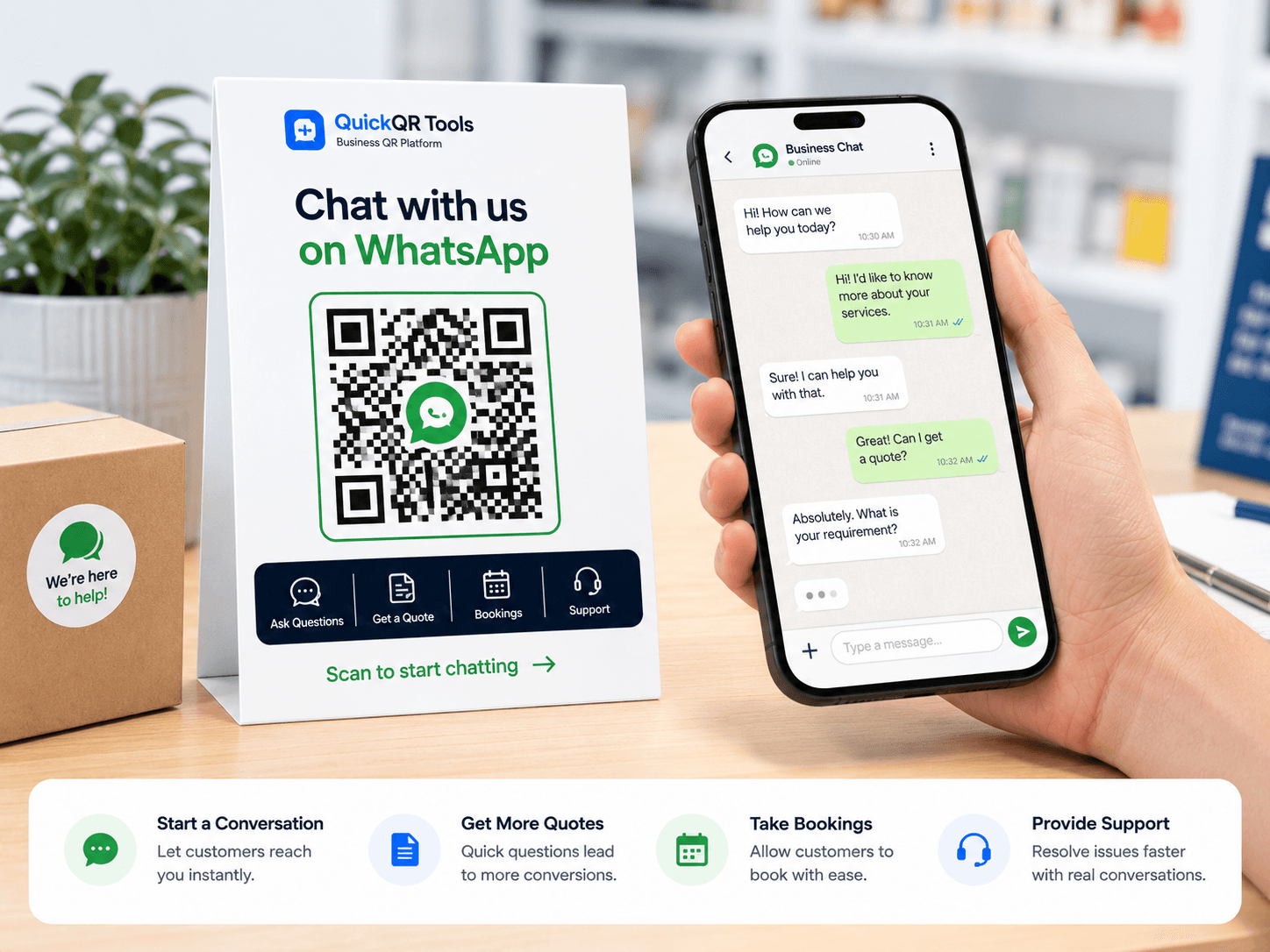
Use this WhatsApp QR code generator to enter your WhatsApp phone number, add a helpful prefilled message and download a clean QR code for print, packaging, business cards, menus and campaign materials.
Use country code only, then write the message customers can send after scanning.
Use your WhatsApp QR code on flyers, posters, storefront signs, product packaging, business cards, table cards and contact pages.
Business benefits
A WhatsApp QR code generator removes friction when customers want to ask a question, request a quote, book a service or get help from your business.
What it solves
A WhatsApp QR code generator creates a scannable code that opens a WhatsApp chat with your phone number. With QuickQR Tools, you can also include a prefilled message so the conversation starts with useful context.
This is different from a normal website QR code. A URL QR code sends people to a page. A WhatsApp QR code sends them to a conversation. That makes it useful for businesses that rely on quick replies, local service requests, support questions, reservations and sales follow-up.
QuickQR Tools keeps the process simple: add your number, write a short message, use the WhatsApp QR code generator and download it as PNG, SVG or PDF.
Official WhatsApp click to chat reference
Use cases
The best WhatsApp QR codes are tied to a clear customer action: ask, book, quote, order, confirm or get support.
How it works
Enter your WhatsApp number with country code and digits only.
Add a short prefilled message that matches the customer intent.
Create a clean WhatsApp QR code with your selected size and color.
Export PNG, SVG or PDF, then scan before printing or publishing.
Best practices
A strong WhatsApp QR code is clear, helpful and connected to a real business response workflow.
Do not place a QR code alone. Add a short label such as "Scan to chat on WhatsApp", "Scan for a quote", "Scan to book" or "Scan for support". The visitor should understand what happens before scanning.
Keep the prefilled message short. A message like "Hi, I would like a quote" is usually better than a long script. The user can edit it before sending.
Make sure someone is ready to answer. A WhatsApp QR code can increase inquiries, so response time matters.
Use strong contrast, enough white space and a size that matches the scanning distance. Avoid placing the QR code over busy backgrounds or glossy areas that create glare.
For professional print work, SVG or PDF is usually safer than a small PNG. Always scan the printed proof with more than one phone before producing a large batch.
If the phone number may change soon, consider sending people to a landing page with a WhatsApp button instead of encoding the direct WhatsApp link.
Message ideas
| Goal | Suggested message | Best placement |
|---|---|---|
| Quote request | Hi, I would like to request a quote. | Flyers, business cards, service pages, vehicles and trade show displays. |
| Restaurant booking | Hi, I would like to make a reservation. | Menus, table cards, restaurant windows and local marketing materials. |
| Product support | Hi, I need help with this product. | Packaging, receipts, product inserts and warranty cards. |
| Sales question | Hi, I have a question before ordering. | Catalogs, posters, social campaigns, product displays and landing pages. |
Related guides
FAQ
Yes. You can create a free static WhatsApp QR code with a phone number and optional prefilled message.
Yes. Enter the phone number with the country code and remove spaces, plus signs, brackets and dashes.
Yes. The generator can create a WhatsApp link with a prefilled message that appears when someone opens the chat.
Yes. You can download the generated QR code as PNG, SVG or PDF.
Use it on business cards, flyers, packaging, menus, posters, storefront signs, landing pages and support documents.
Use a WhatsApp QR code for chat conversations. Use a phone QR code when you want the scanner to place a direct call.
Yes. Use the phone number connected to your WhatsApp Business account so customers reach the right business contact.
Use PNG for simple sharing, SVG for scalable design work and PDF when you want a print-ready file.
Related tools
Build a complete customer contact workflow with QR codes for websites, calls, email, contact cards and WiFi access.
The Business QR Toolkit
Use QuickQR Tools as your WhatsApp QR code generator to turn printed materials, product packaging, business cards and campaign pages into direct WhatsApp conversations.