Share your profile
Add a QR code to business cards, name badges and resumes so people can open your LinkedIn profile quickly.
Professional QR Tool
LinkedIn QR code generator for professionals, consultants, recruiters, sales teams, agencies and B2B events that want people to scan from business cards, resumes, badges, flyers or booths and open a LinkedIn profile, company page, job post, article or portfolio link.
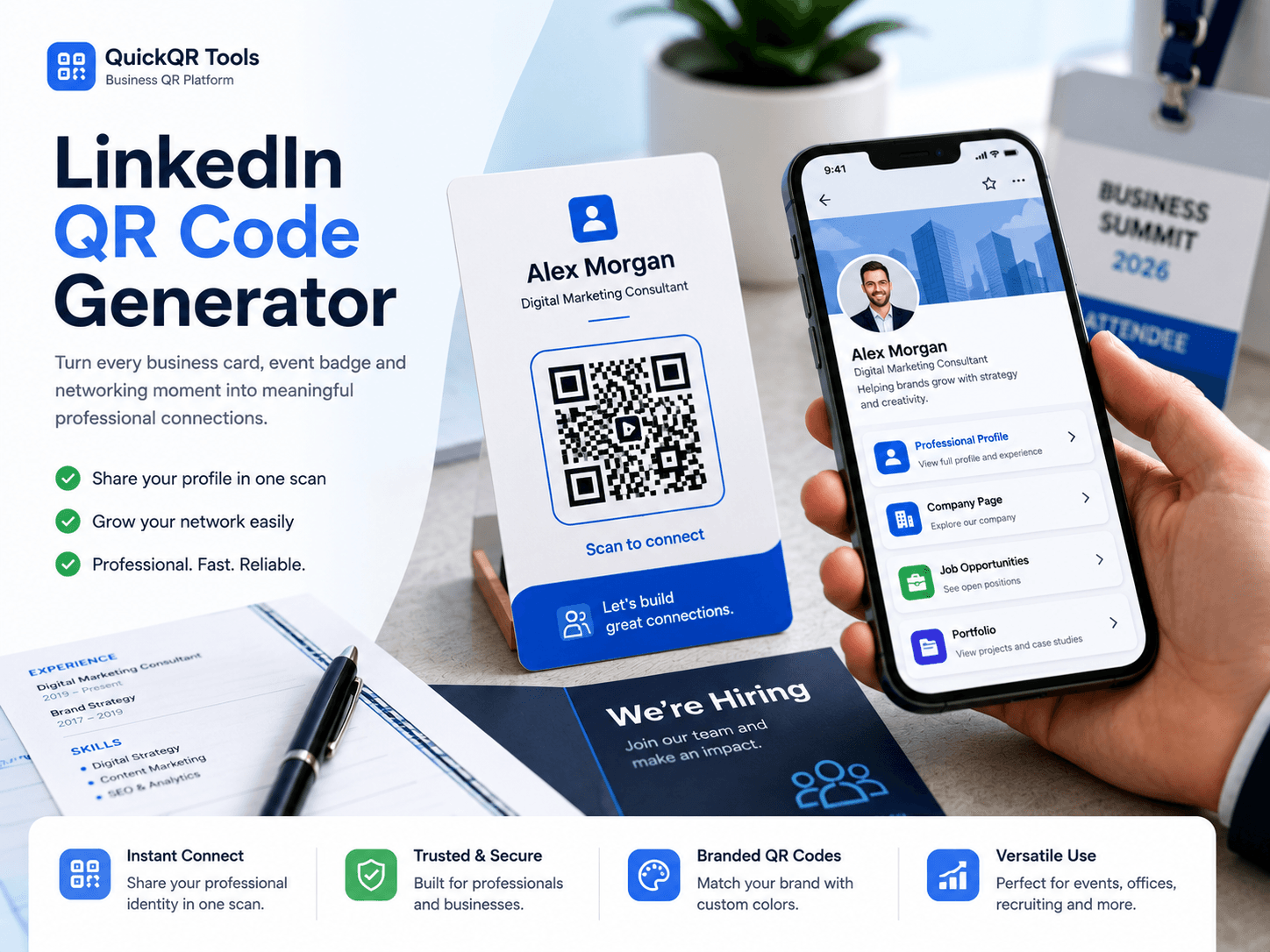
Paste a public LinkedIn profile, company page, job post, article, portfolio or campaign URL, choose a color and download a clean QR code for print or digital sharing.
Use it on business cards, resumes, portfolios, conference badges, recruiting flyers, booth signs and professional event materials.
A LinkedIn QR code generator connects business cards, resumes, conference badges, recruiting materials and printed portfolios to a profile, company page, job post, article or campaign link without asking people to search manually.
Add a QR code to business cards, name badges and resumes so people can open your LinkedIn profile quickly.
Connect hiring flyers, career fair materials and booth signs to open roles or employer brand pages.
Send prospects, partners and candidates to a company page, services page or professional campaign.
Point proposals, leave-behind cards and event materials to your profile, services page or case study.
Copy the final public LinkedIn link, generate the QR code, then test it on a phone before printing.
Use a profile, company page, job post, article, portfolio or campaign destination.
Paste the URL into the LinkedIn QR Code Generator and choose a readable color.
Scan it on mobile, then export PNG, SVG or PDF for your final design.
A LinkedIn QR code generator creates a QR code that opens a LinkedIn profile, company page, job post, article, portfolio or campaign link after someone scans it with a phone.
The goal is to help people move from offline attention to the professional LinkedIn destination you want them to see. This is useful because names can be hard to spell, company pages can be difficult to find and people often forget to search later.
A clear LinkedIn QR code gives visitors a direct path from a business card, resume, event badge, recruiting flyer, conference booth or printed portfolio to the profile, job post, article or company page you want them to open.
For best results, use the final public LinkedIn URL, add a clear label near the code and test the scan from the final printed size.
Choose the destination based on the action you want after the scan.
Best for business cards, resumes, speaker bios, name badges and one-to-one networking.
Best for agencies, startups, service providers, employer brands and B2B sales materials.
Best for recruiting flyers, campus events, career fairs and open role promotion.
Best for thought leadership, case studies, proposals, services pages and professional work samples.
A strong LinkedIn QR code generator workflow includes the right destination, a clear scan label, enough print size and a mobile test.
| Best practice | Why it matters | What to check |
|---|---|---|
| Use a public LinkedIn destination | Private, expired or restricted links may not work for every scanner. | Open the link on a phone without relying on your own logged-in session. |
| Label the QR code clearly | People scan more when they know what will open. | Use text like "Scan to follow us on LinkedIn." |
| Choose the right destination | A profile, company page, job post, article or portfolio can support a different goal. | Match the link to networking, hiring, thought leadership, employer brand or portfolio review. |
| Test the printed size | Business cards, resumes, badges, flyers and booth signs need different QR sizes. | Scan the final layout before printing a full batch. |
| Keep contrast strong | Low contrast or busy backgrounds reduce scan reliability. | Use a clean white area and enough quiet space around the QR code. |
A LinkedIn QR code generator can create the QR image quickly, but the campaign still needs the right destination, scan label and print setup.
Private profiles, expired job posts or restricted pages may not open for every scanner. Test the link outside your own account.
A profile works for networking, while a company page, job post or portfolio may be stronger for a specific goal.
Business cards, badges and resumes need enough size, contrast and quiet space to scan reliably.
Replace generic text with clear labels like "Scan to view my profile" or "Scan to see open roles."
Continue the workflow with social media, print, marketing and business QR resources.
Read the full guide for profiles, company pages, creator links, print testing and professional campaigns.
Use LinkedIn QR codes on business cards, resumes and networking materials for easier follow-up.
Use LinkedIn QR codes on media kits, speaker cards, portfolios, event badges and creator materials.
Create QR codes for social profiles, videos, posts and creator campaigns.
Create QR codes for profiles, Reels, posts and creator campaigns.
Create QR codes for pages, events, posts and local community campaigns.
Create QR codes for videos, channels, playlists, Shorts and livestream campaigns.
Create a QR code for any public landing page or website link.
Create QR codes for professional contact sharing, portfolios and networking cards.
Use LinkedIn QR codes for recruiting, professional networking, events, portfolios and B2B campaigns.
Use safer QR code sizes for cards, resumes, badges, flyers and posters.
Review QR code best practices before publishing social media QR campaigns.
Browse every active QuickQR Tools generator for business, marketing and print workflows.
Check whether your LinkedIn QR code is easy to scan before using it in a final design.
Choose a safer print size for business cards, resumes, badges, booth signs and flyers.
Estimate scan distance for conference booths, hiring posters, office signs and professional event displays.
Review foreground and background contrast before printing a professional LinkedIn QR code.
Review verified QR code statistics for mobile scanning, business usage and professional print-to-digital networking.
Answers to common questions before creating and printing a LinkedIn QR code.
Yes. You can create a free static LinkedIn QR code from a public LinkedIn profile, company page, job post, article, portfolio or campaign URL.
Yes. Paste the public profile URL into the generator and download the QR code.
Yes. Paste the public company page URL into the generator and test the scan before printing.
Yes. Use PNG, SVG or PDF and test the printed version from the real scanning distance.
No. The QR code opens your destination. Results depend on placement, message clarity, profile quality and audience interest.
A static QR code cannot be edited after printing. Use a stable landing page if you may need to change the destination later.
Yes. Use a public job post URL when you want people to scan from recruiting flyers, event booths or career materials.
Use it on business cards, resumes, conference badges, recruiting flyers, portfolios, sales decks and booth displays.
The Business QR Toolkit
Paste your LinkedIn link, generate a clean QR code and download it for business cards, resumes, recruiting flyers, portfolios, badges and B2B events.