Help requests
Let customers scan and open a support email with a clear subject line.
Business Contact QR Tool
Use this email QR code generator to create a professional mail QR code that opens a ready-to-send message with recipient, subject and body. Help customers contact support, request quotes, send feedback or start a business inquiry without typing your email address.
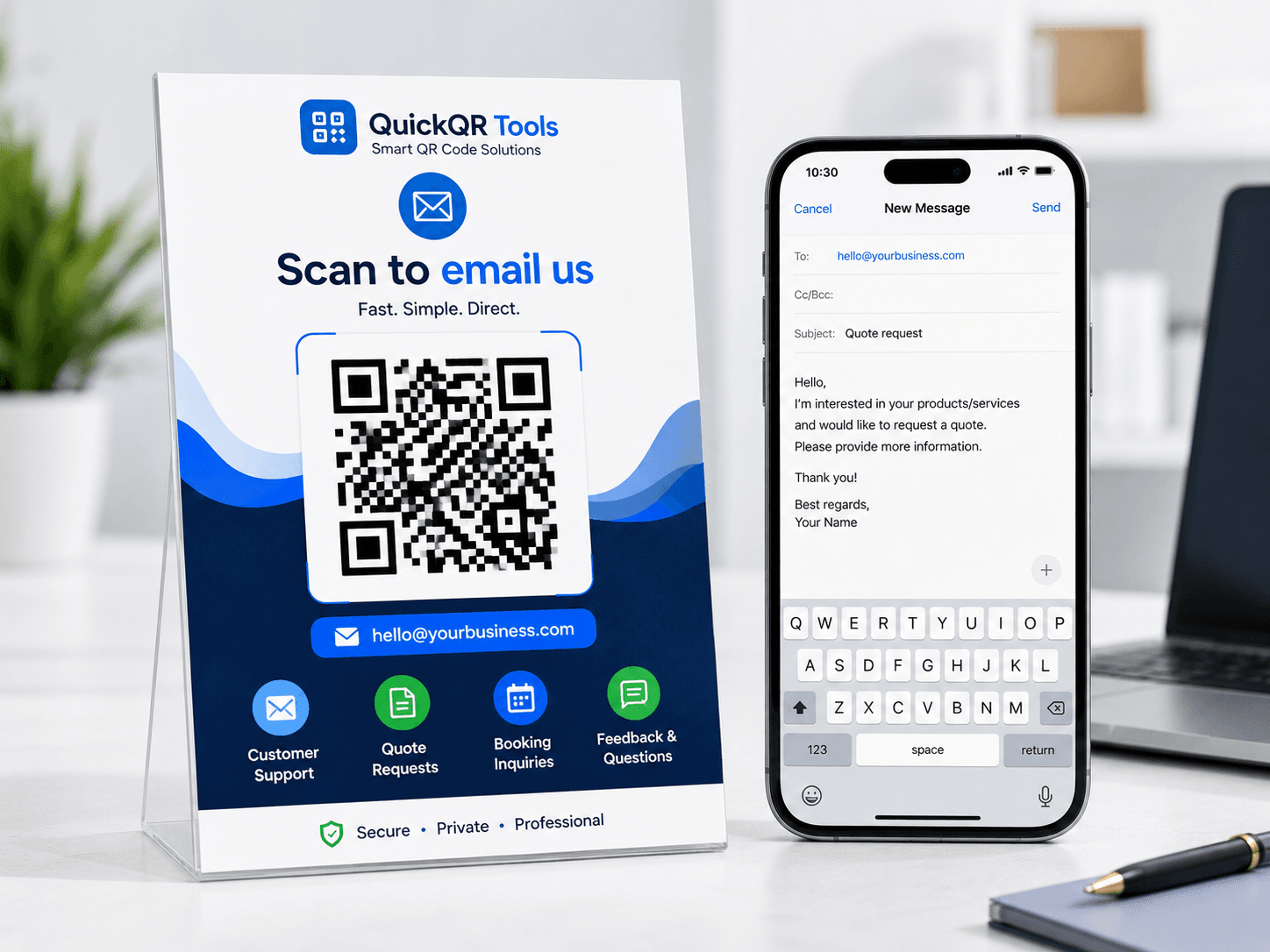
Enter the email address, subject and message that should open after scanning. This email QR code generator turns that contact workflow into a scannable QR code.
Use the email QR code generator output on contact pages, flyers, business cards, packaging, event signs or feedback posters.
This email QR code generator makes it easier for people to contact you with the right subject and message already prepared.
Let customers scan and open a support email with a clear subject line.
Collect feedback from signs, receipts, packaging or event materials.
Guide people into sending booking, quote or consultation requests.
Add an email QR code to business cards, flyers and brochures.
Use this email QR code generator to create a QR code that opens the user's email app with recipient, subject and message ready, then review the guide for support, booking and feedback examples.
Enter the recipient email address.
Write a clear subject for the email.
Export the QR code as PNG, SVG or PDF.
Read the step-by-step guide for email QR codes, subject lines, message examples and testing.
Compare email QR codes with direct chat flows for customer support and sales.
Pair email contact access with a full contact QR code for stronger follow-up.
An email QR code generator creates a scannable code that opens the user's email app with a recipient, subject line and optional message already prepared.
An email QR code is useful when you want people to contact you with the right details already in place. Instead of asking a visitor to type an address, remember a subject line or copy a message from printed material, you can place a QR code on a flyer, receipt, sign, brochure, packaging insert or contact page. After scanning, the person's email app opens with the recipient and message fields prepared.
This makes an email QR code different from a normal URL QR code. A URL QR code sends someone to a web page. An email QR code prepares a communication action. It is helpful for support requests, booking inquiries, quote requests, feedback collection, document requests, job applications, event questions and business contact workflows.
The email QR code generator on this page builds a mailto link, converts that link into a QR code and lets you download the result as PNG, SVG or PDF. You can also copy the generated email link and use it behind buttons, contact cards or campaign pages.
Official mailto URI referenceThe best email QR code generator setup reduces typing and guides the sender toward a useful subject or message.
The subject line is one of the biggest advantages of using an email QR code generator instead of only printing an email address.
A clear subject helps the recipient understand why the email arrived. If the QR code appears on a product package, the subject might be "Product support request". If it appears on a restaurant flyer, the subject might be "Private event inquiry". If it appears on a service brochure, the subject might be "Quote request". A vague subject like "Hello" is less useful for both the sender and the business.
Think about the place where the QR code will be scanned. A QR code on a poster should create a different email than a QR code on a warranty card. The person scanning the code should feel that the message fits the situation. The person receiving the email should know how to route it, prioritize it and respond.
Short subject lines usually work best. They are easier to read on mobile, easier to scan in an inbox and less likely to feel forced. Use the subject to classify the request, not to write the entire message.
The message body can ask for the most useful information, but it should remain simple. A support email might start with "Hello, I need help with my order. My order number is..." A booking email might start with "Hello, I would like to ask about availability for..." A quote email might start with "Hello, I would like a quote for..."
The goal is not to make the sender complete a long form inside an email app. The goal is to give them a helpful starting point. If the message is too long, the email may feel awkward on mobile. A concise template encourages action while still leaving room for the user to edit.
Before printing the code, scan it on a phone and check the full email draft. Confirm that the recipient, subject and message appear correctly in the email app. Different devices and email apps may display the draft slightly differently, so testing is important.
Use these email QR code generator examples as starting points, then adapt them to your own business, event or support workflow.
| Goal | Suggested subject | Suggested message start |
|---|---|---|
| Support request | Support request | Hello, I need help with my order or product. Here are the details... |
| Quote request | Quote request | Hello, I would like to request a quote for... |
| Booking inquiry | Booking inquiry | Hello, I would like to ask about availability for... |
| Customer feedback | Customer feedback | Hello, I would like to share feedback about... |
| Document request | Document request | Hello, I would like to receive more information about... |
An email QR code generator is best when the message should be written, traceable and easy to forward. Other contact QR codes may be better for faster or more personal actions.
| QR code type | Best when | Recommended tool |
|---|---|---|
| Email QR code | You want a ready-to-send email with recipient, subject and message. | Use this Email QR Code Generator. |
| WhatsApp QR code | You want a fast chat conversation with a prefilled message. | Use the WhatsApp QR Code Generator. |
| SMS QR code | You want a text message prepared for mobile users. | Use the SMS QR Code Generator. |
| Phone QR code | You want the scanner to call immediately. | Use the Phone QR Code Generator. |
| vCard QR code | You want people to save your full contact details. | Use the vCard QR Code Generator. |
Email QR code generator placement should match the moment when someone is ready to send a written request.
Email QR codes work well on printed materials because they remove typing from the contact process. A warranty card can include a support email QR code. A classroom flyer can include a question or feedback email. A real estate brochure can include a booking inquiry email. A product manual can include a technical support request.
Use a clear label near the code, such as "Scan to email support", "Scan to request a quote", "Scan to send feedback" or "Scan to ask about availability". The label tells the scanner what will happen and helps them decide whether email is the right channel.
For print, SVG and PDF are usually safer than small compressed images because they stay sharp when placed in design tools. PNG is useful for quick documents and online previews. Whatever format you use, print a test and scan it from the real distance before publishing.
An email QR code can also be useful in PDFs, slides, catalogs and desktop web pages. Someone viewing a PDF on a computer may scan the code with a phone and send the email from a mobile app. Someone reading a printed catalog may scan the code to request a quote without manually typing the address.
On mobile web pages, a normal email button can be more direct than a QR code. On desktop pages, a QR code can help visitors move from the computer screen to their phone. Choose the format based on how the visitor is likely to interact with the material.
If the email is part of a larger campaign, consider pairing it with a URL QR code to a landing page. The landing page can explain the offer, show a form and include an email button. The email QR code is best when the scan should go directly to an email draft.
A good email QR code generator workflow is clear, short, tested and connected to an inbox that someone actually monitors.
Most email QR code generator outputs are static because they encode a mailto link. That is simple, but it requires planning before printing.
A static email QR code is enough when the recipient, subject and message template will stay the same. This works for stable support addresses, general contact emails, feedback requests, quote inquiries and printed contact materials. The code can continue working as long as the email address remains active.
Static codes are convenient because they do not require a dashboard or account. They are fast to create and easy to download. If your contact workflow is stable, this generator gives you a direct way to connect a physical material with a prepared email action.
The limitation is that a printed static QR code cannot be edited after printing. If the email address changes, you need to create a new QR code and replace the printed material.
If you expect the contact email to change, use a URL QR code to a page you control. That page can include an email button, a form, a phone number, a WhatsApp option and supporting details. If the email address changes later, you update the page instead of the printed QR code.
This is useful for long-term campaigns, large print runs, seasonal offers and materials that may stay in circulation for months. A landing page also gives you more room for context, tracking and privacy information.
Use the Email QR Code Generator when the direct action should be an email draft. Use a URL QR code when you need more control, analytics or multiple contact options.
Avoid these email QR code generator issues before adding an email QR code to print, packaging, signs or digital documents.
A vague subject makes incoming emails harder to sort. A QR code that opens an email with no subject can still work, but it misses one of the main benefits of an email QR code. Use the subject line to identify the request type, campaign, location or support category.
The recipient address matters too. If a support QR code sends messages to an inbox no one checks, the experience fails. If a booking QR code goes to a personal inbox, the workflow may not scale. Choose an email address that fits the purpose and can be managed by the right people.
Also check spelling carefully. A single typo in the email address can make the QR code useless. Always scan, open the draft and confirm the recipient before publishing.
A long message template can feel heavy on mobile. The scanner may not want to send a long, prewritten message that does not sound like them. Keep the body short and leave space for the user to add details in their own words.
Another common mistake is treating email QR codes like forms. If you need many required fields, a web form may be better. Email QR codes are best for simple contact starts, not complex data collection.
Finally, do not forget the scan environment. If the code is printed too small, placed on a busy background or shown without a clear label, fewer people will use it. The QR code should be easy to notice, understand and scan.
An email QR code generator normally creates a mailto link. It is simple and widely understood, but it depends on the user's device and email app.
When someone scans an email QR code, their device decides which email app opens. On one phone it may open Gmail. On another it may open Apple Mail, Outlook or another installed app. The QR code prepares the recipient, subject and body, but the email app controls the final interface.
This is why testing matters. The same mailto QR code can behave slightly differently depending on the device, browser, scanner and email app. Most users will see a prepared email draft, but some devices may ask which app to use first. That is normal behavior for email links.
If the workflow needs guaranteed form fields, file uploads, required checkboxes or advanced routing, a web form may be better. If the goal is a simple ready-to-send email, an email QR code is fast and practical.
QR codes can store a lot of text, but that does not mean every email QR code should contain a long message. Long mailto links create denser QR codes, and dense QR codes can be harder to scan when printed small. A short recipient, short subject and short message starter usually scan more reliably and feel better on mobile.
If you need a long explanation, send people to a landing page or form instead. The landing page can include instructions, privacy details, optional fields and a normal email button. The email QR code should be used when the communication action itself is the main goal.
As a rule, treat the message body as a helpful prompt. Give the sender a starting sentence, then let them add their own details.
Because an email QR code generator creates a direct communication channel, the scanner should know who receives the email and what kind of response to expect.
Use an email address that looks connected to the business, organization or project. A branded domain address usually feels more trustworthy than a personal address on public materials. If the QR code is for support, use a support inbox. If it is for bookings, use a bookings inbox. If it is for sales, use an inquiry or sales inbox.
The text around the QR code should explain the purpose. "Scan to email support" is clear. "Scan to request a quote" is clearer for sales. "Scan to send feedback" helps people understand that the message goes to a feedback workflow. Clear context can increase scans and reduce irrelevant messages.
If users may share personal details, keep the request appropriate. For sensitive information, a secure form may be better than a plain email draft.
An email QR code can increase messages because it removes typing friction. Make sure someone checks the inbox and knows how to respond. A QR code that leads to an ignored inbox creates a poor experience, especially for support, booking and quote requests.
Use the subject line to route messages. For example, "Support request", "Catering inquiry", "Private event booking" or "Quote request" can help your team filter and prioritize. If you use shared inbox tools, these subject lines may also support automations or labels.
When the workflow is clear, the QR code becomes more than a shortcut. It becomes a small intake system for the right kind of request.
Static email QR code generator outputs do not automatically provide full analytics, but you can still learn which placements create useful messages.
A simple way to track performance is to use different subject lines for different materials. A flyer might use "Flyer quote request". A product insert might use "Product support request". A brochure might use "Brochure inquiry". When emails arrive, the subject line tells you where the request likely came from.
This method is simple, but it can be very useful for small businesses, events and local campaigns. It does not require complex analytics. It only requires planning the subject line before creating each QR code.
You can also ask your team to note common questions and update the QR code message or surrounding call to action based on what people actually send.
If you need stronger measurement, use a URL QR code that points to a page you control. That page can include analytics, UTM parameters, a contact form, an email button and other contact methods. This gives more reporting than a direct mailto QR code.
The tradeoff is that a landing page adds one step. For direct email actions, an email QR code is faster. For campaigns where analytics, updates and multiple options matter, a landing page may be the better choice.
Many businesses use both: direct email QR codes for simple support and contact tasks, and URL QR codes for larger campaigns that need tracking and flexibility.
The best email QR code generator result is not just technically correct. It is readable, understandable and placed where people can scan comfortably.
Do not rely on the QR code alone. Add visible text that explains the action. For example, "Scan to email support", "Scan to send feedback" or "Scan to request a quote". This helps people who are hesitant to scan unknown codes and makes the material more accessible.
The label should be near the QR code and written in plain language. Avoid vague instructions like "Scan here" when a more specific action is possible. Specific labels help users decide quickly and reduce accidental scans from people who wanted a different contact method.
If the printed material includes several QR codes, label each one clearly. A menu QR code, WiFi QR code and email QR code should not look like identical mystery boxes.
QR codes may be scanned under low light, from a desk, on a wall, from a printed flyer or through a phone camera at an angle. Use strong contrast, enough size and quiet space around the code. Avoid placing the code over photos, patterns or glossy areas that create reflections.
For business cards and small labels, test the exact printed size. For posters and signs, test from the distance people will actually stand. For PDFs and slides, test both on screen and after printing. The QR code should be easy to scan before you trust it with customer communication.
A clean, well-labeled email QR code can quietly remove a lot of friction. That is the whole point: fewer typing errors, clearer requests and a faster path from interest to message.
Use these guides to make email QR codes easier to print, label and connect with business communication workflows.
Use email QR codes on flyers, brochures, packaging, event materials and local business campaigns.
Print email QR codes clearly for support cards, business cards, signs, labels and handouts.
Review QR code formats, static codes, scan behavior and professional QR workflows.
Pair email QR codes with contact QR codes when people need to save full business details.
Before printing an email QR code on business cards, support cards, product packaging, flyers or office signs, use these QR utilities to check scan quality, print size, distance and contrast.
Test the email QR code on real phones and confirm the message opens with the right recipient, subject and body.
Choose a practical QR size for business cards, support cards, flyers, packaging and printed contact materials.
Estimate scan distance for posters, help desks, event booths, front counters and larger support signs.
Check whether branded contact cards, dark backgrounds and printed designs keep the QR code readable.
Review verified QR code statistics for mobile scanning, business usage and print-to-digital communication.
Answers to common questions about email QR codes.
Yes. You can create a free static email QR code with recipient, subject and message.
The QR code opens the user’s email app with the recipient and optional subject/message prefilled.
Yes. You can download the generated QR code as PNG, SVG or PDF.
Yes. Email QR codes are useful for support requests, booking inquiries, feedback and business contact workflows.
Yes. You can add a subject line so the email opens with a clear topic such as support request, quote request or booking inquiry.
Use an email QR code for written, traceable messages. Use a WhatsApp QR code when you want a faster chat conversation.
Use PNG for simple sharing, SVG for scalable design work and PDF when you want a print-ready file.
Not inside a static email QR code. If the email address may change, use a URL QR code that points to a contact page you control.
Create QR codes for URLs, WiFi, WhatsApp, SMS, phone numbers and contact cards.
Explore the full QuickQR Tools business QR toolkit for contact, marketing, restaurant and social QR codes.
Create a QR code for any website link.
Let visitors connect to WiFi by scanning a code.
Open a WhatsApp chat with a prefilled message.
Share plain text with a simple scan.
Prepare a text message for instant sending.
Share contact details and business information.
The Business QR Toolkit
Create a professional email QR code for support requests, quote inquiries, booking questions and customer feedback. Generate it free, test the email draft and download a clean file for print or digital use.