What is a YouTube QR code?
A YouTube QR code is a QR code that opens a YouTube destination after someone scans it with a phone. The destination can be a single video, a channel page, a playlist, a YouTube Short, a livestream, a premiere or a landing page that features YouTube content. If you know how to create a YouTube QR code correctly, the scan can move people from offline attention to the exact video action you want.
The QR code stores a link, not the video file itself. When a person scans it, the phone opens the YouTube URL in the browser or YouTube app. This makes the destination choice important. A product insert may need a setup video, while an event poster may need a livestream or recap playlist. A business card may work better with a channel link than a single video.
YouTube QR codes are useful because people do not need to type a long URL, remember a channel name or search later. They scan and land on the intended video experience immediately. That can increase views, reduce support friction and make printed materials more useful.
How to create a YouTube QR code in 5 steps
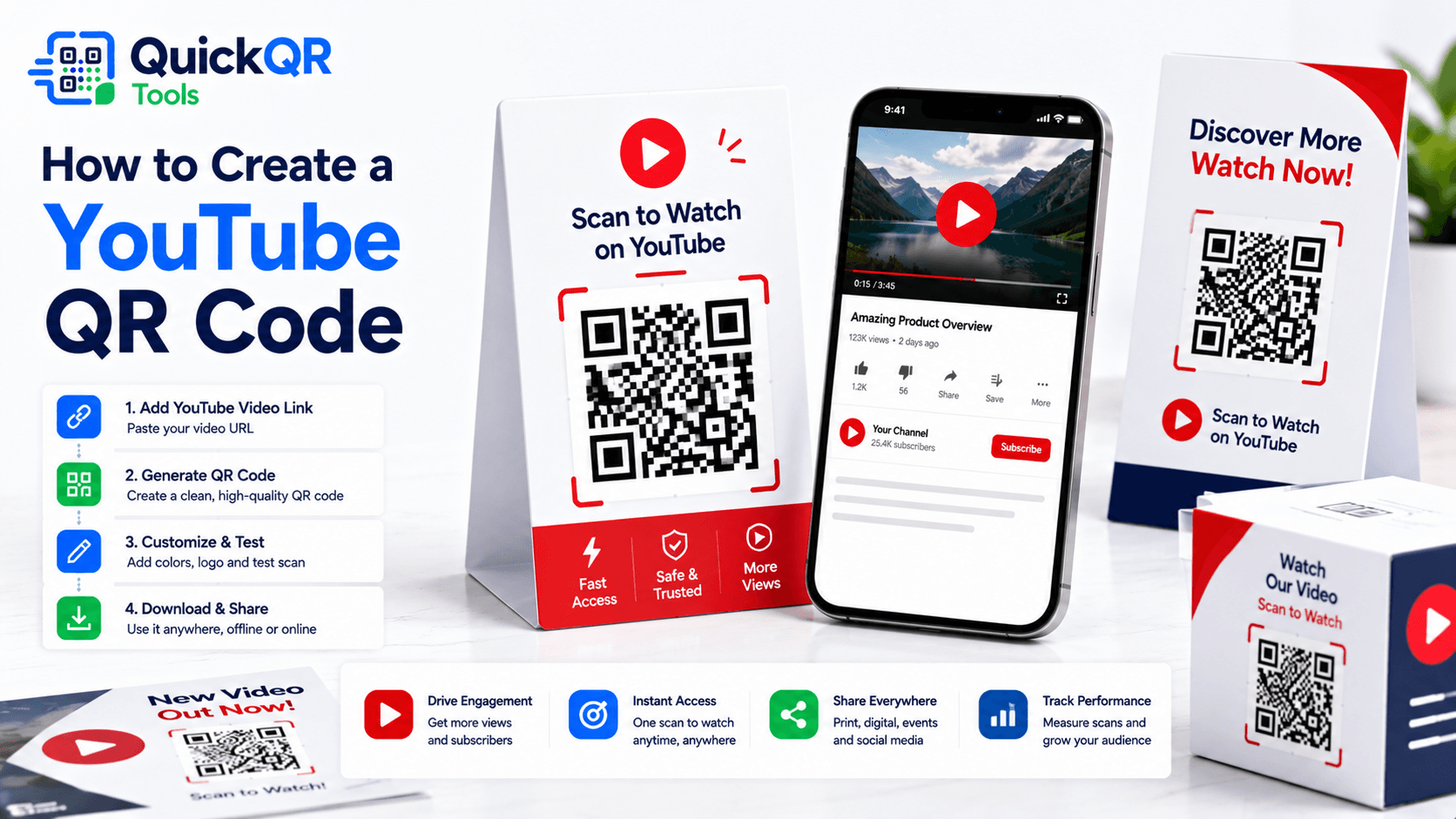
- Choose the right YouTube destination. Decide whether the QR code should open a video, channel, playlist, Short or livestream.
- Copy the public URL. Use a link that visitors can open without private access.
- Generate the QR code. Paste the URL into the YouTube QR Code Generator.
- Download the right format. Use PNG for everyday use, SVG for design files and PDF for simple print cards.
- Test the final placement. Scan the QR code from the actual flyer, package, sign, slide or handout.
The most important part of how to create a YouTube QR code is choosing the link that matches the visitor’s intent. If someone needs one tutorial, use the exact video. If the goal is long-term audience growth, use the channel. If the content belongs to a sequence, use a playlist. If the scan happens during a live event, use the livestream or event landing page.
Before printing, open the YouTube link in a private browser window and on a phone. Confirm that the content is public, the title is correct and the first screen makes sense for the person scanning. A QR code only helps if the destination is clear and ready.
Best YouTube QR code destinations
Different YouTube links support different goals. A video link is focused, a channel link builds audience, a playlist creates a learning path and a livestream link supports time-sensitive events. When planning how to create a YouTube QR code, match the destination to the promise printed beside the code.
| Destination | Best for | What to check |
|---|---|---|
| YouTube video | Product demos, tutorials, reviews, trailers and announcements. | Make sure the video is public and starts with clear context. |
| YouTube channel | Creators, brands, educators and businesses that want subscribers. | Check the channel homepage, trailer and featured videos. |
| YouTube playlist | Courses, event recaps, setup series and grouped resources. | Confirm the playlist order and privacy settings. |
| YouTube Short | Quick campaigns, creator promotions and mobile-first discovery. | Check that the Short opens cleanly on mobile. |
| Livestream | Launches, webinars, performances, events and scheduled sessions. | Test before the event and provide a fallback if the stream ends. |
YouTube provides help for sharing videos and channels. If you are unsure how a link behaves, the YouTube Help Center is a reliable place to check official guidance before printing a large campaign.
YouTube QR code use cases
Restaurants can use YouTube QR codes for chef stories, recipe videos or behind-the-scenes content. Real estate agents can link property walkthroughs from brochures and signs. Fitness coaches can link exercise tutorials from printed plans. Local businesses can link customer testimonials, service explainers or brand videos from counter cards.
In every use case, how to create a YouTube QR code comes down to the same question: what video action should happen after the scan? The clearer the answer, the stronger the QR code experience.
Design and print tips for YouTube QR codes
A YouTube QR code should be easy to scan and easy to understand. Place a short label near the code, such as “Scan to watch the demo,” “Scan for the full tutorial,” or “Scan to subscribe on YouTube.” The label tells people what will happen before they scan.
Keep strong contrast between the QR pattern and the background. Dark navy or black on white is usually safest. If you use a red video accent in the surrounding design, keep the QR pattern itself readable. Avoid placing the code on busy thumbnails, gradients, photos or textured backgrounds.
Size matters. A QR code on a business card can be scanned close up, but a poster or event sign needs a larger code. If your YouTube QR code appears in a slide deck, test it from the back of the room. If it appears on packaging, test it after printing and folding.
The final scan should match the promise. If the label says “watch the setup video,” the destination should open the setup video, not a generic channel page. This is one of the simplest ways to make a YouTube QR code feel trustworthy.
YouTube QR code for business marketing
Businesses can use YouTube QR codes to make offline marketing more useful. A flyer can point to a product demo. A trade show booth can point to a short explainer. A restaurant table card can point to a brand story. A real estate brochure can point to a walkthrough. A service proposal can point to a testimonial playlist.
When learning how to create a YouTube QR code for business, think about the buyer journey. Someone who has never heard of the brand may need a short introduction video. Someone who already bought a product may need a setup tutorial. Someone comparing options may need testimonials, reviews or case studies.
Use separate QR codes for separate goals when the context is different. A product box, an event booth and a sales brochure may all need different YouTube links. This keeps the scan relevant and helps you understand which materials perform best.
Where to place a YouTube QR code
Placement affects scan behavior. A QR code on a product insert is scanned close up, while a QR code on a poster may be scanned from several feet away. A QR code on a presentation slide may only be visible for a short time. When deciding how to create a YouTube QR code for a real campaign, choose the size, label and destination based on where the code will appear.
For product packaging, place the QR code near the setup step or benefit. If the video explains installation, the QR code should appear before the customer gets stuck. If the video is a brand story, it can appear on an outer panel, thank-you card or product insert. In both cases, the label should explain the value clearly.
For retail stores, counter cards, shelf signs and window posters work well when the video helps customers make a decision. A short demo, comparison video or customer testimonial can support the buying moment. Keep the QR code large enough and avoid reflective surfaces that make scanning harder.
For schools, trainers and workshops, place YouTube QR codes on worksheets, slides, handouts and follow-up materials. A student should know whether the scan opens a lesson recap, a homework explainer, a safety video or a full playlist. Clear labels make the QR code feel like a resource, not a distraction.
For restaurants and hospitality, YouTube QR codes can support behind-the-scenes videos, chef stories, venue tours, event recaps or brand videos. Still, the scan should match the guest context. A menu table card should not send people to a long unrelated video when they expect practical information.
YouTube QR code copy examples
The words beside the QR code can increase scans because they reduce uncertainty. People are more likely to scan when they know what will open and why it matters. A strong label is short, specific and connected to the viewer’s need.
| Use case | Clear copy | Why it works |
|---|---|---|
| Product setup | Scan to watch the setup video. | The visitor knows the scan will solve an immediate problem. |
| Creator promotion | Scan to watch the latest video. | It creates a direct path from offline attention to the newest content. |
| Education | Scan for the lesson playlist. | It tells students they are opening a complete learning sequence. |
| Event replay | Scan to watch the event recap. | It gives attendees a reason to revisit the experience after the event. |
| Real estate | Scan for the full video tour. | It helps interested buyers move from print to a richer property view. |
If you are learning how to create a YouTube QR code for marketing, avoid vague labels like “Scan me.” That phrase tells people what to do, but it does not explain the benefit. A better label tells them what they will see: demo, tutorial, playlist, review, replay, walkthrough or channel.
The label should also match the destination. If the code opens a playlist, say playlist. If it opens a short demo, say demo. If it opens a channel, say channel or subscribe. This small alignment improves trust because the scan result matches the printed promise.
YouTube QR code for events and presentations
Events often create moments where people want content quickly. A YouTube QR code can send attendees to a livestream, replay, speaker playlist, sponsor video, product demo or recap. Put the code where attendees naturally pause: registration desks, printed programs, slides, booth signs and follow-up cards.
For presentations, keep the QR code visible long enough for people to scan. Do not place it on a crowded slide with tiny text. Use a short label and a large code. If the video is important after the session, include the same QR code in the handout or follow-up email.
If the link is tied to a scheduled livestream, test before the event starts and prepare a fallback destination after the event ends. A stable event landing page that embeds or links to the current YouTube video may be safer than printing a livestream URL that becomes less useful later.
YouTube QR code for product support
Product support is one of the strongest uses for YouTube QR codes. Many customers prefer watching a setup video instead of reading a long manual. A QR code can sit beside the exact step where help is needed, such as assembly, installation, pairing, cleaning, maintenance or troubleshooting.
When planning how to create a YouTube QR code for support, keep the video focused. A customer who scans from a setup card does not want a long brand introduction before the useful instruction begins. Use a video that answers the specific question printed beside the code. If the product has several setup steps, a playlist may work better than a single long video.
Use stable URLs for long-term packaging. If you may update the videos later, consider sending the QR code to a support landing page that you control. That page can link to the newest YouTube video while the printed QR code stays the same.
Support QR codes should also be tested after packaging is finalized. Folds, glossy finishes, curved bottles, small inserts and low-contrast backgrounds can reduce scan quality. Print one sample and scan it in realistic lighting before approving the full run.
YouTube QR code for creators and channels
Creators can use YouTube QR codes to bridge offline and online discovery. A musician can add a QR code to posters and merchandise. A filmmaker can add one to festival cards. A coach can add one to workshop materials. A local business owner can add one to a counter display that points to testimonials or tutorials.
If the goal is subscribers, a channel link may be better than one video. If the goal is to promote a launch, a specific video may be stronger. If the goal is to show a body of work, a playlist may create a better first impression. How to create a YouTube QR code for a creator depends on what action matters most: watch, subscribe, learn, share or attend.
Creators should also think about the first few seconds after the scan. If the video starts slowly, visitors may leave. If the channel page looks unfinished, the scan may not convert. The QR code can bring attention, but the YouTube destination must still earn the viewer’s next action.
How to test a YouTube QR code before publishing
Testing should cover the scan, the link and the viewing experience. First, test the QR code on screen. Then test it inside the final design file. Finally, test the printed version. A YouTube QR code that scans perfectly on a laptop may fail when printed small, placed on glossy stock or viewed from the back of a room.
- Scan with at least one iPhone and one Android phone.
- Open the link on mobile data, not only WiFi.
- Confirm that the YouTube content is public or accessible.
- Check whether the link opens in the YouTube app or browser.
- Make sure the first screen matches the printed label.
- Test from the distance people will actually scan.
- Check the final printed material under realistic lighting.
This testing process is part of how to create a YouTube QR code that people can actually use. It protects the visitor experience and prevents print mistakes that are expensive to fix later.
Static or dynamic YouTube QR code?
A static YouTube QR code stores the YouTube URL directly in the QR pattern. It is simple and works well when the destination will not change. If you print a QR code for one evergreen tutorial, a static code can be enough.
The limitation is that a static QR code cannot be edited after printing. If the YouTube video is replaced, deleted or moved, the printed code may become outdated. For long-term packaging or expensive print runs, consider pointing the QR code to a stable landing page that you control. That page can then link to the current YouTube video or playlist.
If you are comparing options, read the static vs dynamic QR codes guide. The best choice depends on how long the printed material will stay in circulation and how likely the video link is to change.
How to measure YouTube QR code performance
Simple YouTube QR codes do not automatically provide full scan analytics, but you can still measure performance in practical ways. If the QR code points directly to a YouTube video, watch for changes in views, traffic sources, comments and subscriber activity after the campaign launches. If the code points to a landing page first, you can measure page visits and button clicks before the user reaches YouTube.
For better campaign comparison, use different QR codes or destination URLs for different placements. A flyer, poster, product insert and event sign can each point to a different landing page or tagged URL. This helps you understand which placement earns the most attention.
Do not make measurement more complicated than the visitor experience can handle. The scan should remain fast and trustworthy. If tracking adds redirects that slow the page or confuse the visitor, it can hurt the campaign. A balanced approach to how to create a YouTube QR code keeps the user path simple while giving the business enough information to improve future materials.
Troubleshooting YouTube QR code problems
If a YouTube QR code does not perform well, separate the problem into scan quality, link quality and content quality. Scan quality problems happen when the QR code is too small, too low contrast, distorted or placed on a difficult surface. Link quality problems happen when the YouTube URL is private, broken, restricted or not the content people expected. Content quality problems happen when the video opens but does not satisfy the visitor’s intent.
For scan quality, increase size, add quiet zone, improve contrast and remove visual clutter around the QR code. For link quality, test the URL in a private browser and on multiple phones. For content quality, make sure the video title, thumbnail and opening seconds match the printed promise.
If the video may change later, use a stable landing page. If the QR code is printed on many materials, keep a record of the destination URL, file name and publication date. That makes future updates easier to manage.
Pre-launch checklist for YouTube QR campaigns
Before publishing or printing, run through a simple checklist. This is especially important when several people are involved in design, video editing, print production and website updates.
- The YouTube video, channel or playlist is public and ready.
- The QR code label explains what opens after the scan.
- The QR code has enough quiet zone around it.
- The final design has strong contrast and no visual clutter behind the code.
- The code has been scanned from the final printed size.
- The destination works on iPhone and Android.
- The video title and first screen match the visitor’s expectation.
- The campaign file stores the QR image and destination URL for future reference.
Once these checks are complete, the YouTube QR code is ready for a real campaign. The workflow is careful, but it keeps the scan experience smooth and protects the credibility of your printed materials.
Final advice before creating your YouTube QR code
The best YouTube QR codes are not only scannable; they are specific. A visitor should know why the code is there, what video will open and what they can do next. That is why how to create a YouTube QR code should always include the destination, label, design, print size and mobile test in the same workflow.
Start with one clear goal. If you want views, link to the exact video. If you want subscribers, link to the channel. If you want learning or support, link to a playlist or tutorial. Then generate the QR code, test it and place it where the viewer naturally needs the video.
Common YouTube QR code mistakes
- Using a private video. Visitors need a public or accessible link.
- Linking to the wrong destination. A channel, playlist and video each create a different experience.
- Printing the code too small. Test the final size from the real scanning distance.
- Using vague labels. “Scan to watch the demo” is clearer than “Scan me.”
- Placing the code on a busy thumbnail. Keep a clean quiet zone around the QR code.
- Not testing mobile behavior. The destination may open differently in a browser and in the YouTube app.
- Changing videos after printing. Use stable links for long-term print materials.
FAQ about YouTube QR codes
Can I make a QR code for a YouTube video?
Yes. Copy the public YouTube video URL, paste it into the YouTube QR Code Generator and download the QR code.
Can I make a QR code for a YouTube channel?
Yes. Use the public channel URL when your goal is subscribers or long-term audience growth.
Can I create a QR code for a YouTube playlist?
Yes. Playlist QR codes work well for courses, tutorials, event recaps and product education.
Can I print a YouTube QR code?
Yes. Download PNG, SVG or PDF, keep enough quiet zone and test the printed version before publishing.
Will the QR code play the video automatically?
No. The QR code opens the YouTube destination. Playback depends on the viewer’s device, browser and YouTube app settings.
Can I change the video after printing?
A static QR code cannot be edited after printing. Use a stable landing page if you may need to update the video later.