
Receipts and invoices
Add a review QR code where customers already see order details, service notes or payment confirmation.
QR Codes For Customer Reviews
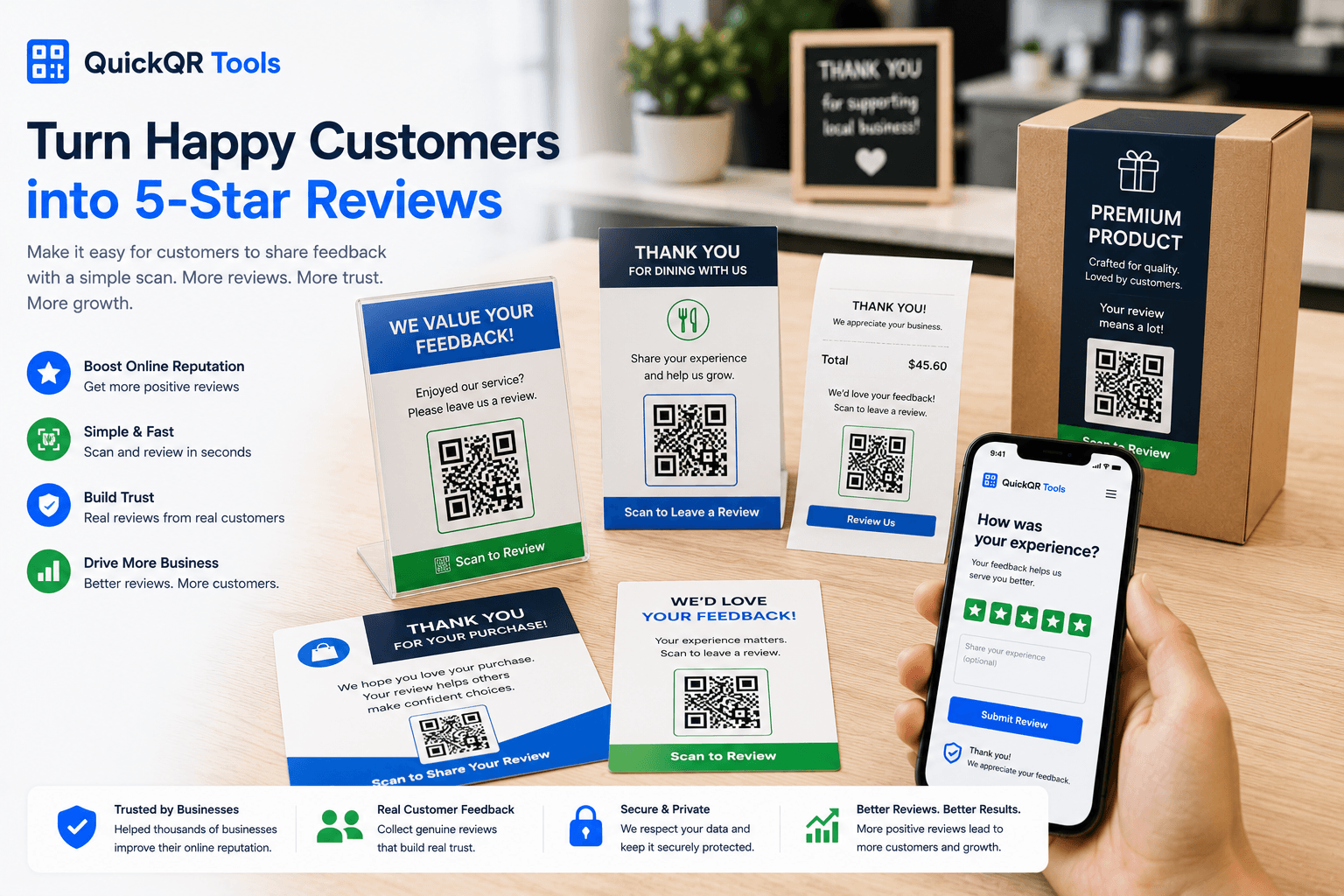
QR codes for customer reviews help people open your review page or feedback form from receipts, counters, table cards, packaging inserts, invoices, thank-you cards and service materials without searching for your business later.
Review moments
A review QR code works best when it appears right after a real customer experience, with a clear and respectful invitation.
Add a review QR code where customers already see order details, service notes or payment confirmation.
Place a small review card near checkout, reception or pickup areas where happy customers naturally pause.
Invite guests to share feedback from table tents, bill folders, takeaway bags or thank-you cards.
Use packaging inserts or thank-you cards to ask buyers to review the product after they receive it.
Add review QR codes to appointment cards, service reports, leave-behind sheets and project wrap-up materials.
Use review prompts after workshops, tours, clinics, open houses, local events or in-person consultations.
Review request setup
QR codes for customer reviews should make an honest review easier, not pressure customers into a specific rating. Use neutral wording such as scan to share your experience, scan to leave a review or tell us how we did.
The timing matters. A review QR code is strongest when the customer has just received help, completed a purchase, finished a meal, picked up an order or used the product. The scan should open the exact review page or feedback form, not a general homepage.
Keep the printed message short. Customers should understand what happens before they scan. If the QR code opens Google reviews, say that clearly. If it opens a private feedback form, make that clear too.
Practical examples
Match the review request to the place where the customer is most likely to remember the experience.
| Placement | Best review action | Useful QuickQR tool |
|---|---|---|
| Printed receipt | Open your Google review page after checkout or service completion. | Google Review QR Code Generator |
| Table tent | Let restaurant guests leave a review after dining or pickup. | QR Codes For Restaurants |
| Packaging insert | Ask product buyers to review the product or share feedback after delivery. | QR Codes For Product Packaging |
| Front desk card | Invite clients to review a clinic, salon, repair shop, office or local service. | QR Codes For Small Business |
| Retail bag insert | Ask shoppers to review the store, product or pickup experience. | QR Codes For Retail |
| Thank-you card | Open a review page, testimonial form or feedback request after a purchase. | QR Code Generator |
| Service report | Let customers review a technician, contractor, consultant or appointment. | QR Scan Tester |
Print readiness
Review requests often appear on small cards, receipts, counters or packaging. Check the printed code before customers see it.
Test whether the review QR code is easy to scan from receipts, cards, table tents and packaging inserts.
Test scan readinessChoose a safer printed size for review cards, invoices, table tents, flyers and packaging materials.
Calculate sizeCheck contrast before using brand colors on a review QR card or printed customer request.
Check contrastQuickQR review tools
Start with the review destination, then use the supporting tools to make the QR code easier to print and scan.
Create a QR code for your Google review link and use it on receipts, cards, counters and inserts.
Create review QRCreate QR codes for feedback forms, testimonial pages, survey pages and customer experience links.
Create website QRPair restaurant review requests with table cards, receipts, menus and guest follow-up materials.
Create menu QRCreate post-purchase offers separately from review requests so each scan has one clear purpose.
Create coupon QRShare review instructions, service summaries, product guides or care sheets alongside review prompts.
Create PDF QRBrowse QR tools for reviews, menus, packaging, retail, contact, offers, documents and local business actions.
Explore toolsRelated guides
Use these related pages to connect review QR codes with local business, restaurants, retail and product packaging.
Build a simple review request flow for local businesses, restaurants, clinics, shops and service teams.
Read review guideUse QR codes on counters, receipts, signs and cards so customers can review, book, contact or revisit.
Explore local business QRUse QR codes for reviews, contact, offers, documents, flyers, signs and customer actions.
Explore small business usesUse QR codes for menus, WiFi, reviews, table cards, receipts and guest actions.
Explore restaurant usesUse QR codes for packaging, receipts, product details, reviews, coupons and in-store displays.
Explore retail usesAdd review prompts to inserts, thank-you cards, product labels, packaging and post-purchase materials.
Explore packaging usesUse unboxing cards to request reviews, guide setup, offer support and encourage repeat purchases.
Explore packaging insert usesConnect review requests with printed materials, local campaigns, trust signals and customer journeys.
Read marketing guideReferences
Use trusted references alongside QuickQR tools when asking customers for feedback in a respectful and useful way.
Google explains how businesses can ask customers for reviews and share review links while keeping review requests honest.
The Federal Trade Commission provides guidance about reviews, endorsements and honest customer feedback.
The Business QR Toolkit
Start with your Google review link or feedback form, create a QR code and test it before adding it to receipts, cards, counters, packaging or service materials.
FAQ
Short answers for businesses adding review QR codes to printed customer touchpoints.
QR codes for customer reviews are scannable codes that open a review page, feedback form or testimonial request from printed materials such as receipts, table cards, packaging inserts and thank-you cards.
Place review QR codes where customers have just completed a positive interaction, such as checkout counters, receipts, invoices, table cards, service reports, packaging inserts and thank-you cards.
Yes. A Google review QR code can reduce the steps between a customer and your review page, making it easier for people to leave feedback when the experience is still fresh.
No. Ask for honest feedback and avoid pressuring customers for a specific rating. Neutral review requests are better for trust and long-term credibility.
Be careful with incentives and review rules. Review requests should be honest, transparent and compliant with the platform where the review is collected.
Use simple wording such as scan to share your experience, scan to leave a review or tell us how we did. The text should clearly explain what happens after the scan.
Yes. Restaurants can place review QR codes on table cards, receipts, bill folders, counter signs and takeaway packaging to make guest feedback easier.
Scan the printed sample on multiple phones, confirm that the review page opens quickly and check that the QR code remains readable at the final printed size.