Table cards
Invite guests to leave a review after a meal or pickup order.
Customer Reviews
Google review QR code generator for local businesses that want a faster, easier way to invite real customers to leave feedback after a visit, purchase, appointment or completed service.
Paste your official Google review link, generate a clean QR code, then place it on the printed materials your customers already see.
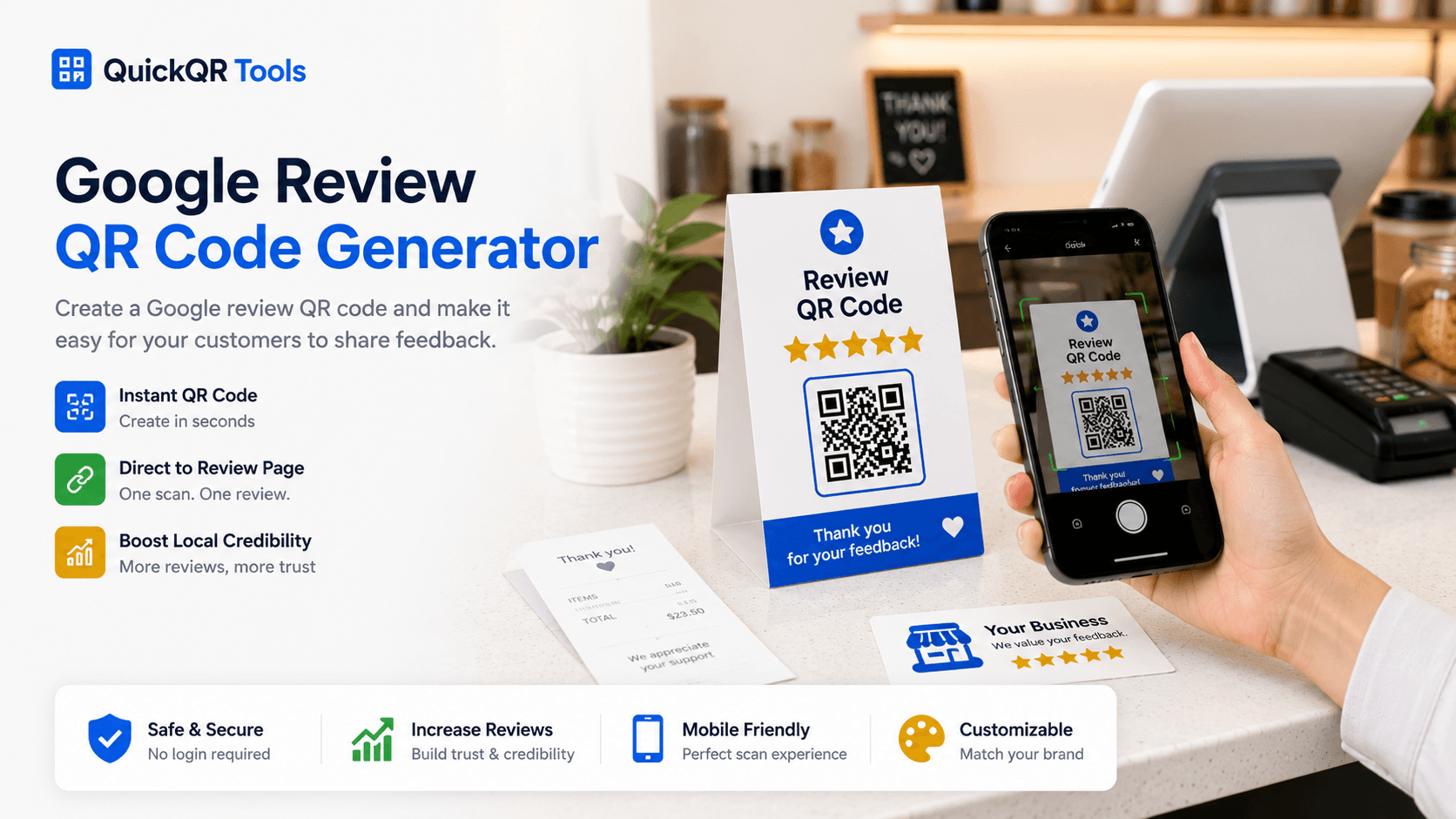
Paste the review link from your Google Business Profile. The QR code will open that link when scanned.
Use it on table tents, receipts, invoices, business cards, appointment cards, front desk signs and packaging inserts.
A review QR code helps customers reach your Google review page quickly after a visit, appointment, purchase or service call.
Invite guests to leave a review after a meal or pickup order.
Add a review QR code to quotes, invoices and follow-up emails.
Encourage feedback from customers after an in-store purchase.
Place a scannable review request near reception or checkout.
Copy your Google review link, generate the QR code and test it before printing it on customer-facing materials.
Open Google Business Profile and copy your ask-for-reviews link.
Paste the link into the Google review QR code generator and choose your export size.
Create the code, scan it on a phone and confirm it opens the correct review page.
Export PNG, SVG or PDF and use it where customers can scan naturally.
Read the step-by-step guide for getting reviews from customers with QR codes.
Choose the right size before printing review QR codes on receipts, signs or table cards.
Understand when a static review link QR code is enough and when dynamic QR codes may help.
A Google review QR code generator turns your Google review link into a scannable QR code. When a customer scans it, the QR code opens your review page so they can leave feedback with less friction. This is useful for local businesses that already have a Google Business Profile and want a simple way to invite customers to share their experience.
The QR code does not create reviews by itself. It simply makes the review path easier to access. Instead of asking customers to search for your business, find the review button and type feedback later, you can place a scannable code on receipts, table tents, appointment cards, packaging inserts, front-desk signs, invoices or follow-up materials.
This Google review QR code generator is designed for practical local business use. Paste your official review link, generate the QR code, test it on a phone and download PNG, SVG or PDF. The best results come from asking at the right moment, using clear wording and making the scan feel like a helpful invitation rather than pressure.
Google review request guidanceA Google review QR code generator works best at moments when customers have just completed a positive experience and understand what they are being asked to do.
Place the QR code where customers already pause: after a meal, at checkout, after an appointment or when a job is complete. The scan should feel like a simple next step, not a forced request.
Place a Google review QR code on invoices, job completion cards, door hangers or thank-you notes after the customer confirms the work is complete.
Use a review QR code near checkout, on receipts, product packaging or loyalty materials with neutral wording such as “Scan to share your experience.”
Placement matters. The QR code should appear where customers have enough context, time and motivation to leave useful feedback.
Place the review QR near the thank-you message with copy like “Scan to share your experience.”
Use table cards and counter signs when customers have time to scan after the visit.
Invite feedback after checkout with a short, service-focused message.
Add the QR code next to a thank-you note or care instructions, not over required product information.
Use the QR after the customer confirms the job is complete and the experience is fresh.
A Google review QR code generator is best when the scan should open a review request link. It is different from a general URL QR code because the purpose is specific: customer feedback. It is different from a location QR code because the customer has likely already found or visited the business. It is different from a vCard QR code because the goal is not contact sharing.
Use a URL QR code when you want customers to visit a landing page, offer, booking page or menu. Use a location QR code when they need directions. Use a vCard QR code when they need contact details. Use a Google review QR code when the customer is ready to leave feedback after a purchase, visit, appointment or completed service.
A strong local business setup can use all of these tools at different moments. Location QR before the visit, WiFi QR during the visit, Google review QR after the experience, vCard QR for business contact sharing and URL QR for deeper information.
A review QR code should make feedback easier while keeping the request honest, clear and respectful.
Use neutral language like “Share your experience” or “Leave us a Google review.” Avoid wording that asks only for five-star reviews. A natural review profile is more credible and better for long-term trust.
Timing matters. Ask after the service is complete, the meal is finished, the product is received or the customer has expressed satisfaction. A well-timed review request feels helpful instead of intrusive.
Before printing, scan the QR code and confirm that it opens the correct Google review page. Test on more than one phone and from the final printed size, especially for signs, receipts and table cards.
Place the QR code where customers can scan comfortably. Add a short explanation of why reviews help your business and other customers, but keep the request simple and respectful.
Google reviews can support local trust, conversion and discovery. When potential customers compare local businesses, reviews often help them decide who to call, visit or book. A Google review QR code does not guarantee visibility by itself, but it can make it easier to collect real customer feedback over time.
For local trust, review quality, recency, relevance and response habits all matter. A steady flow of honest reviews can strengthen the public profile of a business. Replies also show that the business is active and attentive. The QR code supports the process by reducing the steps between a happy customer and the review form.
Use this Google review QR code generator as one part of a broader reputation system: ask consistently, respond professionally, fix recurring issues, keep your Google Business Profile accurate and make customer experience the real foundation of review growth.
A Google review QR code generator can make the request easier, but poor wording or placement can reduce trust.
The QR code should open the correct review flow for your Google Business Profile. If you paste a general website link, map search result or unrelated page, customers may not reach the review form. Always scan and confirm the result before printing.
Do not frame the request as “leave us a five-star review.” Ask for honest feedback. Customers can tell when a request feels forced, and a natural review profile is better for trust than a page that looks artificially filtered.
A review request works best after a real experience. A QR code at the entrance may be too early. A QR code on a receipt, invoice, checkout sign, thank-you card or service completion card usually makes more sense.
If customers leave critical reviews, respond professionally and look for patterns. The goal is not only to collect reviews; it is to learn from them. QR codes can increase feedback volume, so the business should be ready to manage responses.
Receipts, appointment cards and packaging inserts can be small, but the QR code still needs enough size and contrast. If customers cannot scan it quickly, they will not fight the design. Test the printed sample before using it at scale.
A QR code labeled only “Scan me” is vague. Use direct copy: “Scan to leave a Google review” or “Scan to share your experience.” Clear labels improve engagement and prevent confusion.
Review QR codes often live on small printed materials, so clarity and scan reliability matter.
| Material | Placement advice | Design note |
|---|---|---|
| Receipt | Place the QR code near the thank-you message or after the total. | Use simple text because receipt space is limited. |
| Table card | Place the QR code at eye level with a short review request. | Use enough contrast for restaurant lighting. |
| Invoice | Add it near the completion note or customer thank-you message. | Keep the review request separate from payment instructions. |
| Front-desk sign | Place it where customers pause naturally after service. | Use a larger QR code so it scans from standing distance. |
| Packaging insert | Add it next to care notes, support details or a thank-you card. | Make sure the review request does not cover required product information. |
The words around the QR code matter. A clear, respectful request helps customers understand why the scan is useful. Keep the copy short, honest and focused on feedback. The best message depends on the business, but the tone should always feel natural.
For a restaurant, “Enjoyed your visit? Scan to share your experience on Google” is direct and polite. For a contractor, “Happy with the work? Your Google review helps local customers find us” connects the review to local trust. For a clinic or salon, “Your feedback helps us improve and helps others choose with confidence” feels service-oriented.
Use the Google review QR code generator after the copy is ready, then test the full design. The QR code, label and surrounding message should work together. If the request looks too crowded, simplify the wording and keep the scan action obvious.
A QR code created from a review link is usually static. That means the encoded link stays the same after downloading and printing. If your Google review link changes, if the business profile changes, or if the code was created with the wrong URL, the printed QR code must be replaced.
Static review QR codes are fine when you trust the link and want a clean printable code. For campaigns where you need tracking, redirects or link updates, a dynamic QR setup may be useful. For most local businesses starting out, a static Google review QR code is simple enough as long as the link is tested before printing.
Keep a copy of the review link and the design file in your business assets folder. If you update the QR code later, replace old files so staff do not accidentally print the outdated version.
The best Google review QR code generator workflow is not only about the QR code. It is about when your team asks, what they say and how the business responds.
Staff should know when a review request feels natural. In a restaurant, that may be after a guest compliments the meal. In a clinic, it may be after checkout. In a service business, it may be after the customer approves the completed work.
Create a simple script, such as “If you have a moment, your feedback on Google helps other local customers find us.” This keeps the request consistent and avoids awkward pressure.
Place the QR code where the team can point to it easily. A front-desk sign, table card, receipt footer or thank-you card works better than a code hidden on a rarely seen page.
Check whether customers are scanning and whether review volume improves. If the QR code is not used, adjust placement, wording or timing before redesigning the entire process.
Review collection should be honest. A Google review QR code can make feedback easier, but it should not be used to pressure customers, filter unhappy customers away from Google or reward only positive ratings. Customers trust reviews more when they feel natural and balanced.
Do not hide the QR code from customers who may have criticism. Instead, use feedback to improve operations. If a customer has a problem, solve it first. If they still want to leave a review, let the process remain open. A business that responds well to problems can build more trust than a business that only asks when everything is perfect.
Use the Google review QR code generator to remove friction, not to manipulate the outcome. The request should be transparent: scan, open Google, share your experience. That honest approach protects the brand and creates better long-term reputation signals.
Google review content policyDifferent businesses need different wording and placement, but the scan should always feel like a natural next step.
Best placement: receipt, table card or pickup bag.
Copy: Enjoyed your meal? Scan to share your experience on Google.
Pair with Menu QRBest placement: appointment card, mirror sign or checkout desk.
Copy: Your feedback helps local clients choose with confidence.
Pair with vCard QRBest placement: invoice, job card or thank-you note.
Copy: Happy with the work? Scan to review our service.
Pair with Phone QRBest placement: front desk, appointment reminder or follow-up card.
Copy: Share your visit experience with our team.
Pair with Location QRBest placement: receipt, packaging insert or counter display.
Copy: Scan to review your shopping experience.
Pair with Coupon QRBest placement: follow-up card, invoice or service completion note.
Copy: Your review helps other local customers find us.
Explore all toolsBefore printing, review the complete customer experience. The QR code should open quickly, the copy should be clear and the placement should make sense. If the request appears before the customer has received value, move it later in the journey. If the QR code appears after the customer is already leaving, make sure it is easy to scan quickly.
Test the QR code from the final file and final material. A design that scans on a desktop preview may fail on a glossy table card, narrow receipt or low-contrast sign. If the scan is slow, increase size, simplify the design or choose a darker QR color.
Finally, decide who will monitor reviews after the QR code goes live. Review collection is not a one-time design task. It becomes part of the customer feedback loop, and that loop works best when someone replies, learns and improves the service.
A Google review QR code generator is the right choice when the customer already knows your business and the next action is feedback. It is not the best first-touch marketing tool, and it is not a replacement for good service. It works best after a real interaction: a meal, appointment, repair, delivery, purchase, consultation or completed job.
Use a Google review QR code generator when you want to reduce the distance between a satisfied customer and your review page. If the goal is directions, use a location QR code. If the goal is booking, use a URL QR code. If the goal is contact sharing, use a vCard QR code. The review QR code belongs at the feedback stage of the customer journey.
For most local businesses, the strongest setup is simple: create the code, place it where customers naturally pause, train the team on neutral wording and monitor reviews consistently. A Google review QR code generator helps with the technical step, but reputation grows through consistent service and thoughtful follow-up.
Before placing a Google review QR code on receipts, counters, table cards, invoices or appointment cards, use these QR utilities to check scan quality, print size, distance and contrast.
Test the review QR code on real phones before asking customers to scan it in your business.
Choose a practical QR size for receipts, table cards, signs, appointment cards and packaging inserts.
Estimate scan distance for counter displays, wall signs, windows and larger printed review requests.
Check whether branded review cards and signs have enough contrast for reliable scanning.
Review verified QR code statistics for mobile scanning, business adoption and customer print-to-digital behavior.
Use these guides to turn Google review QR codes into a trusted customer feedback workflow.
Plan review QR codes for receipts, counters, table cards, packaging, invoices and thank-you materials.
Plan review, contact, offer, flyer and business card QR workflows for local customer action.
See how review QR codes work with menus, WiFi, table cards, receipts and guest follow-up.
Place review QR codes on receipts, counters, packaging inserts and post-purchase retail materials.
Build a simple review request flow for local businesses, restaurants, clinics, shops and service teams.
See how review QR codes fit with menus, WiFi access, table cards and guest follow-up.
Print review QR codes on receipts, cards, signs and counters so customers can scan reliably.
Connect reviews with local campaigns, customer trust, repeat visits and offline-to-online growth.
Answers to common questions about using a Google review QR code generator for customer feedback, local trust and printed review requests.
Yes. This Google review QR code generator lets you create a free static QR code from your Google review link and download it as PNG, SVG or PDF.
Open your Google Business Profile and use the ask-for-reviews or share review form option to copy your link.
Yes. You can use it on receipts, flyers, table cards, packaging, appointment cards and front-desk signs.
It can support your review collection process, which may improve trust and conversion. The QR code itself is not a guarantee of visibility, but it makes the review step easier.
No. Ask for honest feedback and avoid pressuring customers for a specific rating. Neutral review requests are better for trust.
No. A static QR code keeps the link encoded when it was created. If the review link changes, create and print a new QR code.
Place it where feedback is natural: receipts, invoices, table cards, appointment cards, front-desk signs, packaging inserts or thank-you cards.
Yes. Scan it on a phone and confirm it opens the correct Google review page before printing.
Connect your review request with the rest of the customer journey across QuickQR Tools, The Business QR Toolkit.
Create a QR code for any website link.
Share business contact details with a scan.
Help customers open your map location.
Start customer conversations faster.
Browse the full QuickQR Tools library for business, restaurant, marketing and contact QR codes.
Return to the Business QR Platform homepage and explore the main QR workflows.
Use QuickQR Tools to turn your review link into a business-ready QR code for receipts, table cards, counters, invoices and customer follow-up materials.