
Digital menus
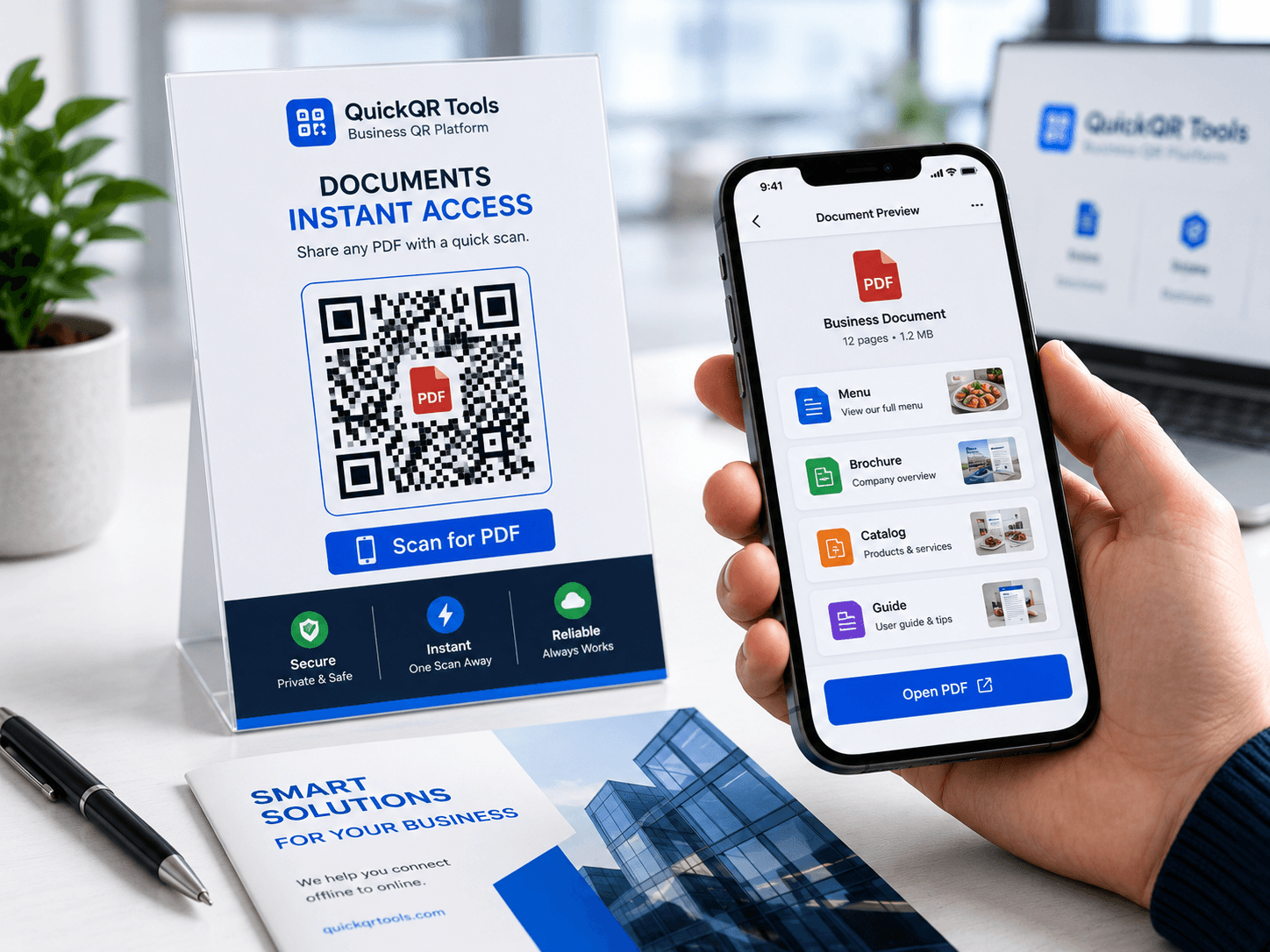
Let guests scan a table card and open your latest PDF menu.
Business Document QR Tool
PDF QR code generator for businesses that need to share menus, brochures, catalogs, forms, guides, price lists and public documents from printed materials, packaging, signs, events and customer touchpoints.
Paste the public URL of your PDF. If you use WordPress, upload the file to Media Library and copy the file URL.
Use it on menus, flyers, catalogs, brochures, invoices, signs, event programs, product packaging and business cards.
PDF QR codes make printed materials interactive without forcing people to type a long file link.
Let guests scan a table card and open your latest PDF menu.
Share catalogs, price lists and product sheets from flyers or booths.
Link badges, posters and invitations to schedules or event documents.
Connect packaging, equipment and signs to manuals or guides.
Upload your PDF, copy its file URL, generate the QR code and test it before printing.
Add your PDF to WordPress Media Library or another public file host.
Copy the PDF file URL and generate a scannable QR code.
Export the QR code as PNG, SVG or PDF for print or digital use.
Read the full guide for uploading, linking, testing and printing PDF QR codes.
Choose the right size before printing PDF QR codes on menus, flyers or signs.
Understand when a static PDF link is enough and when editable dynamic QR codes may help.
A PDF QR code generator creates a QR code that opens a hosted PDF file when someone scans it. The QR code does not store the whole PDF inside the pattern. Instead, it stores the public PDF URL, so the scanner can open the document in a browser or PDF viewer. This is useful for menus, brochures, catalogs, product sheets, event programs, instructions, forms, price lists and client documents.
This PDF QR code generator is designed for a simple workflow: upload the PDF to WordPress Media Library or another public file host, copy the direct PDF URL, paste it into the generator and download the QR code. The final QR code can be used on print materials, packaging, signage, table cards, flyers, business cards, invoices or digital pages.
PDF QR codes are practical when the content is already formatted as a document. A brochure may need page layout. A menu may need print-style formatting. A catalog may need product tables. A manual may need diagrams. A QR code lets people access that file without typing a long link.
PDF format reference
A PDF QR code generator is strongest when people need to open a document from a physical or digital touchpoint.
Restaurants, cafes, food trucks and bars can link table cards or counter signs to a PDF menu. This is useful when the menu is already designed as a PDF and does not need a full web menu page.
Sales teams can place PDF QR codes on flyers, booths, product packaging, showroom signs and business cards. Customers scan and open a brochure, catalog, price list or product sheet without typing a file URL.
Event organizers can link posters, invitations, badges and welcome signs to schedules, programs, speaker lists, venue maps or downloadable handouts.
Manufacturers, repair teams and service businesses can connect equipment labels, packaging inserts and support cards to manuals, installation guides, safety sheets or care instructions.
The QR code should point to a public, reliable PDF URL that opens quickly on mobile devices.
| PDF source | Best practice | Why it matters |
|---|---|---|
| WordPress Media Library | Upload the file, copy the direct file URL and test it in a private browser window. | The link should open for visitors who are not logged into WordPress. |
| Cloud storage | Use a public sharing link that opens without permission requests. | A QR code fails if users land on an access denied screen. |
| Website file manager | Use a clean HTTPS URL and avoid temporary download links. | Temporary links can expire after printing. |
| Updated menu or price list | Replace the PDF at the same URL when possible. | The same QR code can continue opening the latest file. |
| Large PDF file | Compress the PDF before publishing. | Large files load slowly on mobile and can reduce engagement. |
A PDF QR code generator is best when the destination is a document. If the goal is a web page, a URL QR code may be better. If the goal is a restaurant menu with sections, photos and mobile-friendly navigation, a menu QR code may be better. If the goal is a redeemable offer, use a coupon QR code. The best format depends on what the scanner needs after opening the QR code.
PDFs are strong for fixed layouts, printable documents, catalogs, forms, brochures and instruction sheets. Web pages are stronger for content that needs search visibility, analytics, responsive design and frequent updates. Menu QR codes are stronger when the menu is built as a page or tool rather than a file. Coupon QR codes are stronger when the scan should reveal an offer code or promotion.
The practical rule is simple: use a PDF QR code when the file experience is the point. Use another QR type when the scan should open an action, conversation, map, calendar item, review page or dynamic web experience.
A PDF QR code works best when the document is easy to open, readable on mobile and clearly labeled before scanning.
Large PDF files can load slowly on mobile networks. Compress images, remove unnecessary pages and keep the file size reasonable before creating the QR code.
Many PDFs are designed for print, not phones. Use readable text, clear headings and enough contrast. If users must pinch and zoom constantly, consider a web page instead.
Use a visible label such as “Scan to open the PDF menu,” “Scan for product catalog” or “Scan for installation guide.” People scan more when they know what will open.
Scan the QR code from the final design and confirm the PDF opens on different phones. Test the link outside your logged-in website account.
A QR code created with a PDF QR code generator is usually static because the PDF URL is encoded directly in the QR code. If the URL stays the same, the QR code can keep working even when you replace the file behind that URL. If the URL changes, the printed QR code will still point to the old address.
This matters for menus, price lists, product catalogs and event programs. If you expect frequent updates, create a stable file URL or link to a page that always contains the latest PDF. If you upload a new file every time and the URL changes each time, you will need a new QR code for each file.
For long-term print materials, plan the update method before printing. A little file organization now can save reprinting later.
A PDF QR code generator can make sharing simple, but the document and link still need to be prepared correctly.
The most common mistake is using a PDF URL that only works while you are logged in. Test the link in a private browser window or on another phone. If the file asks for access, the QR code is not ready for public use.
A large PDF may open slowly, especially on mobile networks. People scanning from a table card, flyer or sign expect the file to load quickly. Compress the document before generating the QR code.
Some PDFs look beautiful on desktop but are painful on phones. If the content is meant mainly for mobile scanning, use larger text, simpler pages and strong contrast. For very long content, a mobile web page may be better.
A QR code without context can feel risky. Add text that explains the file: “Scan for PDF menu,” “Scan for brochure,” “Scan for product catalog” or “Scan for installation guide.” Clear labels improve trust.
Always test the QR code from the final print file. A code that works in preview can fail if it is printed too small, placed on a textured background or reduced on a receipt.
Keep the original PDF, the compressed PDF, the QR code export and the source URL together. This makes updates easier when the document changes.
The right placement depends on how people will scan and what document they expect to open.
| Material | Best placement | Suggested label |
|---|---|---|
| Restaurant table card | Center or lower corner with enough white space. | Scan for PDF menu. |
| Product packaging | Near support, setup or care information. | Scan for instructions. |
| Sales flyer | Near the call to action or product image. | Scan for brochure. |
| Event poster | Near schedule or program details. | Scan for event program. |
| Business card | Back side with a short explanation. | Scan for service guide. |
Do not use a public PDF QR code for private documents, sensitive contracts, internal records, medical details, passwords or customer information unless the file is meant to be public. Anyone who can scan the QR code can open the PDF if the link is public.
If a PDF should only be available to a specific person or team, use a secure document system instead of a public QR code. For public brochures, menus, catalogs and manuals, a PDF QR code is fine as long as the file does not expose private data.
Also remember that PDF files can be downloaded or shared by visitors. If the information is time-sensitive, include a date or version number in the document so people know whether they are looking at the latest file.
A PDF QR code generator can support many industries, but the document should match the scanner's immediate need.
| Business type | Useful PDF | Best placement | Supporting QR tool |
|---|---|---|---|
| Restaurant or cafe | Menu, wine list, allergen sheet or catering menu. | Table cards, counter signs, window signs or flyers. | Menu QR Code Generator |
| Real estate | Property brochure, floor plan, disclosure packet or neighborhood guide. | Open house signs, flyers, brochures and business cards. | Location QR Code Generator |
| Retail and ecommerce | Product catalog, sizing guide, care guide or return instructions. | Packaging inserts, shelves, receipts and product tags. | Coupon QR Code Generator |
| Events and conferences | Program, map, schedule, speaker list or sponsor packet. | Badges, posters, welcome desks and event invitations. | Event QR Code Generator |
| Service businesses | Price list, service menu, prep guide or aftercare instructions. | Appointment cards, invoices, front-desk signs and follow-up emails. | Google Review QR Code Generator |
Restaurants often use a PDF QR code generator because menus already exist as designed files. A PDF menu can preserve branding, layout, item descriptions and pricing in a familiar format. This is convenient for table cards, window signs, flyers and hotel lobby cards.
The main risk is mobile readability. A menu designed for an 8.5 by 11 inch print page may be hard to read on a phone. If guests need to zoom constantly, consider a mobile menu page instead. If the PDF is short, clean and easy to read, a PDF QR code can be a fast solution.
For menus that change often, keep the PDF at the same URL when possible. If you upload a new file with a new URL every week, the old QR code will keep pointing to the old file. A stable menu URL makes the QR code easier to manage.
A PDF QR code should help people access information quickly. If the document is difficult to read on mobile, the QR code experience feels broken even when the scan works. Use clear headings, readable font sizes, strong contrast and simple page structure.
When possible, make the PDF accessible. Use selectable text instead of image-only pages, add meaningful headings, include alt text in the source document and avoid tiny tables that require constant zooming. If the document is long, include a simple table of contents inside the PDF.
For important public information, consider offering both a PDF and a web page. The PDF can serve print-style needs, while the web page can be easier for mobile users, screen readers and people who need quick navigation.
The best PDF QR code generator workflow includes file naming, version control and a quick test routine.
Use file names that make sense later, such as restaurant-menu-2026.pdf or product-catalog-spring.pdf. Clear names help your team avoid linking the wrong file.
If you can replace a PDF without changing its URL, the same QR code can keep working. This is helpful for menus, price lists and public guides.
Keep old PDFs out of public navigation when they are outdated. If users can still find old price lists or menus, it can create confusion.
After replacing a file, scan the QR code again. Confirm that the latest PDF opens, loads quickly and displays correctly on mobile.
A PDF QR code generator is the right tool when your content is already a document and the scanner expects to open a file. It is ideal for menus, catalogs, brochures, programs, instruction sheets, price lists, forms and downloadable guides. It is not always ideal for long mobile experiences, interactive content or pages that need frequent search updates.
If the PDF is short, readable, public and stable, the QR code experience can be excellent. If the document is large, private, hard to read on phones or constantly changing, consider using a web page or another QR tool instead.
Use the PDF QR code generator as part of a clean publishing process: prepare the PDF, upload it, test the public URL, generate the QR code, export the right format and scan the final print file.
A PDF QR code is not the best fit for every situation. If the content needs forms, booking, checkout, analytics, embedded video, frequent updates or a fully responsive mobile layout, a web page is usually better. The QR code can still help, but it should point to the experience that serves the user best.
Do not use a PDF QR code when the file is private, outdated, very large, hard to read or hosted behind a permission screen. A QR code makes access faster, but it does not fix a poor document. If the PDF is not ready for public use, prepare the file first.
A PDF can be useful, but a well-structured web page usually gives visitors a better mobile experience when the content needs buttons, forms, videos, frequent updates or step-by-step navigation. Use this PDF QR code generator for document delivery, and use page-based QR tools when the content should behave like a website.
Before using a PDF QR code generator for a public document, check the full path from scan to reading. The QR code should scan quickly, the link should open without access issues, and the PDF should be useful on a phone. If any part feels slow or confusing, fix the file or placement before printing.
Also confirm that the document matches the promise around the QR code. If the label says “Scan for menu,” the file should open the current menu. If the label says “Scan for brochure,” the brochure should be complete, branded and ready for customers. A clear promise improves trust and scan satisfaction.
Before adding a PDF QR code to brochures, catalogs, menus, posters, packaging or event handouts, use these QR utilities to check scan quality, print size, distance and contrast.
Test the PDF QR code on real phones before sharing it with customers or printing a large batch.
Choose a practical QR size for brochures, flyers, catalogs, menus, signs and document handouts.
Estimate scan distance for posters, event boards, counter signs and larger printed document displays.
Check whether branded document layouts have enough contrast for reliable QR scanning.
Review verified QR code statistics for business usage, mobile scanning, marketing and print-to-digital campaigns.
Use these guides to prepare PDFs, print materials and business campaigns that people can scan easily.
Use PDF QR codes with reviews, offers, contact sharing, flyers and customer support materials.
Prepare PDF QR codes for flyers, brochures, menus, posters and business cards with the right size and contrast.
Use PDF QR codes for brochures, catalogs, lead magnets, event handouts and offline campaigns.
Use PDF QR codes for product guides, catalogs, packaging inserts, return instructions and retail brochures.
Share property brochures, listing sheets, floor plans and open house documents from printed real estate materials.
See how PDF menus, table cards and restaurant materials fit into a stronger QR workflow.
Review the core QR code principles before publishing important business documents.
Answers to common questions about using a PDF QR code generator for menus, brochures, catalogs, forms and public documents.
Yes. This PDF QR code generator lets you create a free static QR code from a public PDF URL and download it as PNG, SVG or PDF.
No. Upload the PDF to WordPress Media Library or your file host first, then paste the public PDF URL.
Yes. PDF QR codes work well on menus, flyers, catalogs, brochures, signs and packaging.
A static QR code points to the same URL. To update the content, replace the PDF at the same URL or create a new QR code.
A direct .pdf URL is best when possible, but the most important requirement is that the link opens the PDF publicly without login or permission errors.
Use a PDF QR code for a hosted PDF menu. Use a menu QR code when you want a mobile-friendly menu page or a more flexible restaurant menu experience.
Only use it for documents intended to be public. Anyone with the QR code can open the PDF if the link is public.
Use SVG or PDF for sharp print layouts. PNG is convenient for quick digital use and simple documents.
Create QR codes for websites, menus, coupons, reviews, events, contact cards and more.
Create a QR code for any website or file link.
Create QR codes for restaurant menus and online menu pages.
Turn printable coupons, flyers and receipts into scannable offers.
Help customers open your Google review page faster.
Create calendar QR codes for schedules and invitations.
Share business contact details with a scan.
Choose a better print size before placing PDF QR codes on brochures, flyers, menus and signs.
Browse the full QuickQR Tools directory for business QR workflows.
Turn public PDF files into scannable QR codes for menus, brochures, catalogs, event programs, forms and business documents.